> ## Documentation Index
> Fetch the complete documentation index at: https://documentation.qonversion.io/llms.txt
> Use this file to discover all available pages before exploring further.
# Create a Paywall
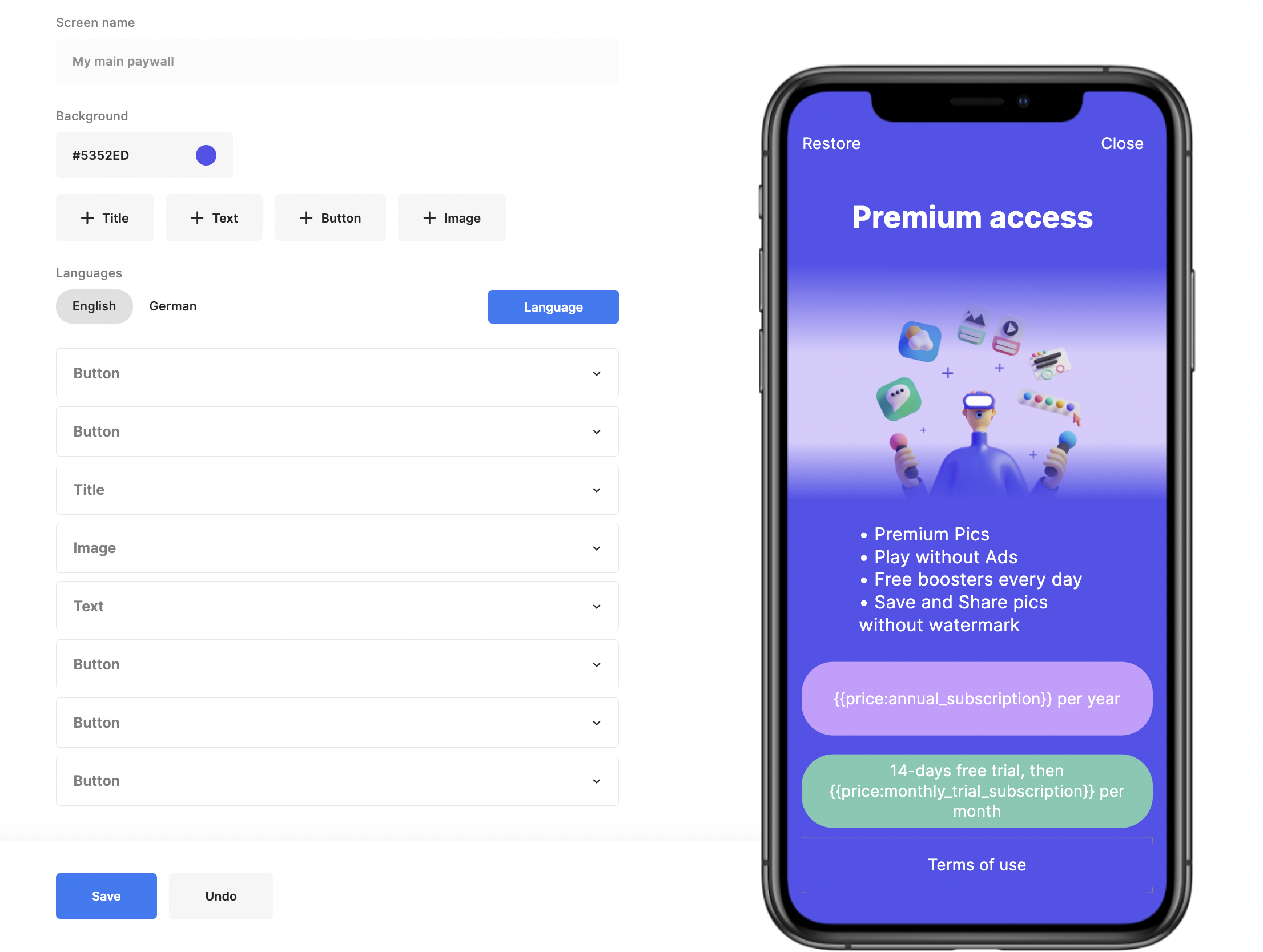
Let's create the following no-code in-app paywall:
 ## 1. Provide the screen name
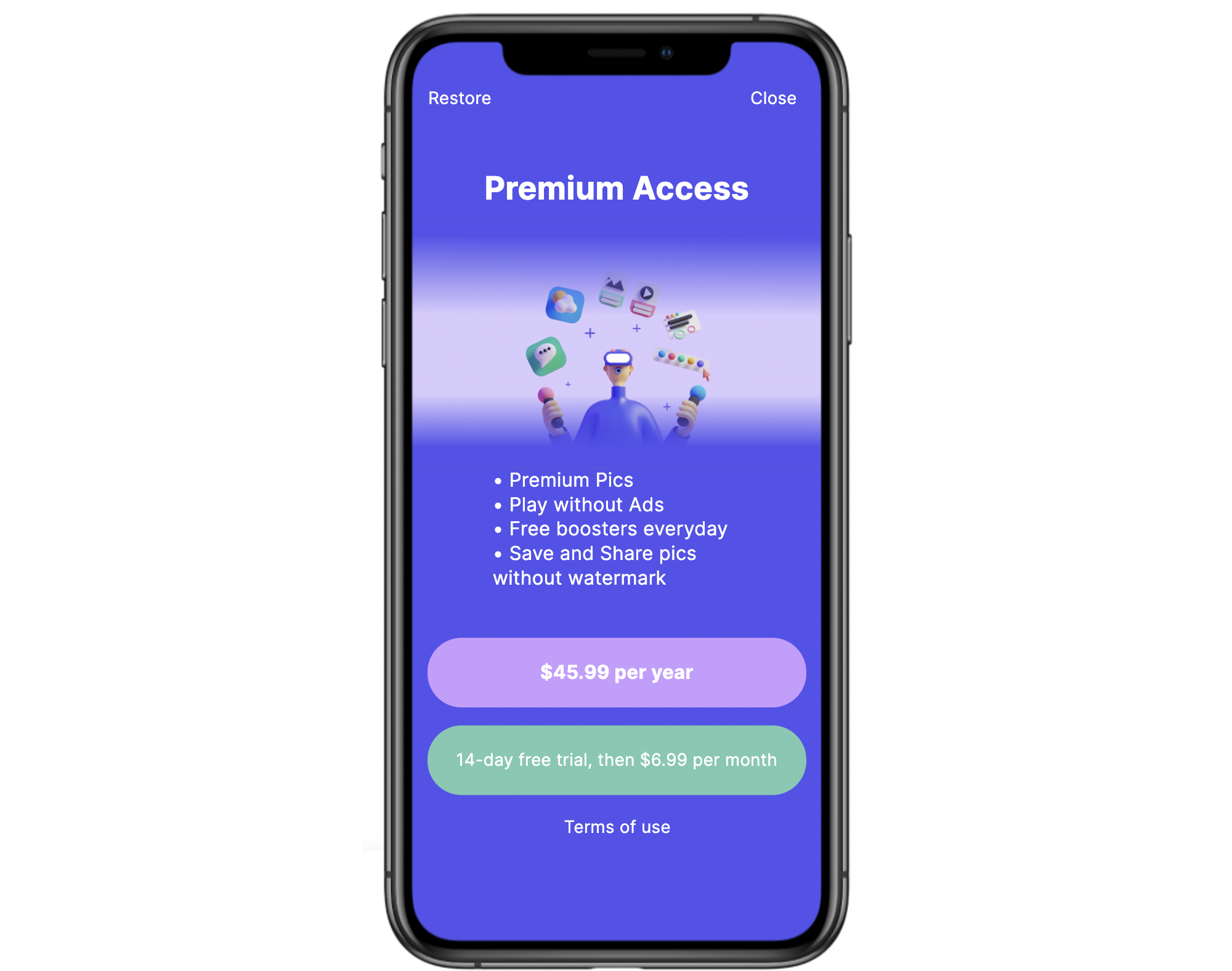
1. Navigate to the **Remote Config** section of Qonversion's Dashboard
2. Select the **Screens** tab and click **Create**
## 1. Provide the screen name
1. Navigate to the **Remote Config** section of Qonversion's Dashboard
2. Select the **Screens** tab and click **Create**
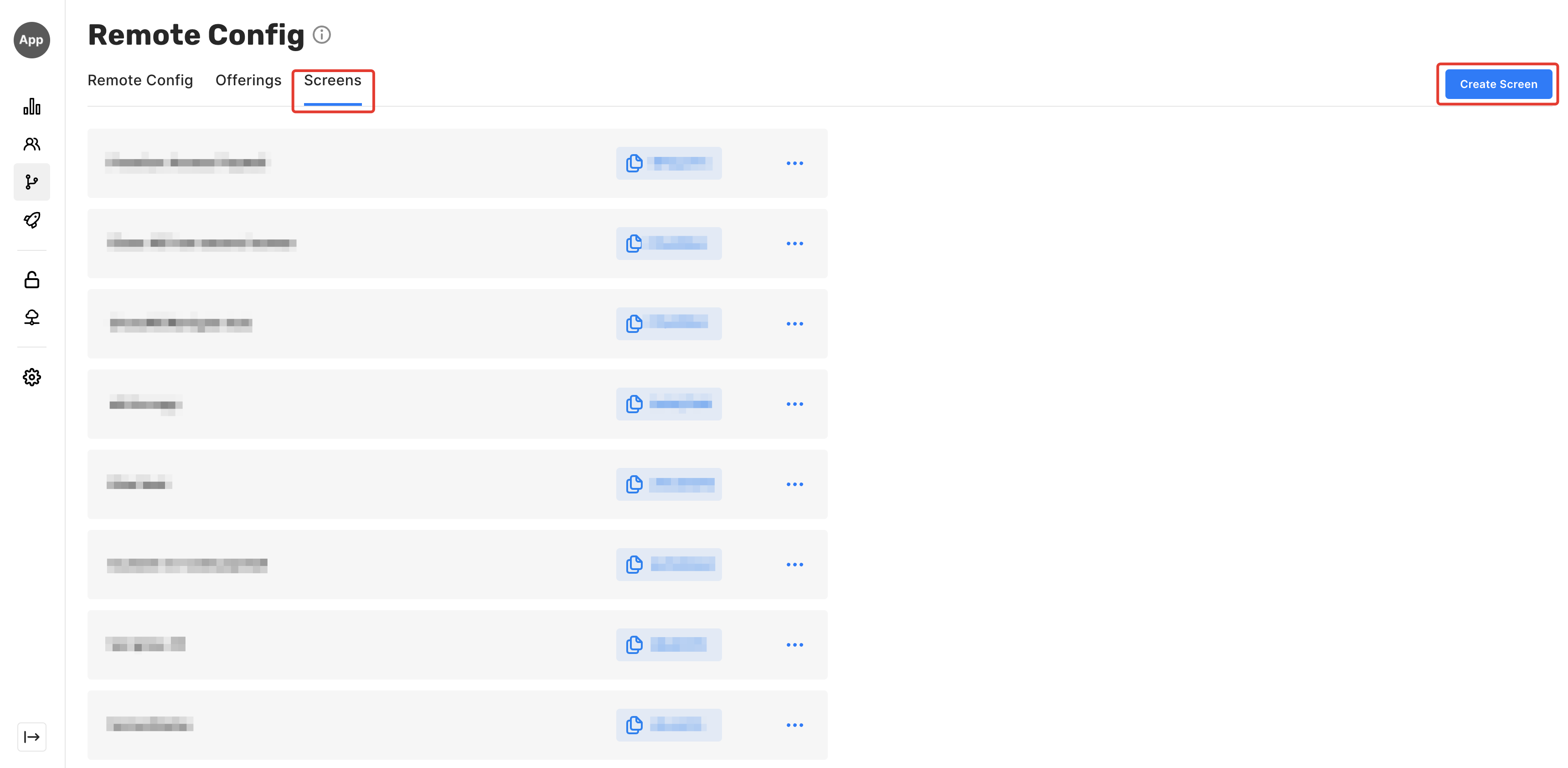 3. Provide the screen name
 ## 2. Set background color and choose localisations you support
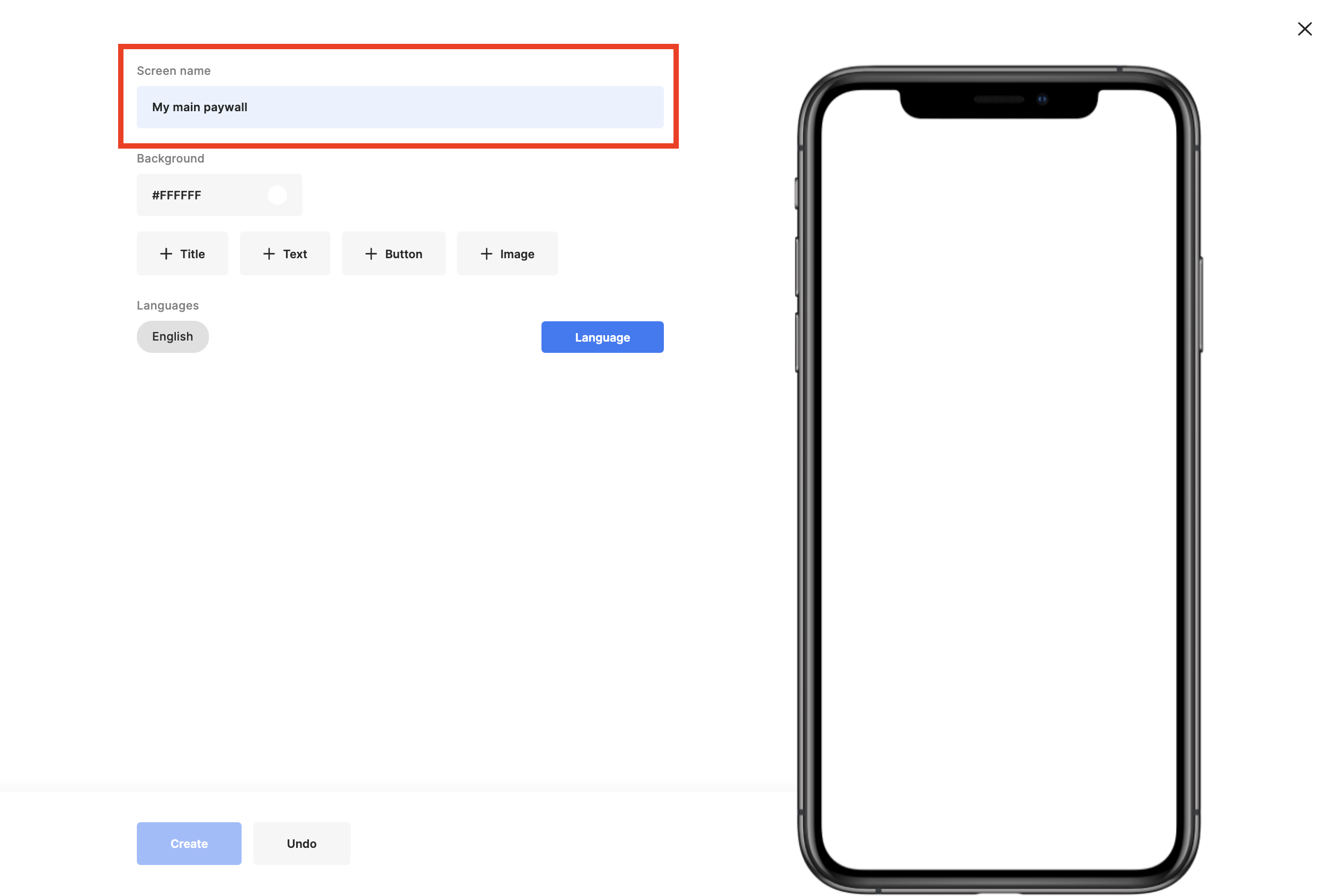
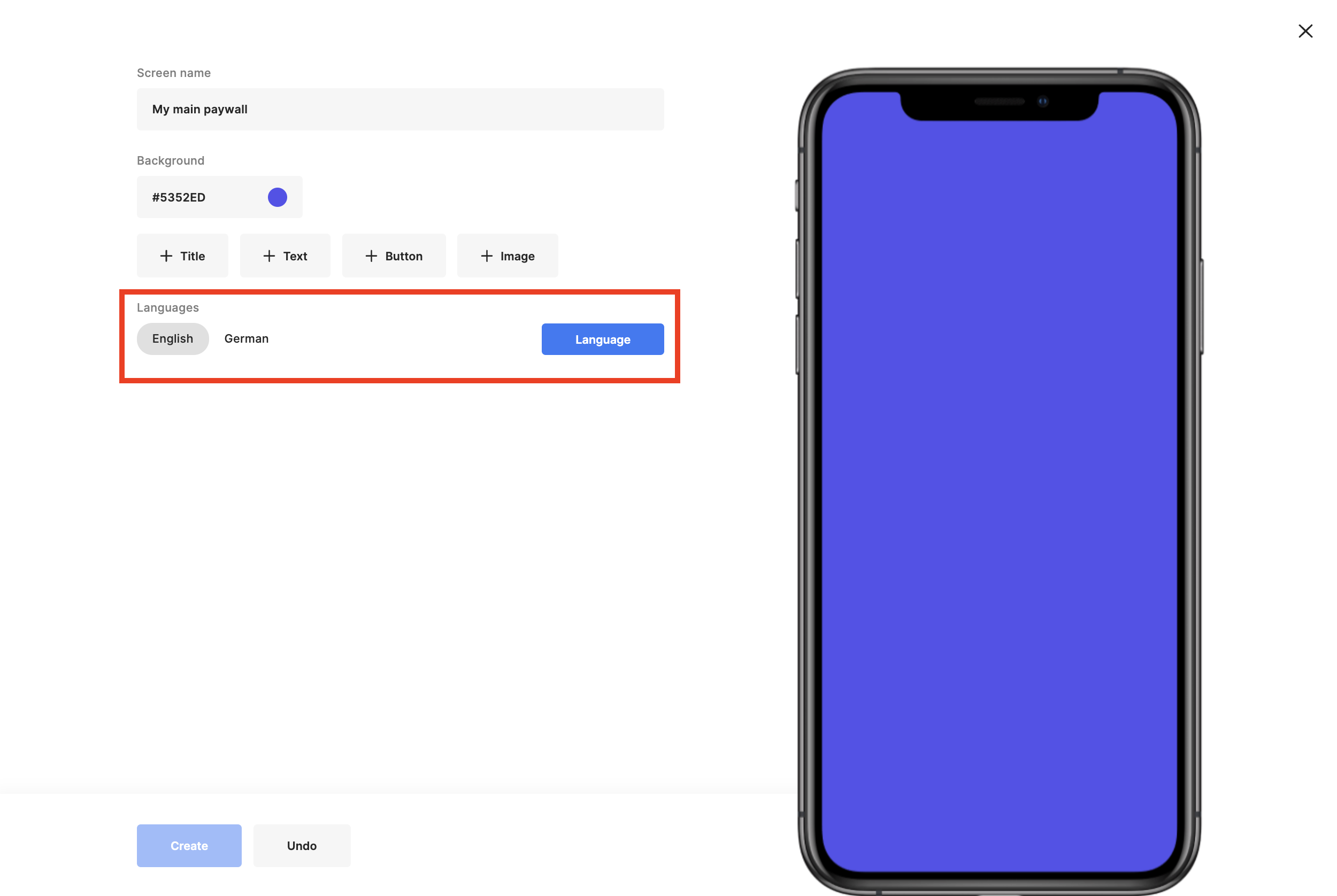
1. Click the background field and choose or insert your colour code. It's *#5352ED* in the case below.
## 2. Set background color and choose localisations you support
1. Click the background field and choose or insert your colour code. It's *#5352ED* in the case below.
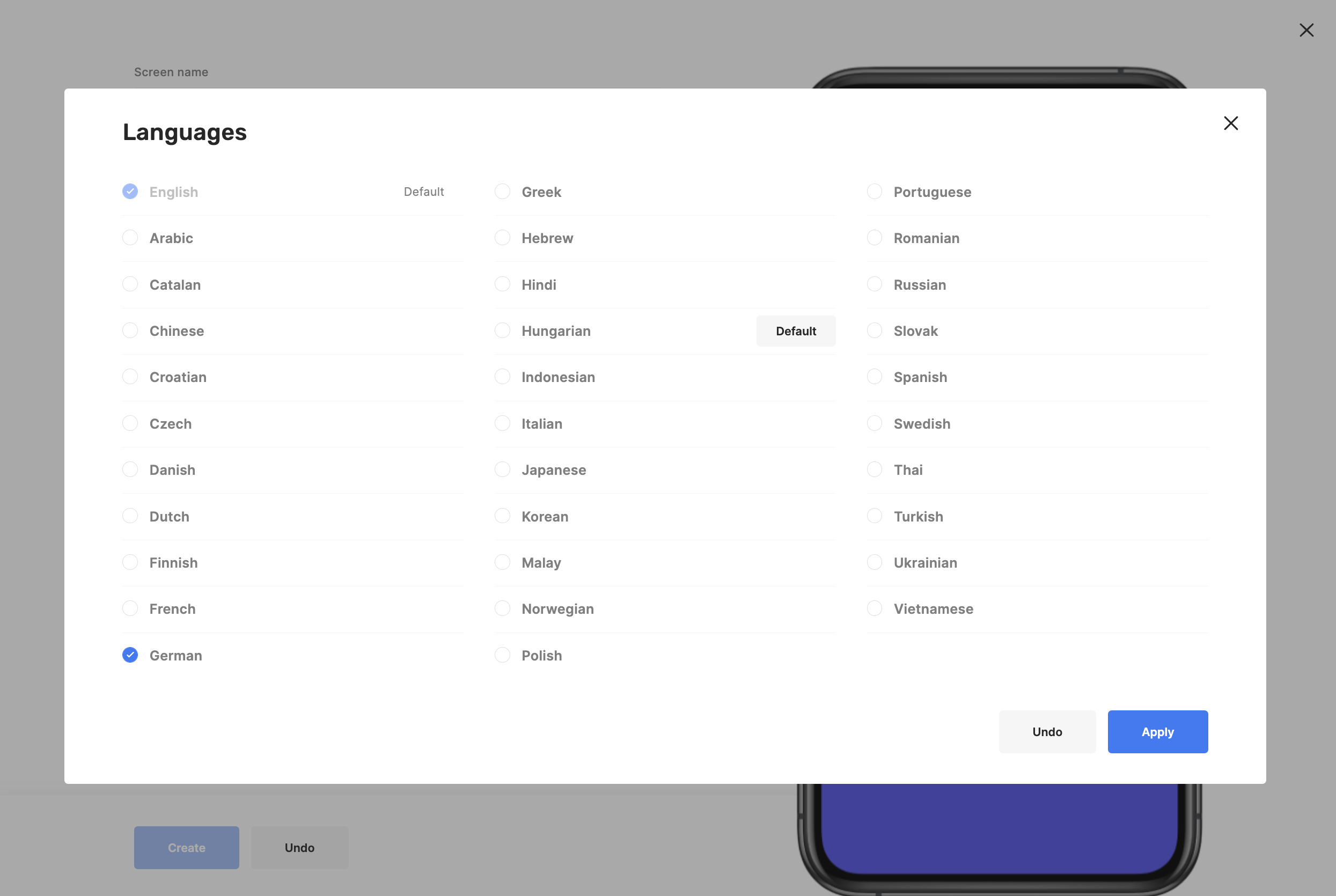
 2. Choose localisations you support. You need to fill in corresponding text values further.
* Our SDKs parse the default devices' locales and choose either the matching value or the default one.
2. Choose localisations you support. You need to fill in corresponding text values further.
* Our SDKs parse the default devices' locales and choose either the matching value or the default one.
 ## 3. Create the UI
Let's start with *Restore* and *Close* buttons
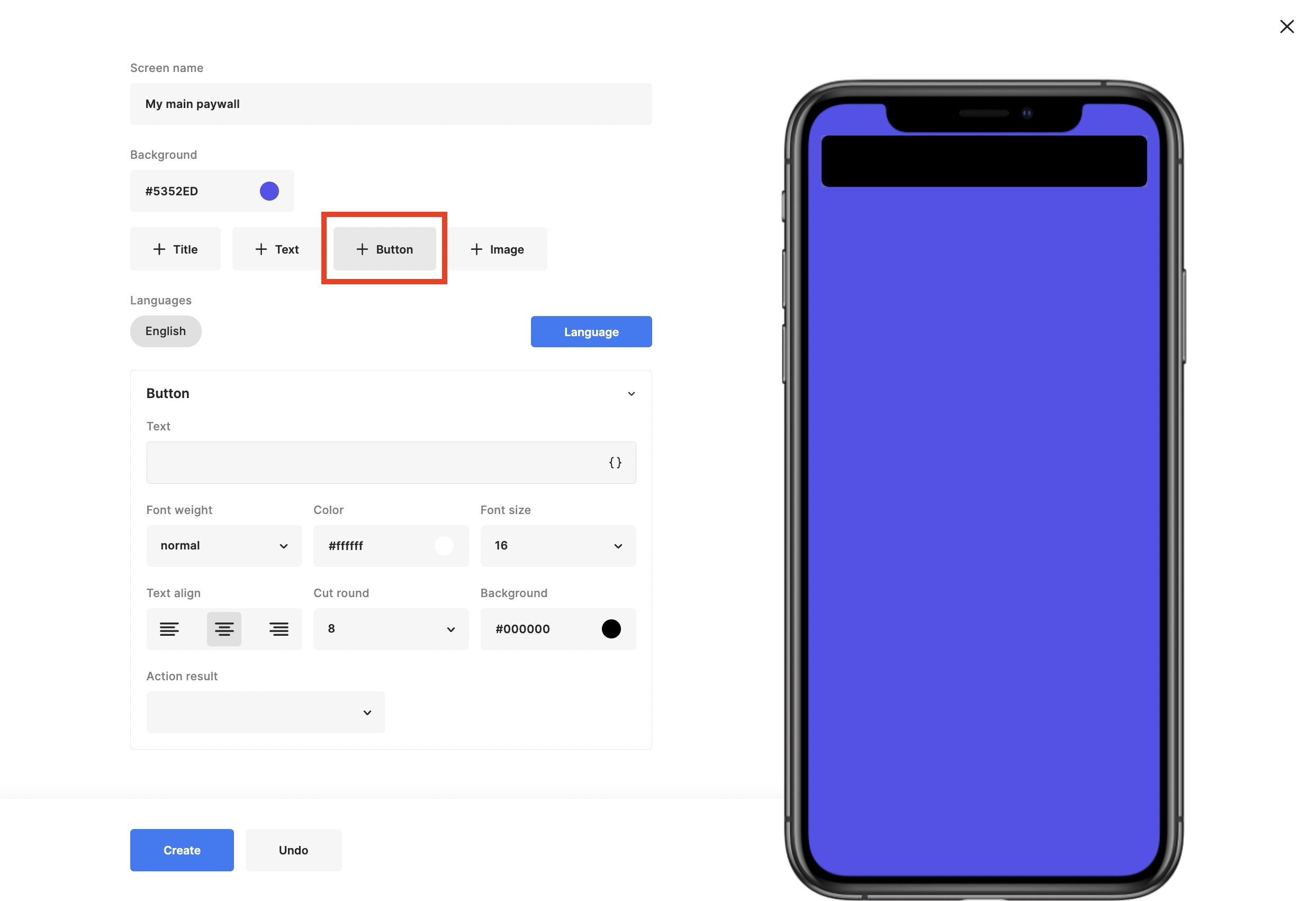
1. Add a Button by clicking on the **+ Button** label. By default, elements use the entire screen's width with small side margins.
## 3. Create the UI
Let's start with *Restore* and *Close* buttons
1. Add a Button by clicking on the **+ Button** label. By default, elements use the entire screen's width with small side margins.
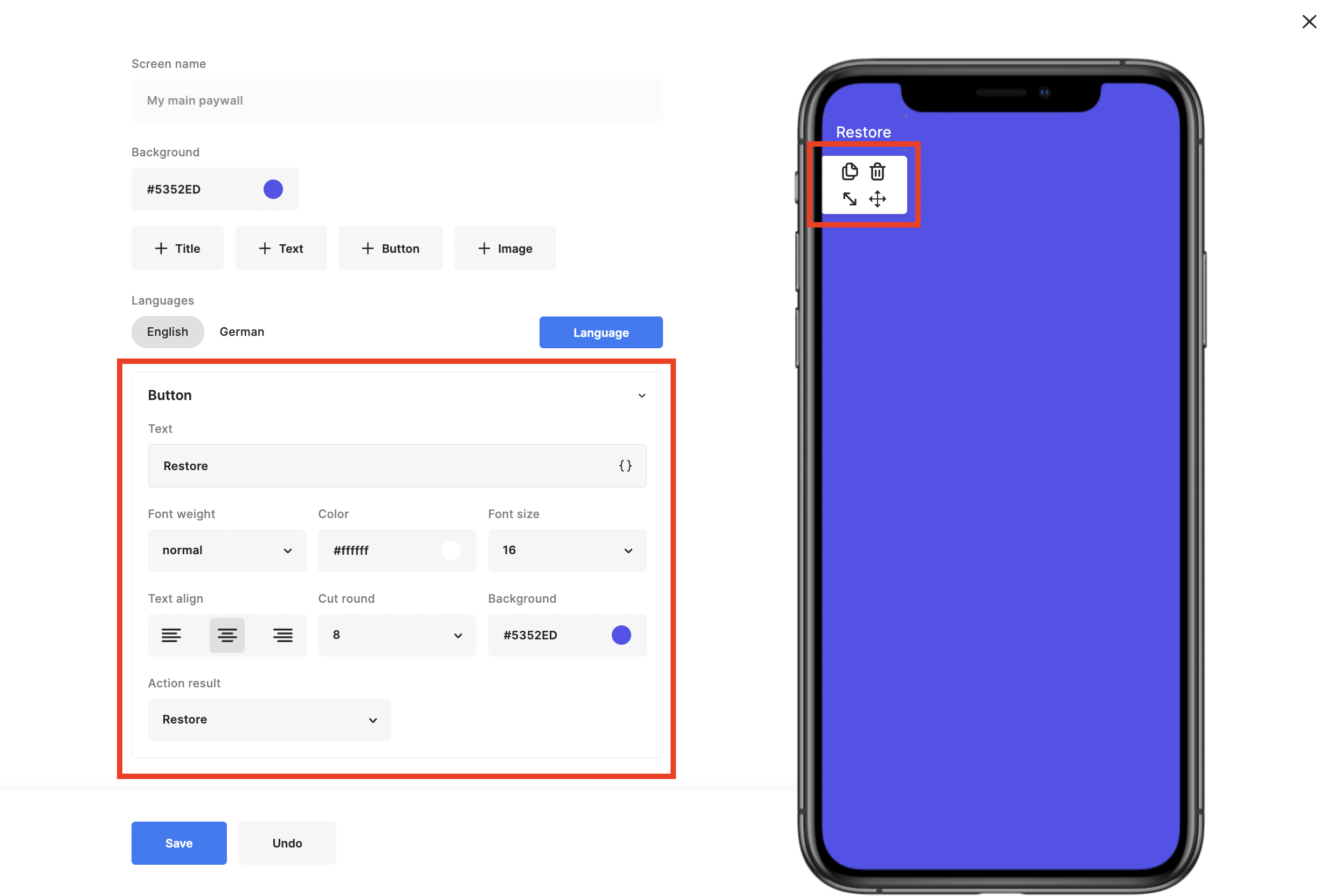
 2. Adjust button properties and set the Restore action
* You can copy created element, delete it, scale or move using actions from the context menu
2. Adjust button properties and set the Restore action
* You can copy created element, delete it, scale or move using actions from the context menu
 3. After adding the Close button, Title, Image and Text, let's proceed to purchase buttons:
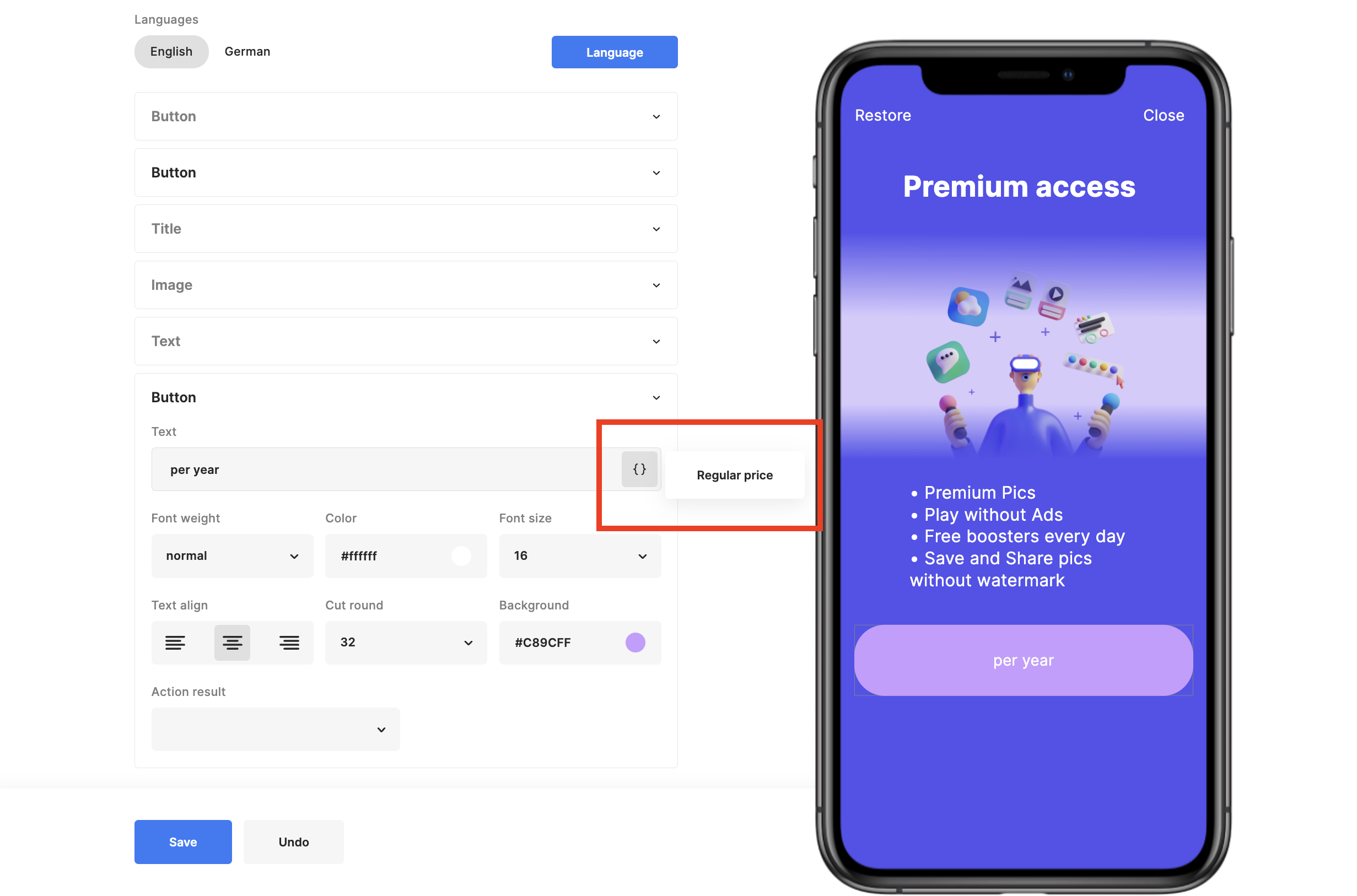
* To automatically get localised subscription prices, use the *Regular price* option from the menu
* To have subscription prices available, add your in-app products to the Qonversion Dashboard
* Do not forget to configure entitlements in case you use Qonversion in Subscription Management Mode.
3. After adding the Close button, Title, Image and Text, let's proceed to purchase buttons:
* To automatically get localised subscription prices, use the *Regular price* option from the menu
* To have subscription prices available, add your in-app products to the Qonversion Dashboard
* Do not forget to configure entitlements in case you use Qonversion in Subscription Management Mode.
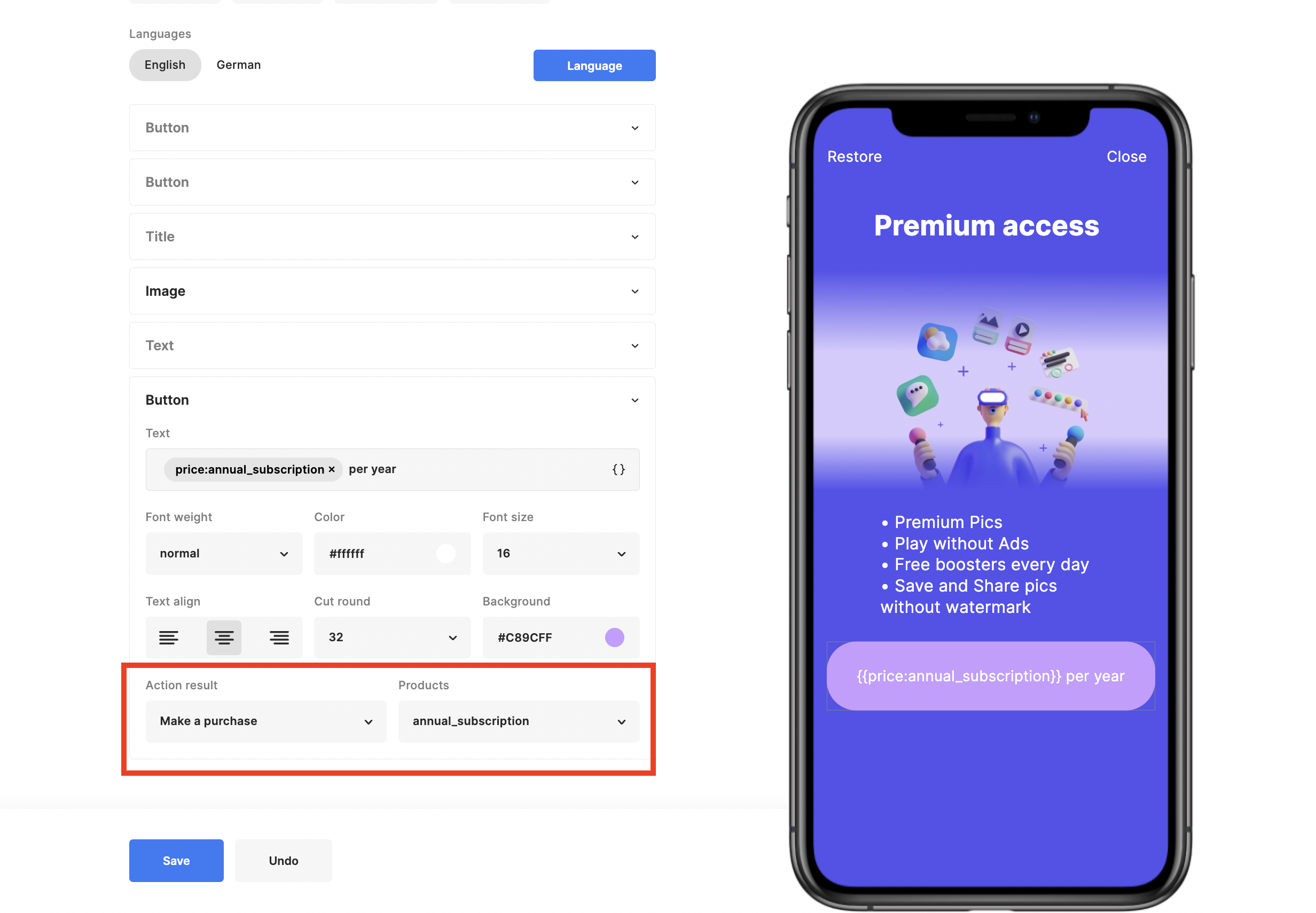
 4. Link the subscription start button with the Make a purchase action
 5. Add the monthly subscription purchase button and Terms of use link.\
That's it, the paywall is ready. Congratulations!
5. Add the monthly subscription purchase button and Terms of use link.\
That's it, the paywall is ready. Congratulations!