> ## Documentation Index
> Fetch the complete documentation index at: https://documentation.qonversion.io/llms.txt
> Use this file to discover all available pages before exploring further.
# Overview
> Build, test, and update in-app screens — instantly.
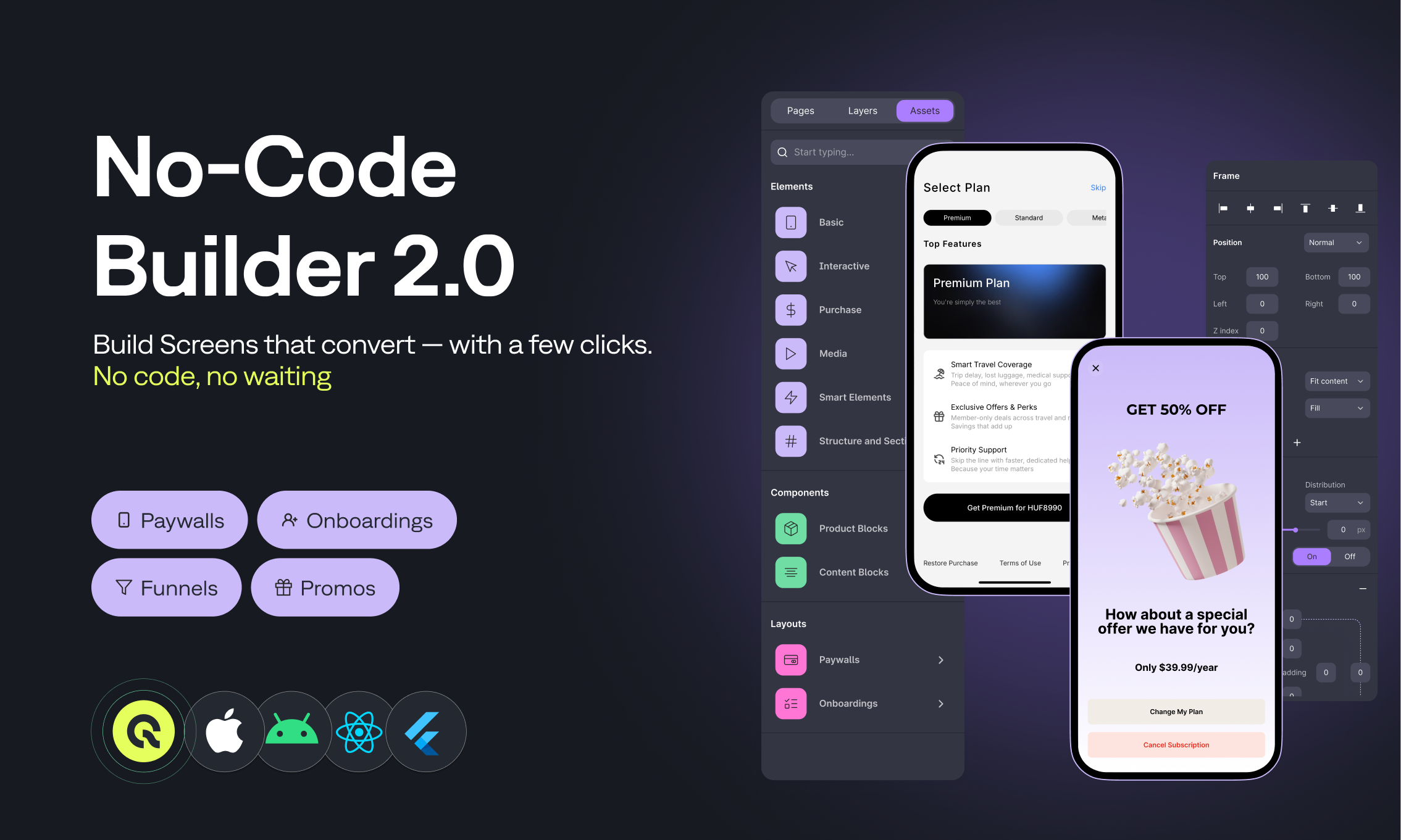
**Qonversion No-Code Builder 2.0** lets you create, customize, and update paywalls, onboarding flows, and promotional screens without releasing a new app version.
Design visually, connect real products, and publish updates directly from your Qonversion dashboard — no code or developer input required.
**Use the Builder to power:**
* Paywalls – for subscriptions or one-time offers
* Onboarding flows – single- or multi-page user journeys
* Promotional screens – for seasonal offers, upsells, or experiments
No rebuilds. No release cycles. Just publish and go live in seconds.
 ***
## Getting Started
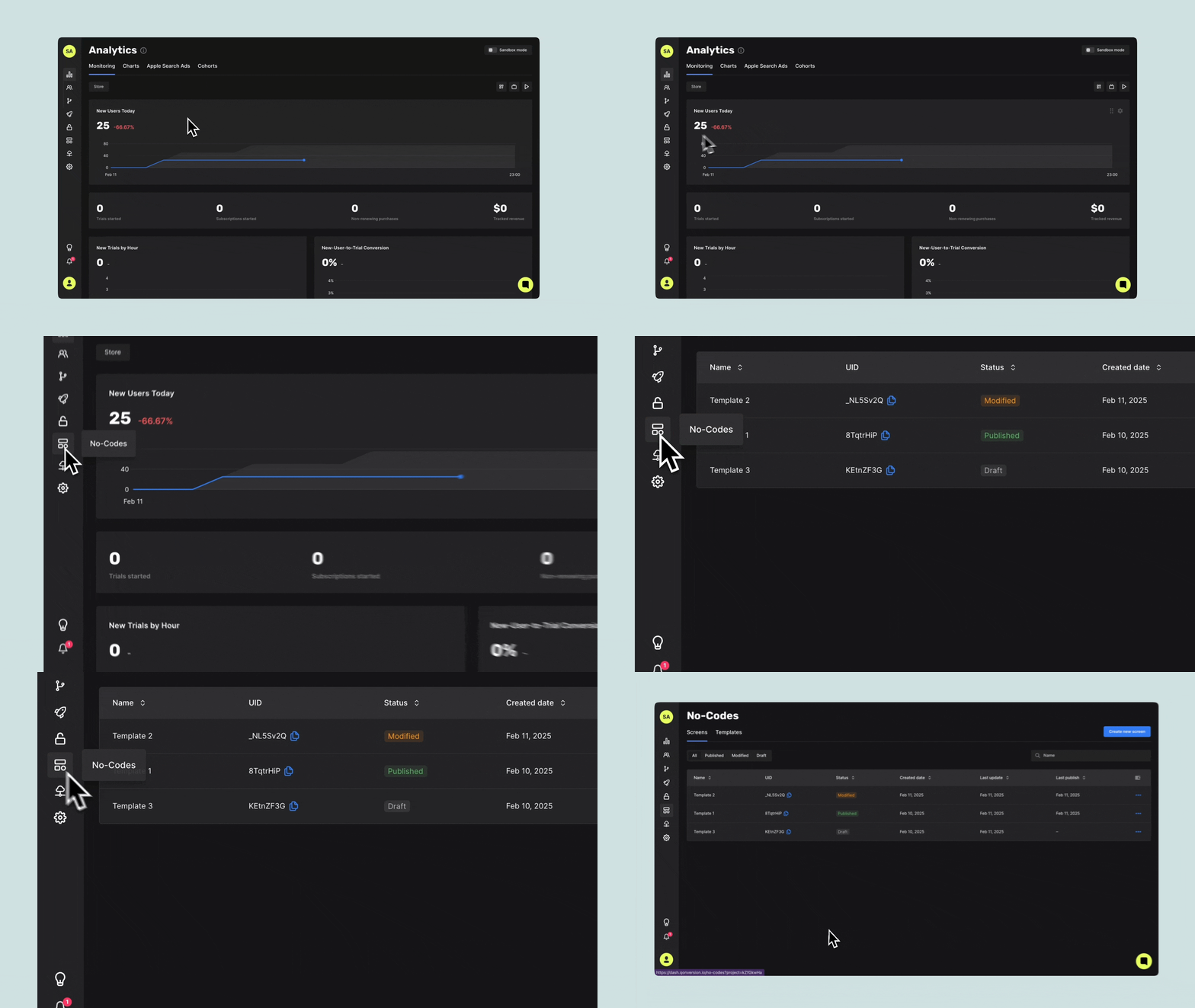
Access the Builder from the left sidebar of your Qonversion dashboard.
When creating a new screen, first choose what type of screen you’re building:
* **Mobile Paywall** — a single-page layout for offers or subscriptions.
* **Mobile Onboarding** — a multi-page screen for onboarding or other flows.
After selecting the screen type, you can decide how to start:
* **Start from a Template** – pick a ready-made layout from the gallery.
* **Design from Scratch** – create your own layout using flexible components.
You can access the No-Code Builder from the left sidebar in your Qonversion dashboard. Simply navigate to the No-Code Screens section and follow this guide to start building or [follow this link](https://dash.qonversion.io/no-code-getting-started)
[A quick guide on creating screens with No-Code Builder](getting-started)
To use the **No-Codes**, you need to follow a few simple steps:
1. [Install the SDK](installation)
2. [Create No-Codes screen](getting-started)
3. [Display the screen](displaying-no-codes)
***
## Getting Started
Access the Builder from the left sidebar of your Qonversion dashboard.
When creating a new screen, first choose what type of screen you’re building:
* **Mobile Paywall** — a single-page layout for offers or subscriptions.
* **Mobile Onboarding** — a multi-page screen for onboarding or other flows.
After selecting the screen type, you can decide how to start:
* **Start from a Template** – pick a ready-made layout from the gallery.
* **Design from Scratch** – create your own layout using flexible components.
You can access the No-Code Builder from the left sidebar in your Qonversion dashboard. Simply navigate to the No-Code Screens section and follow this guide to start building or [follow this link](https://dash.qonversion.io/no-code-getting-started)
[A quick guide on creating screens with No-Code Builder](getting-started)
To use the **No-Codes**, you need to follow a few simple steps:
1. [Install the SDK](installation)
2. [Create No-Codes screen](getting-started)
3. [Display the screen](displaying-no-codes)
 ***
## Templates
Templates in Qonversion help you build screens faster by starting from ready-made layouts designed for paywalls, onboarding, and other in-app experiences. You can choose from single-page or multi-page templates, preview them, and customize every element directly in the Builder.
* Save time by starting from pre-designed, tested layouts.
* Get inspiration from real-world paywall and onboarding patterns.
* Maintain design consistency across different screens.
***
## Templates
Templates in Qonversion help you build screens faster by starting from ready-made layouts designed for paywalls, onboarding, and other in-app experiences. You can choose from single-page or multi-page templates, preview them, and customize every element directly in the Builder.
* Save time by starting from pre-designed, tested layouts.
* Get inspiration from real-world paywall and onboarding patterns.
* Maintain design consistency across different screens.
 ***
### Template Types
* **Single-Page Templates** — ideal for paywalls, feature highlights, or promotional screens.
* **Multi-Page Templates** — designed for onboarding or connected screen flows, such as tutorials or multi-step funnels.
***
### Multi-Page Templates
Multi-page templates contain several connected screens within one flow. Each multi-page template in the gallery shows a page count indicator and a preview button. Hover over a template to open a modal preview and browse through all included pages before adding it to your project.
When you create a new screen and select **Mobile Onboarding**, the gallery automatically filters to show only **multi-page templates** — helping you find relevant layouts faster.
***
### How to Use Templates
1. Open the **Builder** → **Template Gallery** or tap **Create Screen** and choose a screen type (e.g., **Mobile Paywall** or **Mobile Onboarding**).
2. Browse available templates and use the **Preview** button to view details.
3. Click **Use Template** to add it to your project and start customizing.
***
[Custom Proxy Server](custom-proxy-server-for-sdks)
[Installation](installation)
***
### Template Types
* **Single-Page Templates** — ideal for paywalls, feature highlights, or promotional screens.
* **Multi-Page Templates** — designed for onboarding or connected screen flows, such as tutorials or multi-step funnels.
***
### Multi-Page Templates
Multi-page templates contain several connected screens within one flow. Each multi-page template in the gallery shows a page count indicator and a preview button. Hover over a template to open a modal preview and browse through all included pages before adding it to your project.
When you create a new screen and select **Mobile Onboarding**, the gallery automatically filters to show only **multi-page templates** — helping you find relevant layouts faster.
***
### How to Use Templates
1. Open the **Builder** → **Template Gallery** or tap **Create Screen** and choose a screen type (e.g., **Mobile Paywall** or **Mobile Onboarding**).
2. Browse available templates and use the **Preview** button to view details.
3. Click **Use Template** to add it to your project and start customizing.
***
[Custom Proxy Server](custom-proxy-server-for-sdks)
[Installation](installation)