> ## Documentation Index
> Fetch the complete documentation index at: https://documentation.qonversion.io/llms.txt
> Use this file to discover all available pages before exploring further.
# Launch experiments
> Plan, configure, and launch monetisation experiments with flexible A/B testing solution
This guide helps you walk through four main steps to launch your experiment:
1. Plan your experiment
2. Configure and test variants
3. Adjust traffic level
4. Launch the experiment
## 1. Plan your experiment
### Leveraging existing Remote Config
If you already use our Remote Config feature and have paywalls or onboarding flows configured, you can launch the experiment right from existing configurations. [Learn more here.](launch-test-from-remote-config)
## Start with your idea
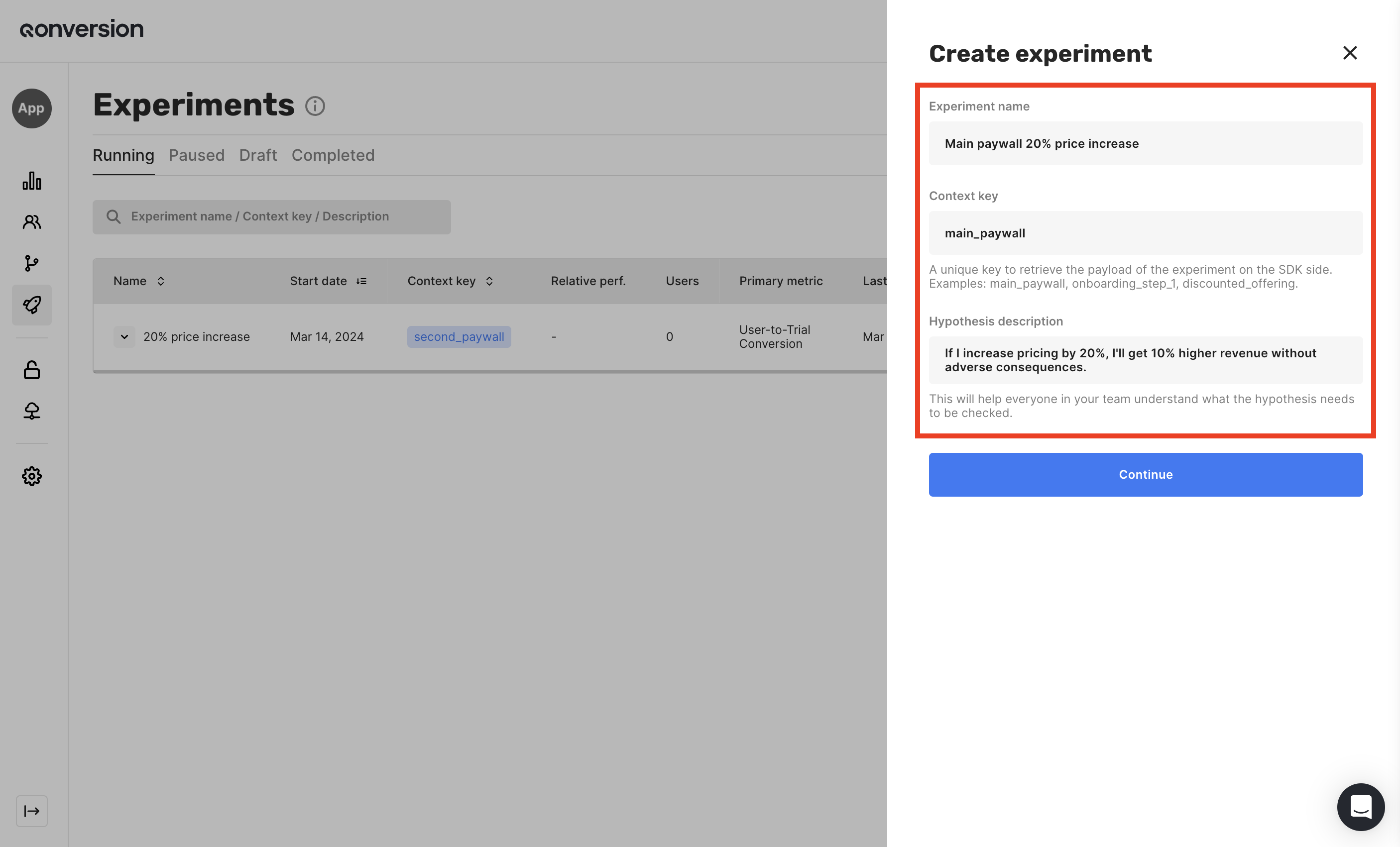
Writing down your idea beforehand helps to avoid several biases (for instance, confirmation bias) during experiment analyses. At the start, we recommend you focus on the following sections:
* **Experiment name**, as the title of your experiment, helps you understand your main idea at a glance.
* **Context key**, as an identification of your application context on the SDK side, helps you target experiments for specific parts of your user journey. Examples of app contexts you may experiment with:
* *main\_paywall*: to validate ideas for the content different user segments see on your main paywall.
* *main\_paywall\_products*: to run experiments only for the products section.
* *onboarding*: to check how changes related to the entire user onboarding journey affect your revenue.
* *onboarding\_step\_2*: to validate changes for some specific steps of your onboarding flow.
* *\[your\_key]*: to run experiments for any other part of your user's monetization experience.
* **Hypothesis description**, as a short idea representation, helps you stay focused on what you intended to validate initially.
 ## Choose your Primary Metric
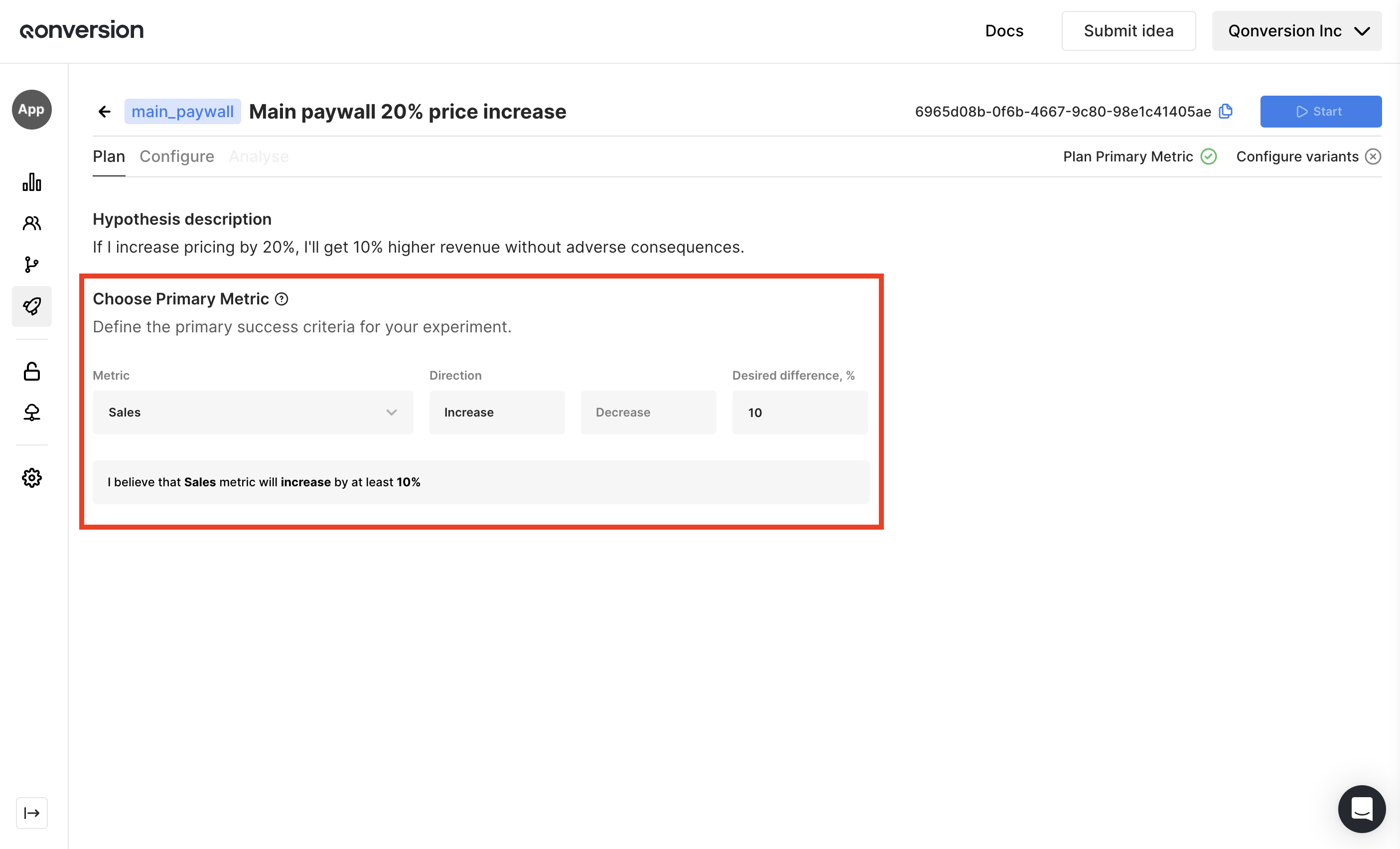
After filling in the main information, you can select the Primary Metric for the experiment. Setting primary metrics in this step helps you get information about statistical significance and recommended sample size during the experiment analysis phase. Qonversion metrics you can choose from:
* User-to-Trial Conversion
* User-to-Paid Conversion
* New Trials
* Trial-to-Paid Conversion
* Trials Cancellation Rate
* New Subscriptions
* Subscriptions Cancellation Rate
* Sales
* Proceeds
* Refunds
## Choose your Primary Metric
After filling in the main information, you can select the Primary Metric for the experiment. Setting primary metrics in this step helps you get information about statistical significance and recommended sample size during the experiment analysis phase. Qonversion metrics you can choose from:
* User-to-Trial Conversion
* User-to-Paid Conversion
* New Trials
* Trial-to-Paid Conversion
* Trials Cancellation Rate
* New Subscriptions
* Subscriptions Cancellation Rate
* Sales
* Proceeds
* Refunds
 ## 2. Configure and test variants
### Prerequisites
To enable Qonversion to run and calculate A/B testing results, you need to have [Qonversion SDK installed](quickstart) in your app.
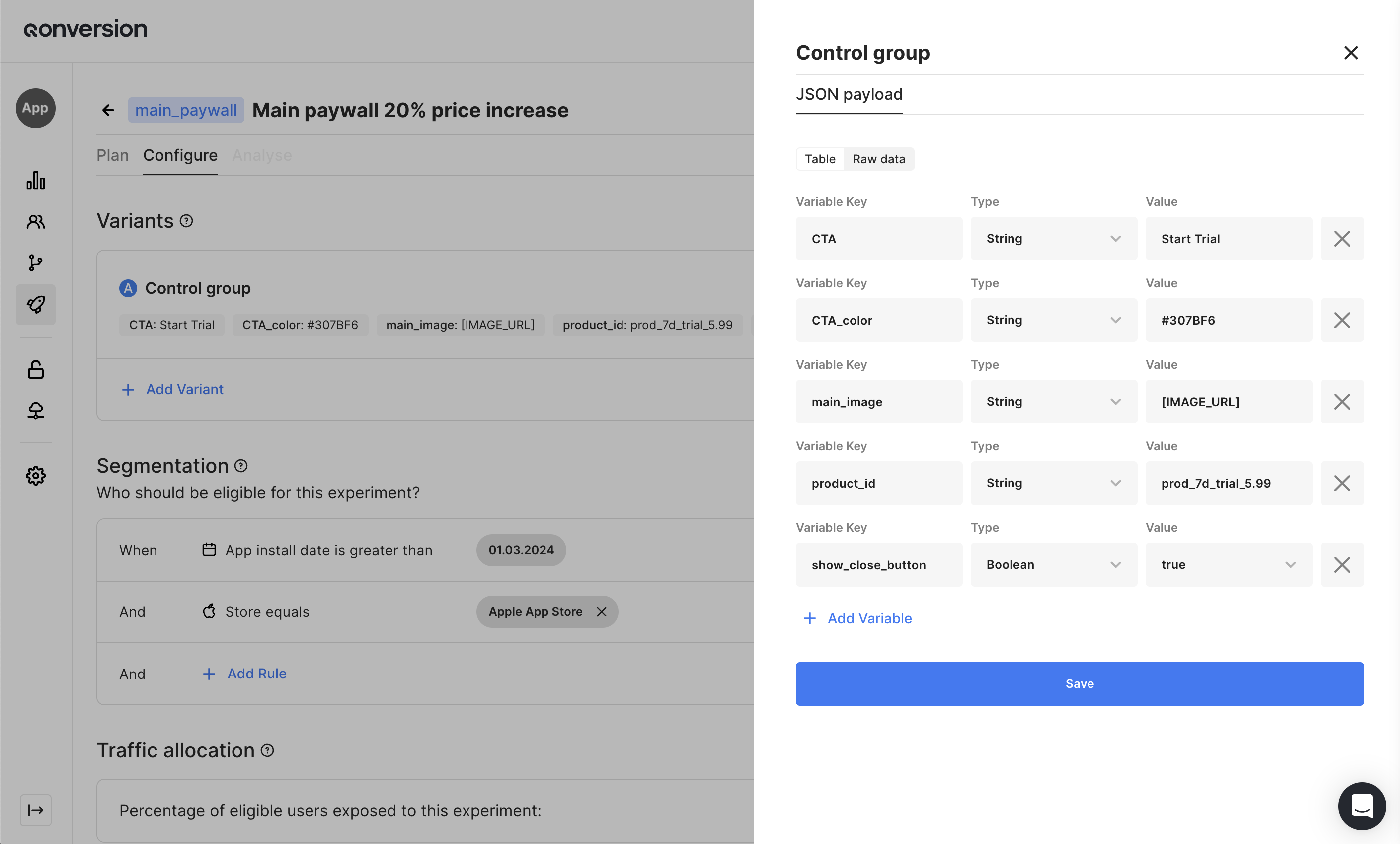
By using Qonversion Experiments, you can test any part of your paywall (and even more). Moreover, Experiments and Remote Config share the same API & architectural concepts, so you do not need to implement complex logic to use both.
## Use various data types
Qonversion Experiments work with the same in-app values as Remote Config. The core of these attributes is a plain JSON file consisting of key-value data. We support the following data types:
* **String**.
* Use this option to validate pricing, communication, or visual hypothesis.
* Examples: *native.subs.full.v4.w\.8.99.trial.7d*, *Unlock Fast and Secure Browsing*, *#3076FF*, etc.
* **Number**.
* Use this option, for example, to show only a subset of your onboarding screens.
* Examples: *2*, *5*, *23*, etc.
* **Boolean**.
* Use this option to turn some features on or off.
* Examples: *true*, *false*
* **Json**.
* Use this option to validate advanced changes in your app's behavior.
* Examples: `{"banner_text": "Choose your plan", "product_top": "native.subs.full.v4.w.8.99.trial.7d", "product_bottom": "subs.month.17.99", "skip_onboarding": true}`.
## 2. Configure and test variants
### Prerequisites
To enable Qonversion to run and calculate A/B testing results, you need to have [Qonversion SDK installed](quickstart) in your app.
By using Qonversion Experiments, you can test any part of your paywall (and even more). Moreover, Experiments and Remote Config share the same API & architectural concepts, so you do not need to implement complex logic to use both.
## Use various data types
Qonversion Experiments work with the same in-app values as Remote Config. The core of these attributes is a plain JSON file consisting of key-value data. We support the following data types:
* **String**.
* Use this option to validate pricing, communication, or visual hypothesis.
* Examples: *native.subs.full.v4.w\.8.99.trial.7d*, *Unlock Fast and Secure Browsing*, *#3076FF*, etc.
* **Number**.
* Use this option, for example, to show only a subset of your onboarding screens.
* Examples: *2*, *5*, *23*, etc.
* **Boolean**.
* Use this option to turn some features on or off.
* Examples: *true*, *false*
* **Json**.
* Use this option to validate advanced changes in your app's behavior.
* Examples: `{"banner_text": "Choose your plan", "product_top": "native.subs.full.v4.w.8.99.trial.7d", "product_bottom": "subs.month.17.99", "skip_onboarding": true}`.
 ## Get your configuration
### Configuration source
Qonversion Remote Configs and Experiments share single methods to get configurations. You can distinguish the source of the result received by looking at the *source* field. [Learn more about fields available](launch-experiments#remoteconfig-fields-description).
To receive the configuration **with the Context key set**, call the following Qonversion `remoteConfig` method.
```swift Swift theme={null}
Qonversion.shared().remoteConfig(contextKey: "my_context_key") { remoteConfig, error in
// Use remoteConfig here
}
```
```objectivec Objective-C theme={null}
[[Qonversion sharedInstance] remoteConfig:@"my_context_key" completion:^(QONRemoteConfig * _Nullable remoteConfig, NSError * _Nullable error) {
// Use remoteConfig here
}];
```
```kotlin Kotlin theme={null}
Qonversion.shared.remoteConfig("my_context_key", object : QonversionRemoteConfigCallback {
override fun onSuccess(remoteConfig: QRemoteConfig) {
// Use remoteConfig here
}
override fun onError(error: QonversionError) {
// Handle error here
}
})
```
```java Java theme={null}
Qonversion.getSharedInstance().remoteConfig("my_context_key", new QonversionRemoteConfigCallback() {
@Override
public void onSuccess(@NonNull QRemoteConfig remoteConfig) {
// Use remoteConfig here
}
@Override
public void onError(@NonNull QonversionError error) {
// Handle error here
}
});
```
```typescript React Native theme={null}
const remoteConfig = await Qonversion.getSharedInstance().remoteConfig('my_context_key');
```
```dart Flutter theme={null}
final remoteConfig = await Qonversion.getSharedInstance().remoteConfig(contextKey: "my_context_key");
```
```csharp Unity theme={null}
Qonversion.GetSharedInstance().RemoteConfig("my_context_key", (remoteConfig, error) =>
{
// Use remoteConfig here
});
```
```typescript Cordova theme={null}
const remoteConfig = await Qonversion.getSharedInstance().remoteConfig('my_context_key');
```
```typescript Capacitor theme={null}
const remoteConfig = await Qonversion.getSharedInstance().remoteConfig('my_context_key');
```
In case you're using configurations **with empty Context key**, call the same method with no arguments added:
```swift Swift theme={null}
Qonversion.shared().remoteConfig { remoteConfig, error in
// Use remoteConfig here
}
```
```objectivec Objective-C theme={null}
[[Qonversion sharedInstance] remoteConfig:^(QONRemoteConfig * _Nullable remoteConfig, NSError * _Nullable error) {
// Use remoteConfig here
}];
```
```kotlin Kotlin theme={null}
Qonversion.shared.remoteConfig(object : QonversionRemoteConfigCallback {
override fun onSuccess(remoteConfig: QRemoteConfig) {
// Use remoteConfig here
}
override fun onError(error: QonversionError) {
// Handle error here
}
})
```
```java Java theme={null}
Qonversion.getSharedInstance().remoteConfig(new QonversionRemoteConfigCallback() {
@Override
public void onSuccess(@NonNull QRemoteConfig remoteConfig) {
// Use remoteConfig here
}
@Override
public void onError(@NonNull QonversionError error) {
// Handle error here
}
});
```
```typescript React Native theme={null}
const remoteConfig = await Qonversion.getSharedInstance().remoteConfig();
```
```dart Flutter theme={null}
final remoteConfig = await Qonversion.getSharedInstance().remoteConfig();
```
```csharp Unity theme={null}
Qonversion.GetSharedInstance().RemoteConfig((remoteConfig, error) =>
{
// Use remoteConfig here
});
```
```typescript Cordova theme={null}
const remoteConfig = await Qonversion.getSharedInstance().remoteConfig();
```
```typescript Capacitor theme={null}
const remoteConfig = await Qonversion.getSharedInstance().remoteConfig();
```
If necessary, you can also request a list of remote configs for all the context keys, including the empty one.
```swift Swift theme={null}
Qonversion.shared().remoteConfigList { remoteConfigList, error in
// Use remoteConfigList here
}
```
```objectivec Objective-C theme={null}
[[Qonversion sharedInstance] remoteConfigList:^(QONRemoteConfigList * _Nullable remoteConfigList, NSError * _Nullable error) {
// Use remoteConfigList here
}]
```
```kotlin Kotlin theme={null}
Qonversion.shared.remoteConfigList(object : QonversionRemoteConfigListCallback {
override fun onSuccess(remoteConfigList: QRemoteConfigList) {
// Use remoteConfigList here
}
override fun onError(error: QonversionError) {
// Handle error here
}
})
```
```java Java theme={null}
Qonversion.getSharedInstance().remoteConfigList(new QonversionRemoteConfigListCallback() {
@Override
public void onSuccess(@NonNull QRemoteConfigList remoteConfigList) {
// Use remoteConfigList here
}
@Override
public void onError(@NonNull QonversionError error) {
// Handle error here
}
});
```
```typescript React Native theme={null}
const remoteConfigList = await Qonversion.getSharedInstance().remoteConfigList();
```
```dart Flutter theme={null}
final remoteConfigList = await Qonversion.getSharedInstance().remoteConfigList();
```
```csharp Unity theme={null}
Qonversion.GetSharedInstance().RemoteConfigList((remoteConfigList, error) =>
{
// Use remoteConfigList here
});
```
```typescript Cordova theme={null}
const remoteConfigList = await Qonversion.getSharedInstance().remoteConfigList();
```
```typescript Capacitor theme={null}
const remoteConfigList = await Qonversion.getSharedInstance().remoteConfigList();
```
If you need remote configs for a specific set of context keys, just use the following method.
```swift Swift theme={null}
Qonversion.shared().remoteConfigList(
contextKeys: ["my_context_key", "another_context_key"],
includeEmptyContextKey: true // to include remote config without context key
) { remoteConfigList, error in
// Use remoteConfigList here
}
```
```objectivec Objective-C theme={null}
[[Qonversion sharedInstance] remoteConfigList:@[@"my_context_key", @"another_context_key"]
includeEmptyContextKey:YES // to include remote config without context key
completion:^(QONRemoteConfigList * _Nullable remoteConfigList, NSError * _Nullable error) {
// Use remoteConfigList here
}
```
```kotlin Kotlin theme={null}
Qonversion.shared.remoteConfigList(
listOf("my_context_key", "another_context_key"),
true, // to include remote config without context key
object : QonversionRemoteConfigListCallback {
override fun onSuccess(remoteConfigList: QRemoteConfigList) {
// Use remoteConfigList here
}
override fun onError(error: QonversionError) {
// Handle error here
}
}
)
```
```java Java theme={null}
Qonversion.getSharedInstance().remoteConfigList(
Arrays.asList("my_context_key", "another_context_key"),
true, // to include remote config without context key
new QonversionRemoteConfigListCallback() {
@Override
public void onSuccess(@NonNull QRemoteConfigList remoteConfigList) {
// Use remoteConfigList here
}
@Override
public void onError(@NonNull QonversionError error) {
// Handle error here
}
}
);
```
```typescript React Native theme={null}
const remoteConfigList = await Qonversion.getSharedInstance().remoteConfigListForContextKeys(
['my_context_key', 'another_context_key'],
true // to include remote config without context key
);
```
```dart Flutter theme={null}
final remoteConfigList = await Qonversion.getSharedInstance().remoteConfigListForContextKeys(
["my_context_key", "another_context_key"],
true // to include remote config without context key
);
```
```csharp Unity theme={null}
Qonversion.GetSharedInstance().RemoteConfigList(
new string[] {"my_context_key", "another_context_key"},
true, // to include remote config without context key
(remoteConfigList, error) =>
{
// Use remoteConfigList here
});
```
```typescript Cordova theme={null}
const remoteConfigList = await Qonversion.getSharedInstance().remoteConfigListForContextKeys(
['my_context_key', 'another_context_key'],
true // to include remote config without context key
);
```
```typescript Capacitor theme={null}
const remoteConfigList = await Qonversion.getSharedInstance().remoteConfigListForContextKeys(
['my_context_key', 'another_context_key'],
true // to include remote config without context key
);
```
### `RemoteConfigList` fields description
| Field | Description |
| ------------------------------ | ------------------------------------------------------------------------------------------------ |
| remoteConfigs | All the available remote configs. List of `RemoteConfig`. |
| remoteConfigForContextKey | Available remote config from the list above, filtered by the context key. Single `RemoteConfig`. |
| remoteConfigForEmptyContextKey | Available remote config from the list above, with no context key set. Single `RemoteConfig`. |
### `RemoteConfig` fields description
| Field | Description |
| ---------- | ---------------------------------------------------------------- |
| payload | JSON payload you have configured using the Qonversion dashboard. |
| experiment | Object (`Experiment`) with the experiment's information. |
| source | Source (`RemoteConfigurationSource`) of the configuration. |
### `Experiment` description
| Field | Description |
| ------------- | --------------------------------------------------------------------------------------------- |
| identifier/id | Experiment's identifier. |
| name | Experiment's name. The same as you set in Qonversion. You can use it for analytical purposes. |
| group | Experiment's group (`ExperimentGroup`) the user has been assigned to. |
### `ExperimentGroup` description
| Field | Description |
| ------------- | --------------------------------------------------------------------------------------------------- |
| identifier/id | Experiment group's identifier. |
| name | Experiment group's name. The same as you set in Qonversion. You can use it for analytical purposes. |
| type | Type of the experiment's group. Either control or treatment. |
### `RemoteConfigurationSource` description
| Field | Description |
| -------------- | ------------------------------------------------------------------------------------------------- |
| identifier/id | Either experiment's or remote config's ID. |
| name | Either experiment's or remote config's name. |
| assignmentType | How the current payload was assigned to the user. Either automatically or manually. |
| type | One of the following: experiment control group, experiment treatment group, remote configuration. |
| contextKey | Context key assigned to either experiment or remote config. |
## Test experimental changes before launch
Please, note, the guide below allows you to test only configurations created through the [Experiments dashboard section](https://dash.qonversion.io/ab-testing). To test configurations from the [Remote Config section](https://dash.qonversion.io/remote-configs), please, follow the [test changes before launch](remote-config#test-changes-before-launch) guide.
We highly recommend testing if your app works properly with the changes you want to roll out to your users. You can do so by following the following steps:
1. Copy the ID for your experiment and the variant you want to test.
## Get your configuration
### Configuration source
Qonversion Remote Configs and Experiments share single methods to get configurations. You can distinguish the source of the result received by looking at the *source* field. [Learn more about fields available](launch-experiments#remoteconfig-fields-description).
To receive the configuration **with the Context key set**, call the following Qonversion `remoteConfig` method.
```swift Swift theme={null}
Qonversion.shared().remoteConfig(contextKey: "my_context_key") { remoteConfig, error in
// Use remoteConfig here
}
```
```objectivec Objective-C theme={null}
[[Qonversion sharedInstance] remoteConfig:@"my_context_key" completion:^(QONRemoteConfig * _Nullable remoteConfig, NSError * _Nullable error) {
// Use remoteConfig here
}];
```
```kotlin Kotlin theme={null}
Qonversion.shared.remoteConfig("my_context_key", object : QonversionRemoteConfigCallback {
override fun onSuccess(remoteConfig: QRemoteConfig) {
// Use remoteConfig here
}
override fun onError(error: QonversionError) {
// Handle error here
}
})
```
```java Java theme={null}
Qonversion.getSharedInstance().remoteConfig("my_context_key", new QonversionRemoteConfigCallback() {
@Override
public void onSuccess(@NonNull QRemoteConfig remoteConfig) {
// Use remoteConfig here
}
@Override
public void onError(@NonNull QonversionError error) {
// Handle error here
}
});
```
```typescript React Native theme={null}
const remoteConfig = await Qonversion.getSharedInstance().remoteConfig('my_context_key');
```
```dart Flutter theme={null}
final remoteConfig = await Qonversion.getSharedInstance().remoteConfig(contextKey: "my_context_key");
```
```csharp Unity theme={null}
Qonversion.GetSharedInstance().RemoteConfig("my_context_key", (remoteConfig, error) =>
{
// Use remoteConfig here
});
```
```typescript Cordova theme={null}
const remoteConfig = await Qonversion.getSharedInstance().remoteConfig('my_context_key');
```
```typescript Capacitor theme={null}
const remoteConfig = await Qonversion.getSharedInstance().remoteConfig('my_context_key');
```
In case you're using configurations **with empty Context key**, call the same method with no arguments added:
```swift Swift theme={null}
Qonversion.shared().remoteConfig { remoteConfig, error in
// Use remoteConfig here
}
```
```objectivec Objective-C theme={null}
[[Qonversion sharedInstance] remoteConfig:^(QONRemoteConfig * _Nullable remoteConfig, NSError * _Nullable error) {
// Use remoteConfig here
}];
```
```kotlin Kotlin theme={null}
Qonversion.shared.remoteConfig(object : QonversionRemoteConfigCallback {
override fun onSuccess(remoteConfig: QRemoteConfig) {
// Use remoteConfig here
}
override fun onError(error: QonversionError) {
// Handle error here
}
})
```
```java Java theme={null}
Qonversion.getSharedInstance().remoteConfig(new QonversionRemoteConfigCallback() {
@Override
public void onSuccess(@NonNull QRemoteConfig remoteConfig) {
// Use remoteConfig here
}
@Override
public void onError(@NonNull QonversionError error) {
// Handle error here
}
});
```
```typescript React Native theme={null}
const remoteConfig = await Qonversion.getSharedInstance().remoteConfig();
```
```dart Flutter theme={null}
final remoteConfig = await Qonversion.getSharedInstance().remoteConfig();
```
```csharp Unity theme={null}
Qonversion.GetSharedInstance().RemoteConfig((remoteConfig, error) =>
{
// Use remoteConfig here
});
```
```typescript Cordova theme={null}
const remoteConfig = await Qonversion.getSharedInstance().remoteConfig();
```
```typescript Capacitor theme={null}
const remoteConfig = await Qonversion.getSharedInstance().remoteConfig();
```
If necessary, you can also request a list of remote configs for all the context keys, including the empty one.
```swift Swift theme={null}
Qonversion.shared().remoteConfigList { remoteConfigList, error in
// Use remoteConfigList here
}
```
```objectivec Objective-C theme={null}
[[Qonversion sharedInstance] remoteConfigList:^(QONRemoteConfigList * _Nullable remoteConfigList, NSError * _Nullable error) {
// Use remoteConfigList here
}]
```
```kotlin Kotlin theme={null}
Qonversion.shared.remoteConfigList(object : QonversionRemoteConfigListCallback {
override fun onSuccess(remoteConfigList: QRemoteConfigList) {
// Use remoteConfigList here
}
override fun onError(error: QonversionError) {
// Handle error here
}
})
```
```java Java theme={null}
Qonversion.getSharedInstance().remoteConfigList(new QonversionRemoteConfigListCallback() {
@Override
public void onSuccess(@NonNull QRemoteConfigList remoteConfigList) {
// Use remoteConfigList here
}
@Override
public void onError(@NonNull QonversionError error) {
// Handle error here
}
});
```
```typescript React Native theme={null}
const remoteConfigList = await Qonversion.getSharedInstance().remoteConfigList();
```
```dart Flutter theme={null}
final remoteConfigList = await Qonversion.getSharedInstance().remoteConfigList();
```
```csharp Unity theme={null}
Qonversion.GetSharedInstance().RemoteConfigList((remoteConfigList, error) =>
{
// Use remoteConfigList here
});
```
```typescript Cordova theme={null}
const remoteConfigList = await Qonversion.getSharedInstance().remoteConfigList();
```
```typescript Capacitor theme={null}
const remoteConfigList = await Qonversion.getSharedInstance().remoteConfigList();
```
If you need remote configs for a specific set of context keys, just use the following method.
```swift Swift theme={null}
Qonversion.shared().remoteConfigList(
contextKeys: ["my_context_key", "another_context_key"],
includeEmptyContextKey: true // to include remote config without context key
) { remoteConfigList, error in
// Use remoteConfigList here
}
```
```objectivec Objective-C theme={null}
[[Qonversion sharedInstance] remoteConfigList:@[@"my_context_key", @"another_context_key"]
includeEmptyContextKey:YES // to include remote config without context key
completion:^(QONRemoteConfigList * _Nullable remoteConfigList, NSError * _Nullable error) {
// Use remoteConfigList here
}
```
```kotlin Kotlin theme={null}
Qonversion.shared.remoteConfigList(
listOf("my_context_key", "another_context_key"),
true, // to include remote config without context key
object : QonversionRemoteConfigListCallback {
override fun onSuccess(remoteConfigList: QRemoteConfigList) {
// Use remoteConfigList here
}
override fun onError(error: QonversionError) {
// Handle error here
}
}
)
```
```java Java theme={null}
Qonversion.getSharedInstance().remoteConfigList(
Arrays.asList("my_context_key", "another_context_key"),
true, // to include remote config without context key
new QonversionRemoteConfigListCallback() {
@Override
public void onSuccess(@NonNull QRemoteConfigList remoteConfigList) {
// Use remoteConfigList here
}
@Override
public void onError(@NonNull QonversionError error) {
// Handle error here
}
}
);
```
```typescript React Native theme={null}
const remoteConfigList = await Qonversion.getSharedInstance().remoteConfigListForContextKeys(
['my_context_key', 'another_context_key'],
true // to include remote config without context key
);
```
```dart Flutter theme={null}
final remoteConfigList = await Qonversion.getSharedInstance().remoteConfigListForContextKeys(
["my_context_key", "another_context_key"],
true // to include remote config without context key
);
```
```csharp Unity theme={null}
Qonversion.GetSharedInstance().RemoteConfigList(
new string[] {"my_context_key", "another_context_key"},
true, // to include remote config without context key
(remoteConfigList, error) =>
{
// Use remoteConfigList here
});
```
```typescript Cordova theme={null}
const remoteConfigList = await Qonversion.getSharedInstance().remoteConfigListForContextKeys(
['my_context_key', 'another_context_key'],
true // to include remote config without context key
);
```
```typescript Capacitor theme={null}
const remoteConfigList = await Qonversion.getSharedInstance().remoteConfigListForContextKeys(
['my_context_key', 'another_context_key'],
true // to include remote config without context key
);
```
### `RemoteConfigList` fields description
| Field | Description |
| ------------------------------ | ------------------------------------------------------------------------------------------------ |
| remoteConfigs | All the available remote configs. List of `RemoteConfig`. |
| remoteConfigForContextKey | Available remote config from the list above, filtered by the context key. Single `RemoteConfig`. |
| remoteConfigForEmptyContextKey | Available remote config from the list above, with no context key set. Single `RemoteConfig`. |
### `RemoteConfig` fields description
| Field | Description |
| ---------- | ---------------------------------------------------------------- |
| payload | JSON payload you have configured using the Qonversion dashboard. |
| experiment | Object (`Experiment`) with the experiment's information. |
| source | Source (`RemoteConfigurationSource`) of the configuration. |
### `Experiment` description
| Field | Description |
| ------------- | --------------------------------------------------------------------------------------------- |
| identifier/id | Experiment's identifier. |
| name | Experiment's name. The same as you set in Qonversion. You can use it for analytical purposes. |
| group | Experiment's group (`ExperimentGroup`) the user has been assigned to. |
### `ExperimentGroup` description
| Field | Description |
| ------------- | --------------------------------------------------------------------------------------------------- |
| identifier/id | Experiment group's identifier. |
| name | Experiment group's name. The same as you set in Qonversion. You can use it for analytical purposes. |
| type | Type of the experiment's group. Either control or treatment. |
### `RemoteConfigurationSource` description
| Field | Description |
| -------------- | ------------------------------------------------------------------------------------------------- |
| identifier/id | Either experiment's or remote config's ID. |
| name | Either experiment's or remote config's name. |
| assignmentType | How the current payload was assigned to the user. Either automatically or manually. |
| type | One of the following: experiment control group, experiment treatment group, remote configuration. |
| contextKey | Context key assigned to either experiment or remote config. |
## Test experimental changes before launch
Please, note, the guide below allows you to test only configurations created through the [Experiments dashboard section](https://dash.qonversion.io/ab-testing). To test configurations from the [Remote Config section](https://dash.qonversion.io/remote-configs), please, follow the [test changes before launch](remote-config#test-changes-before-launch) guide.
We highly recommend testing if your app works properly with the changes you want to roll out to your users. You can do so by following the following steps:
1. Copy the ID for your experiment and the variant you want to test.
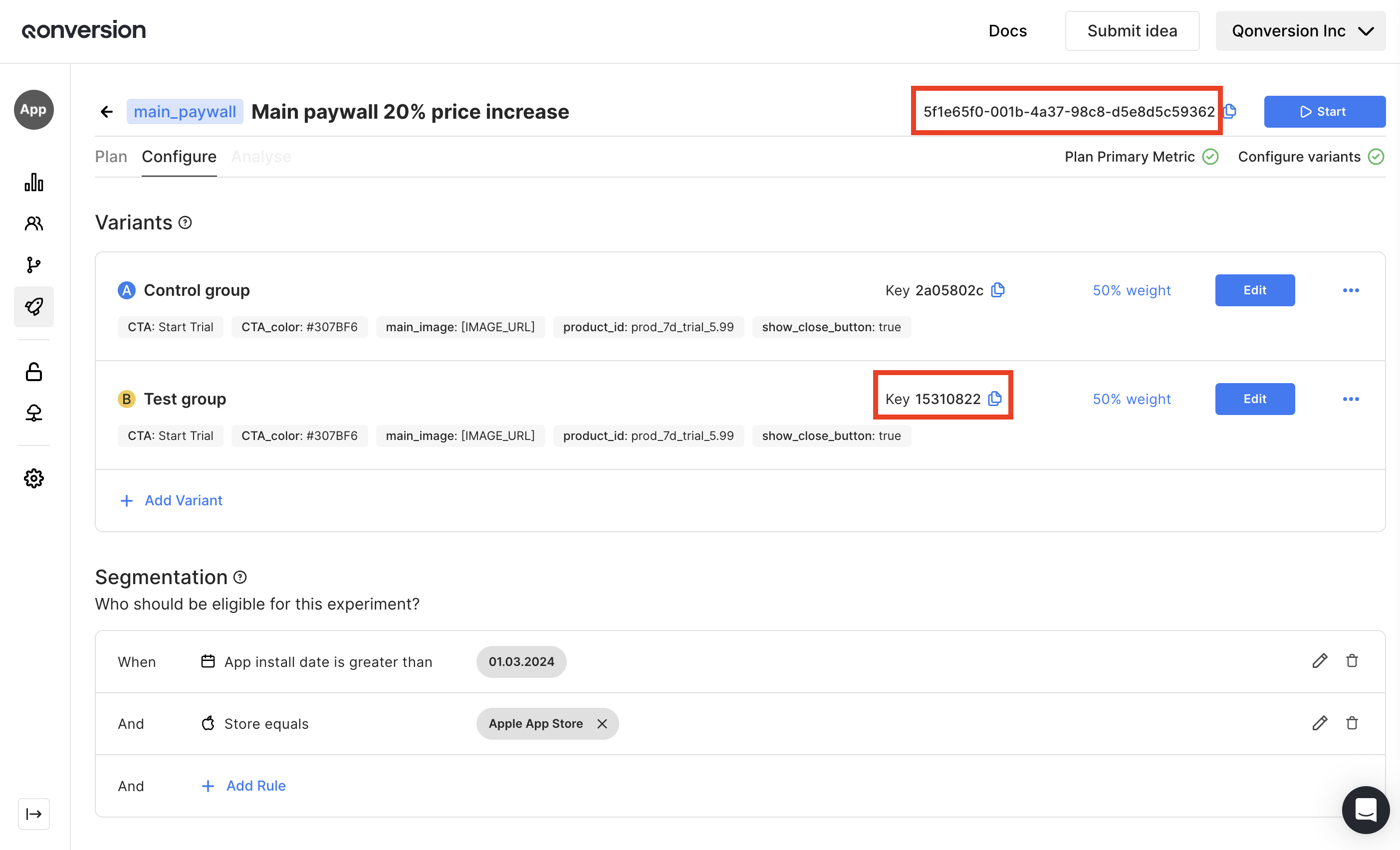 2. Pass the values to Qonversion SDK by using the `attachUserToExperiment` method
```swift Swift theme={null}
Qonversion.shared().attachUser(toExperiment: "your_experiment_id", groupId: "your_group_id") { success, error in
// handle result
}
```
```objectivec Objective-C theme={null}
[[Qonversion sharedInstance] attachUserToExperiment:@"your_experiment_id" groupId:@"your_group_id" completion:^(BOOL success, NSError * _Nullable error) {
// handle result
}];
```
```kotlin Kotlin theme={null}
Qonversion.shared.attachUserToExperiment("your_experiment_id", "your_group_id", object : QonversionExperimentAttachCallback {
override fun onSuccess() {
// handle success
}
override fun onError(error: QonversionError) {
// handle error
}
})
```
```java Java theme={null}
Qonversion.getSharedInstance().attachUserToExperiment("your_experiment_id", "your_group_id", new QonversionExperimentAttachCallback() {
@Override
public void onSuccess() {
// handle success
}
@Override
public void onError(@NonNull QonversionError error) {
// handle error
}
});
```
```typescript React Native theme={null}
await Qonversion.getSharedInstance().attachUserToExperiment("your_experiment_id", "your_group_id");
```
```dart Flutter theme={null}
await Qonversion.getSharedInstance().attachUserToExperiment("your_experiment_id", "your_group_id");
```
```csharp Unity theme={null}
Qonversion.GetSharedInstance().AttachUserToExperiment("your_experiment_id", "your_group_id", (success, error) =>
{
// handle result
});
```
```typescript Cordova theme={null}
await Qonversion.getSharedInstance().attachUserToExperiment("your_experiment_id", "your_group_id");
```
```typescript Capacitor theme={null}
await Qonversion.getSharedInstance().attachUserToExperiment("your_experiment_id", "your_group_id");
```
* In case your user has already been attached to another experiment, use the `detachUserFromExperiment` method.
```swift Swift theme={null}
Qonversion.shared().detachUser(fromExperiment: "attached_experiment_id") { success, error in
// handle result
}
```
```objectivec Objective-C theme={null}
[[Qonversion sharedInstance] detachUserFromExperiment:@"attached_experiment_id" completion:^(BOOL success, NSError * _Nullable error) {
// handle result
}];
```
```kotlin Kotlin theme={null}
Qonversion.shared.detachUserFromExperiment("attached_experiment_id", object : QonversionExperimentAttachCallback {
override fun onSuccess() {
// handle success
}
override fun onError(error: QonversionError) {
// handle error
}
})
```
```java Java theme={null}
Qonversion.getSharedInstance().detachUserFromExperiment("attached_experiment_id", new QonversionExperimentAttachCallback() {
@Override
public void onSuccess() {
// handle success
}
@Override
public void onError(@NonNull QonversionError error) {
// handle error
}
});
```
```typescript React Native theme={null}
await Qonversion.getSharedInstance().detachUserFromExperiment("attached_experiment_id");
```
```dart Flutter theme={null}
await Qonversion.getSharedInstance().detachUserFromExperiment("attached_experiment_id");
```
```csharp Unity theme={null}
Qonversion.GetSharedInstance().DetachUserFromExperiment("attached_experiment_id", (success, error) =>
{
// handle result
});
```
```typescript Cordova theme={null}
await Qonversion.getSharedInstance().detachUserFromExperiment("attached_experiment_id");
```
```typescript Capacitor theme={null}
await Qonversion.getSharedInstance().detachUserFromExperiment("attached_experiment_id");
```
3. Call the Qonversion `remoteConfig` method. Now Qonversion SDK returns data associated with previously set experiment and variant.
4. Validate your app logic without starting the experiment.
### Pay attention before release
Do not forget to remove the usage of the `attachUserToExperiment` method before your app release. Otherwise, all your users may be exposed to only one experiment group.
## Segment your users
You have the following segmentation opportunities at your disposal:
* **App install date**
* Use this option to assign the configuration only to new app installs.
* **App version**
* Use this option to assign the configuration only for users with the app version with the new features implemented.
* **Attached active experiment**
* Use this option to include or exclude users already exposed to other active experiments. [Learn more about experiment assigning rules](splitting-rules).
* **Attached experiment context key**
* Use this option to include or exclude users already exposed to other active experiments *with specific context keys*. [Learn more about experiment assigning rules](splitting-rules).
* **Country**
* Use this option to run new behavior only in selected countries.
* **Store**
* Use this option to target only a specific store (Apple App Store or Google Play).
* **User's active subscription**
* Use this option to target only users with/without any active subscriptions or having a specific one.
* **Purchased product**
* Use this option to target users based on their purchase history. You can select specific products or use `(any)` to match users who made at least one purchase, or `(none)` for users with no purchase history. Unlike "Active subscription", this filter checks all purchases regardless of their current status (active, expired, or cancelled).
* **Last purchase date**
* Use this option to target users based on when they made their most recent purchase. For example, you can target users whose last purchase was more than 60 days ago to identify churned users.
* **User properties**
* Use this option to target users with specific custom user properties set via the SDK. Useful for behavior-based or attribute-based experiments.
## 3. Adjust traffic level
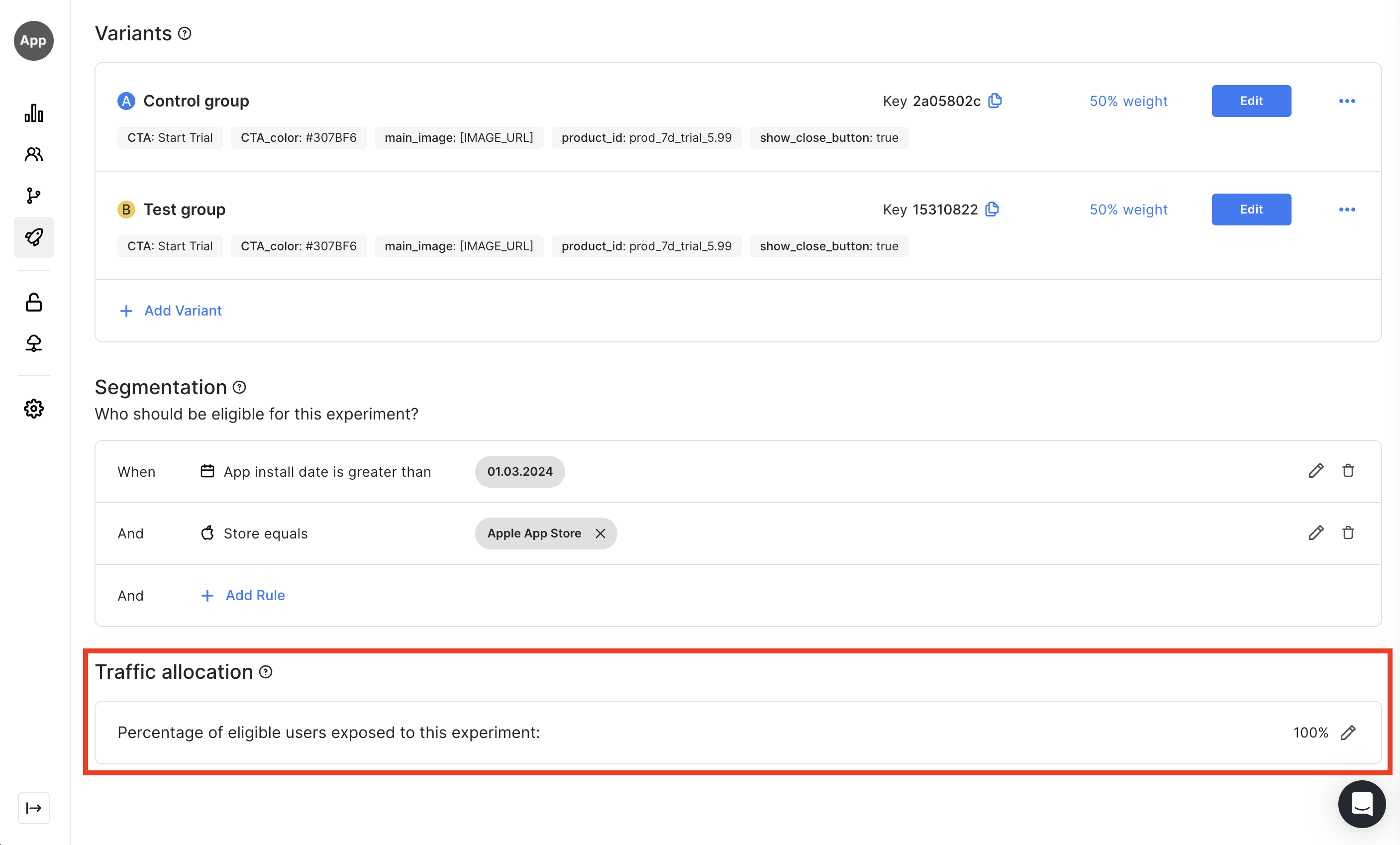
We do not recommend starting your experiments with 100% of all eligible users. It might be enough to start with 10% to ensure everything works fine and gradually increase your traffic level later.
2. Pass the values to Qonversion SDK by using the `attachUserToExperiment` method
```swift Swift theme={null}
Qonversion.shared().attachUser(toExperiment: "your_experiment_id", groupId: "your_group_id") { success, error in
// handle result
}
```
```objectivec Objective-C theme={null}
[[Qonversion sharedInstance] attachUserToExperiment:@"your_experiment_id" groupId:@"your_group_id" completion:^(BOOL success, NSError * _Nullable error) {
// handle result
}];
```
```kotlin Kotlin theme={null}
Qonversion.shared.attachUserToExperiment("your_experiment_id", "your_group_id", object : QonversionExperimentAttachCallback {
override fun onSuccess() {
// handle success
}
override fun onError(error: QonversionError) {
// handle error
}
})
```
```java Java theme={null}
Qonversion.getSharedInstance().attachUserToExperiment("your_experiment_id", "your_group_id", new QonversionExperimentAttachCallback() {
@Override
public void onSuccess() {
// handle success
}
@Override
public void onError(@NonNull QonversionError error) {
// handle error
}
});
```
```typescript React Native theme={null}
await Qonversion.getSharedInstance().attachUserToExperiment("your_experiment_id", "your_group_id");
```
```dart Flutter theme={null}
await Qonversion.getSharedInstance().attachUserToExperiment("your_experiment_id", "your_group_id");
```
```csharp Unity theme={null}
Qonversion.GetSharedInstance().AttachUserToExperiment("your_experiment_id", "your_group_id", (success, error) =>
{
// handle result
});
```
```typescript Cordova theme={null}
await Qonversion.getSharedInstance().attachUserToExperiment("your_experiment_id", "your_group_id");
```
```typescript Capacitor theme={null}
await Qonversion.getSharedInstance().attachUserToExperiment("your_experiment_id", "your_group_id");
```
* In case your user has already been attached to another experiment, use the `detachUserFromExperiment` method.
```swift Swift theme={null}
Qonversion.shared().detachUser(fromExperiment: "attached_experiment_id") { success, error in
// handle result
}
```
```objectivec Objective-C theme={null}
[[Qonversion sharedInstance] detachUserFromExperiment:@"attached_experiment_id" completion:^(BOOL success, NSError * _Nullable error) {
// handle result
}];
```
```kotlin Kotlin theme={null}
Qonversion.shared.detachUserFromExperiment("attached_experiment_id", object : QonversionExperimentAttachCallback {
override fun onSuccess() {
// handle success
}
override fun onError(error: QonversionError) {
// handle error
}
})
```
```java Java theme={null}
Qonversion.getSharedInstance().detachUserFromExperiment("attached_experiment_id", new QonversionExperimentAttachCallback() {
@Override
public void onSuccess() {
// handle success
}
@Override
public void onError(@NonNull QonversionError error) {
// handle error
}
});
```
```typescript React Native theme={null}
await Qonversion.getSharedInstance().detachUserFromExperiment("attached_experiment_id");
```
```dart Flutter theme={null}
await Qonversion.getSharedInstance().detachUserFromExperiment("attached_experiment_id");
```
```csharp Unity theme={null}
Qonversion.GetSharedInstance().DetachUserFromExperiment("attached_experiment_id", (success, error) =>
{
// handle result
});
```
```typescript Cordova theme={null}
await Qonversion.getSharedInstance().detachUserFromExperiment("attached_experiment_id");
```
```typescript Capacitor theme={null}
await Qonversion.getSharedInstance().detachUserFromExperiment("attached_experiment_id");
```
3. Call the Qonversion `remoteConfig` method. Now Qonversion SDK returns data associated with previously set experiment and variant.
4. Validate your app logic without starting the experiment.
### Pay attention before release
Do not forget to remove the usage of the `attachUserToExperiment` method before your app release. Otherwise, all your users may be exposed to only one experiment group.
## Segment your users
You have the following segmentation opportunities at your disposal:
* **App install date**
* Use this option to assign the configuration only to new app installs.
* **App version**
* Use this option to assign the configuration only for users with the app version with the new features implemented.
* **Attached active experiment**
* Use this option to include or exclude users already exposed to other active experiments. [Learn more about experiment assigning rules](splitting-rules).
* **Attached experiment context key**
* Use this option to include or exclude users already exposed to other active experiments *with specific context keys*. [Learn more about experiment assigning rules](splitting-rules).
* **Country**
* Use this option to run new behavior only in selected countries.
* **Store**
* Use this option to target only a specific store (Apple App Store or Google Play).
* **User's active subscription**
* Use this option to target only users with/without any active subscriptions or having a specific one.
* **Purchased product**
* Use this option to target users based on their purchase history. You can select specific products or use `(any)` to match users who made at least one purchase, or `(none)` for users with no purchase history. Unlike "Active subscription", this filter checks all purchases regardless of their current status (active, expired, or cancelled).
* **Last purchase date**
* Use this option to target users based on when they made their most recent purchase. For example, you can target users whose last purchase was more than 60 days ago to identify churned users.
* **User properties**
* Use this option to target users with specific custom user properties set via the SDK. Useful for behavior-based or attribute-based experiments.
## 3. Adjust traffic level
We do not recommend starting your experiments with 100% of all eligible users. It might be enough to start with 10% to ensure everything works fine and gradually increase your traffic level later.
 ## 4. Launch the setup
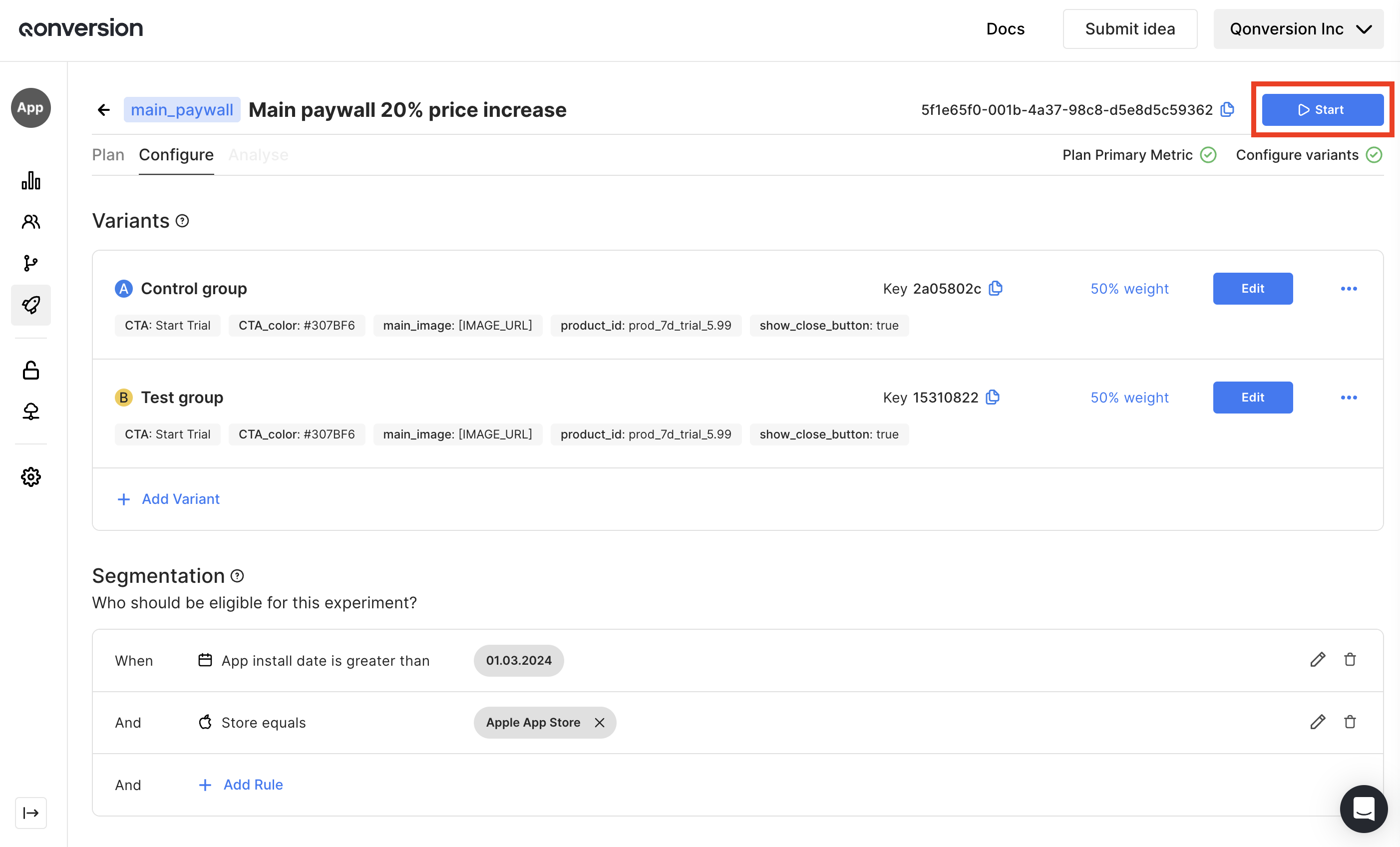
Once you have configured your experiment, segmentation, and traffic level, it's time to start your experiment and proceed to the section with real-time analytics.
## 4. Launch the setup
Once you have configured your experiment, segmentation, and traffic level, it's time to start your experiment and proceed to the section with real-time analytics.
 ***
What’s Next
* [Analyse experiments](analyse-experiment)
* [Splitting rules](splitting-rules)
***
What’s Next
* [Analyse experiments](analyse-experiment)
* [Splitting rules](splitting-rules)