> ## Documentation Index
> Fetch the complete documentation index at: https://documentation.qonversion.io/llms.txt
> Use this file to discover all available pages before exploring further.
# Google Developer Notifications
> Enabling Google Real-Time Developer Notifications
Enabling [Google Real-Time Developer Notifications](https://developer.android.com/google/play/billing/rtdn-reference) speeds up events delivery time for integrations and webhooks and makes data in Qonversion analytics more real-time.
## Google Developer Notifications Setup
If you haven't completed the [Android Store setup](android-store-setup) yet, do that first — it enables the Pub/Sub API and configures the service account credentials, both prerequisites for the steps below.
1. Open your project's **Settings → Stores → Android Store** and copy the **Google Developer Notifications Topic ID** shown there.
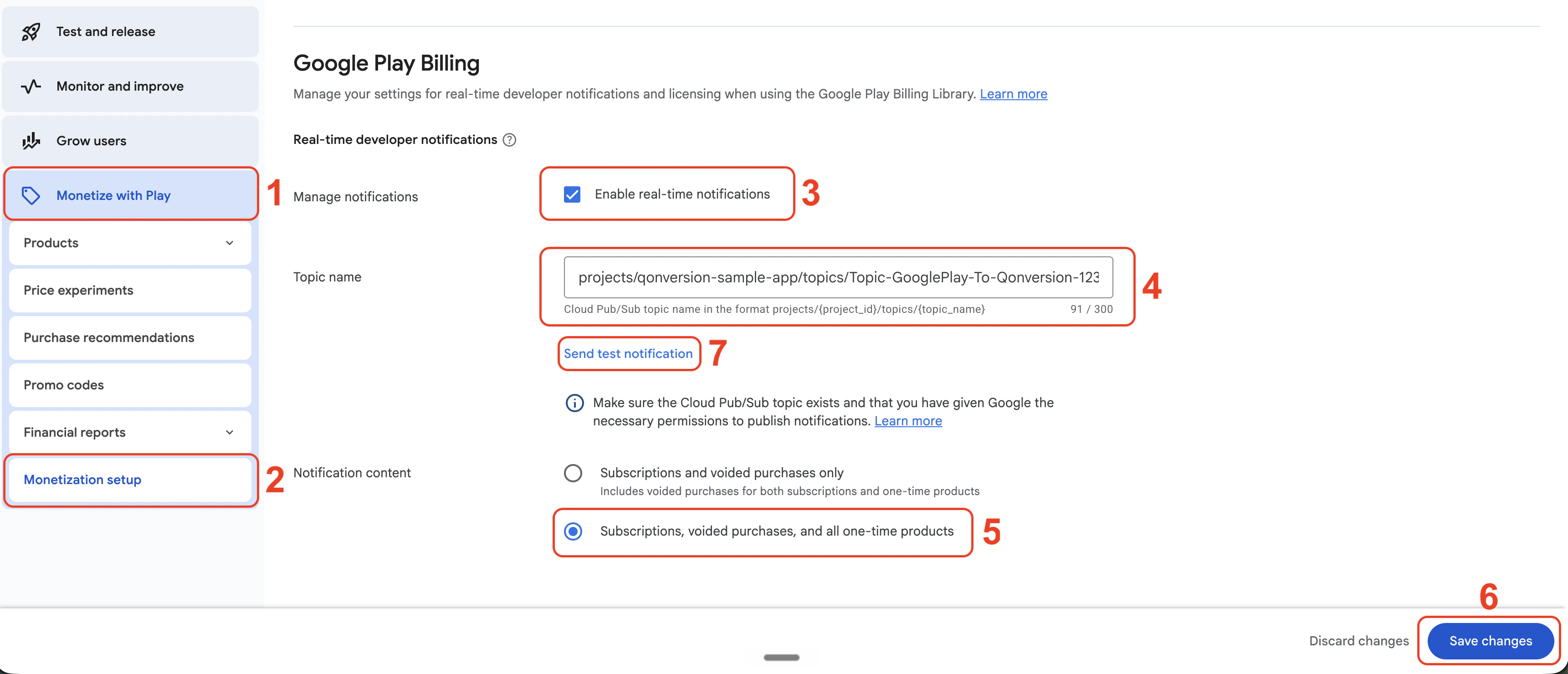
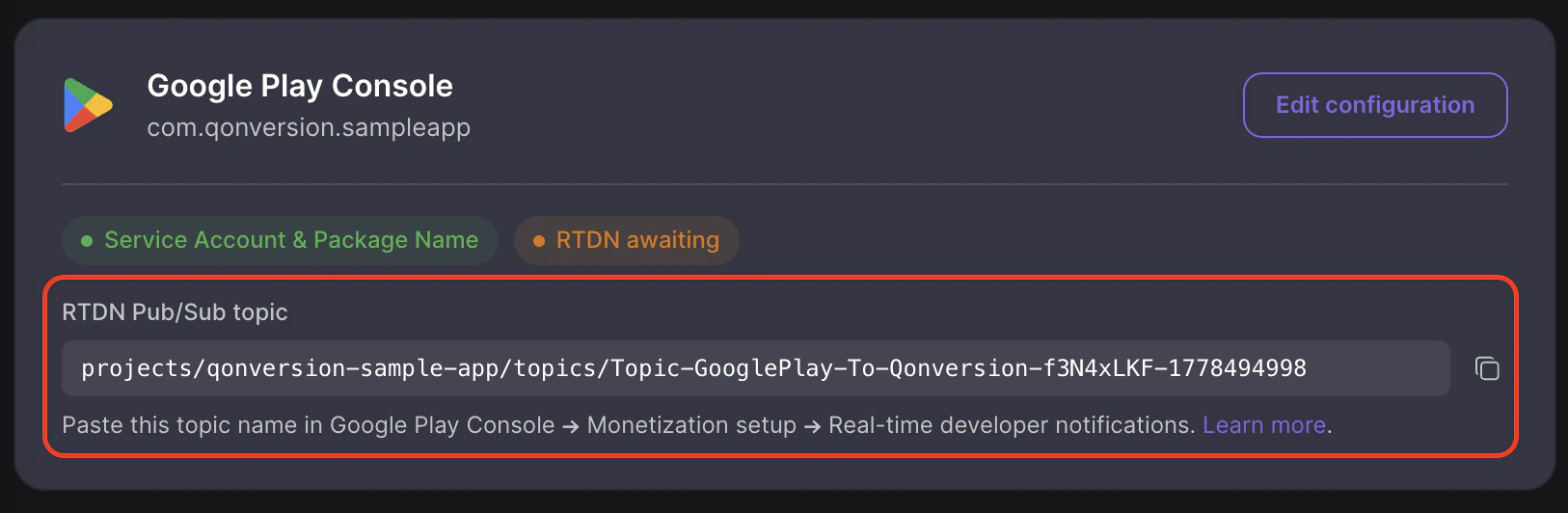 2. Open the **Google Play Console** for your application, then navigate to **Monetization setup**.
3. In the **Real-time developer notifications** section:
* check the **Enable real-time notifications** toggle,
* insert your topic ID,
* choose the correct **Notification content** for your app (with in-app products if you use them),
* click on **Save changes**,
* click on the **Send Test Notification** button.
2. Open the **Google Play Console** for your application, then navigate to **Monetization setup**.
3. In the **Real-time developer notifications** section:
* check the **Enable real-time notifications** toggle,
* insert your topic ID,
* choose the correct **Notification content** for your app (with in-app products if you use them),
* click on **Save changes**,
* click on the **Send Test Notification** button.
 ### Wait 24 hours before updating your existing key in Qonversion
It takes up to 24 hours for your [Google service credentials](android-store-setup) to work correctly. Make sure to wait for at least 24 hours after you have created the credentials before connecting to Google Real-Time Developer Notifications.
## Troubleshooting
### Could not connect Qonversion to Google
1. Ensure the provided service access key has Pub/Sub Admin role. Create a new service account key with Pub/Sub Admin role as described [here](android-store-setup#3-create-a-service-account).
2. Wait 24 hours
3. Back up your existing key from Qonversion, then update the service key
4. Try again connecting Google to Qonversion
***
[Apple Server-to-Server Notifications (S2S)](ios-s2s-notifications)
[Migrating In-App Subscriptions](migrating-subscriptions)
### Wait 24 hours before updating your existing key in Qonversion
It takes up to 24 hours for your [Google service credentials](android-store-setup) to work correctly. Make sure to wait for at least 24 hours after you have created the credentials before connecting to Google Real-Time Developer Notifications.
## Troubleshooting
### Could not connect Qonversion to Google
1. Ensure the provided service access key has Pub/Sub Admin role. Create a new service account key with Pub/Sub Admin role as described [here](android-store-setup#3-create-a-service-account).
2. Wait 24 hours
3. Back up your existing key from Qonversion, then update the service key
4. Try again connecting Google to Qonversion
***
[Apple Server-to-Server Notifications (S2S)](ios-s2s-notifications)
[Migrating In-App Subscriptions](migrating-subscriptions)