> ## Documentation Index
> Fetch the complete documentation index at: https://documentation.qonversion.io/llms.txt
> Use this file to discover all available pages before exploring further.
# Firebase
> Send in-app subscription data to Firebase
Qonversion can send [revenue events](integrations-overview#tracked-events), including purchases, trial conversions, subscription renewals, and even refunds, to your Firebase account. This allows you to match your users' behaviour with their payment history in Firebase and empower your product decisions.
## 1. Setup the SDKs
1. Make sure you have Firebase SDK installed. Check the official Firebase SDK documentation [here](https://firebase.google.com/docs/analytics/get-started)
2. Set Qonversion SDK following [Installing the SDKs](install-sdk) guides.
3. Send *firebaseAppInstanceId* to Qonversion via [User Properties](user-properties)
```swift Swift theme={null}
if let appInstanceID = Analytics.appInstanceID() {
Qonversion.shared().setUserProperty(.firebaseAppInstanceId, value: appInstanceID)
}
```
```objectivec Objective-C theme={null}
[[Qonversion sharedInstance] setUserProperty:QONUserPropertyKeyFirebaseAppInstanceId value:[FIRAnalytics appInstanceID]];
```
```java Java theme={null}
FirebaseAnalytics.getInstance(context).getAppInstanceId().addOnCompleteListener(task -> {
final String appInstanceId = task.getResult();
if (appInstanceId != null) {
Qonversion.getSharedInstance().setUserProperty(QUserPropertyKey.FirebaseAppInstanceId, appInstanceId);
}
});
```
```kotlin Kotlin theme={null}
FirebaseAnalytics.getInstance(requireContext()).appInstanceId.addOnCompleteListener { task ->
task.result?.let { appInstanceId ->
Qonversion.shared.setUserProperty(QUserPropertyKey.FirebaseAppInstanceId, appInstanceId)
}
}
```
```dart Flutter theme={null}
Qonversion.getSharedInstance().setUserProperty(QUserPropertyKey.firebaseAppInstanceId, appInstanceId);
```
```typescript React Native theme={null}
Qonversion.getSharedInstance().setUserProperty(UserPropertyKey.FIREBASE_APP_INSTANCE_ID, appInstanceId);
```
```csharp Unity theme={null}
Qonversion.GetSharedInstance().SetUserProperty(UserPropertyKey.FirebaseAppInstanceId, appInstanceId);
```
```typescript Cordova theme={null}
Qonversion.getSharedInstance().setUserProperty(Qonversion.UserPropertyKey.FIREBASE_APP_INSTANCE_ID, appInstanceId);
```
```typescript Capacitor theme={null}
Qonversion.getSharedInstance().setUserProperty(UserPropertyKey.FIREBASE_APP_INSTANCE_ID, appInstanceId);
```
Measurement `app_instance_id` is expected to be a 32-digit hexadecimal number.
Example of `app_instance_id `B18FE2FF75795C219BCD30B58377C5ED
## 2. Configure the Firebase Integration
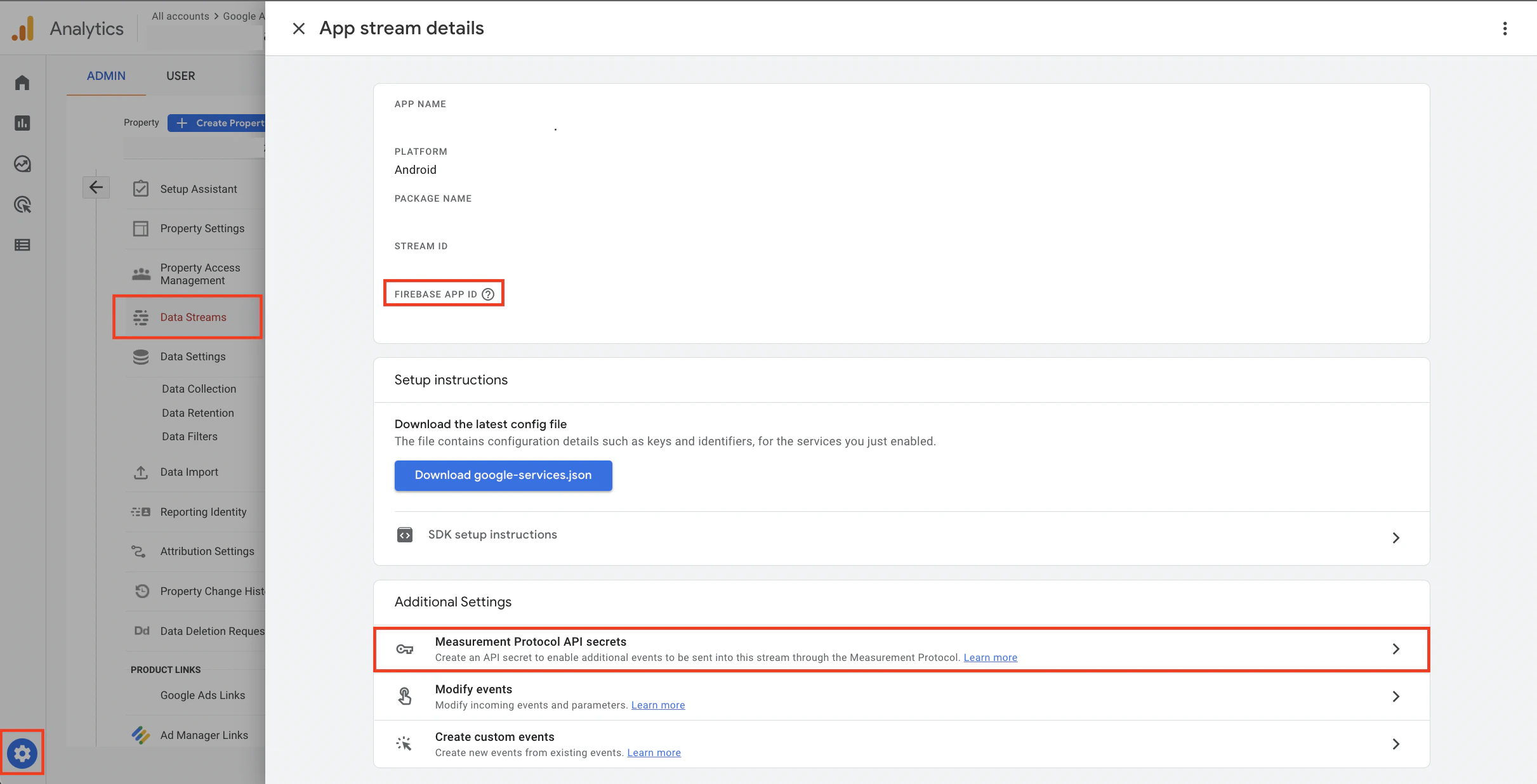
1. Copy your Firebase App ID and Measurement Protocol API secret from the [Google Analytics Console](https://analytics.google.com/analytics): *Admin → Data Streams → Select existing or create a new stream for your App*
 2. Open the **Integrations** section in your [Qonversion account](https://dash.qonversion.io/integrations).
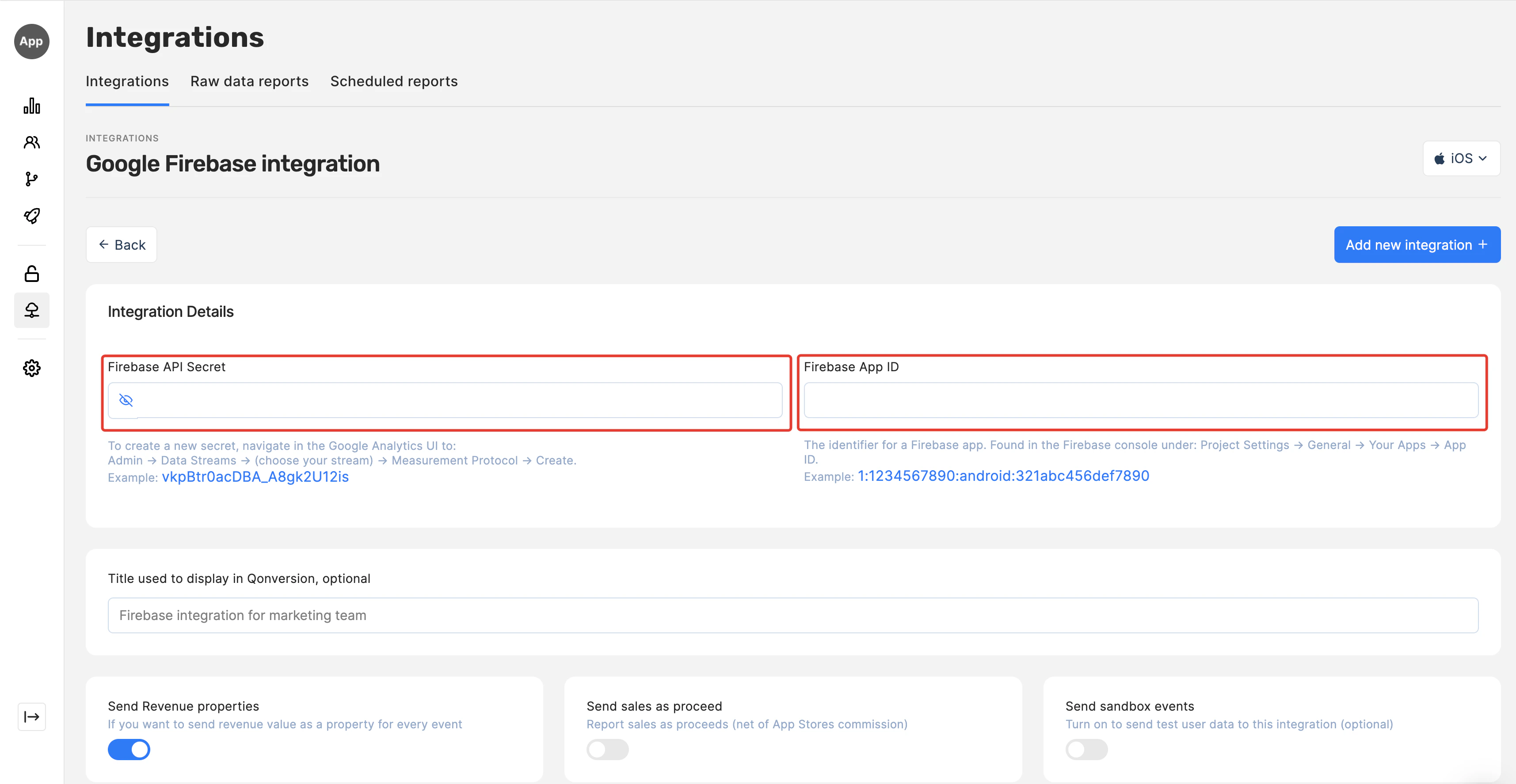
3. Click **+ Add new**, select **Firebase**, and choose the target store (iOS or Android) for the integration.
4. Provide the **API Secret** and **App ID** copied in the first step in the corresponding fields, then save.
2. Open the **Integrations** section in your [Qonversion account](https://dash.qonversion.io/integrations).
3. Click **+ Add new**, select **Firebase**, and choose the target store (iOS or Android) for the integration.
4. Provide the **API Secret** and **App ID** copied in the first step in the corresponding fields, then save.
 ## 3. Pay attention to event names
Event names:
* Must be 40 characters or fewer
* May only contain alpha-numeric characters and underscores
* Must start with an alphabetic character.
Names
* Use [Google default event names](https://developers.google.com/analytics/devguides/collection/protocol/ga4/reference/events#purchase) for revenue metrics to be computed accurately. Examples: *purchase* and *refund*.
* Avoid using [Google reserved event names](https://developers.google.com/analytics/devguides/collection/protocol/ga4/reference?client_type=firebase#reserved_names): *in\_app\_purchase*, *notification\_receive*, *user\_engagement*, etc.
* Other event names can be customised.
### Done
Qonversion will send In-App purchases and subscription events to your Firebase account. You can make changes to event names and other setting on the Firebase integration settings page in Qonversion.
## Event Payload
Qonversion delivers each tracked event to the Firebase Measurement Protocol with the shape below. `value`, `currency`, and `storefront` are conditional (only present when the underlying revenue/transaction record carries them); `app_instance_id` and `transaction_id` are always populated.
When user properties have been recorded for the user, an additional `user_properties` object is included alongside `events`. Each entry is filtered through Firebase's restrictions: keys must be 1-24 characters, start with a letter, contain only `[a-zA-Z0-9_]`, and not begin with the reserved `firebase_`, `google_`, or `ga_` prefixes; values must be at most 36 characters. Entries that fail any of these checks are silently dropped from the payload.
```json theme={null}
{
"app_instance_id":"B18FE2FF75795C219BCD30B58377C5ED",
"user_id":"QON_...",
"timestamp_micros":"1700000000000000",
"events":[
{
"name":"event_name",
"params":{
"transaction_id":"500000601234560",
"items":[
{
"item_id":"product_id"
}
],
"value":7.7,
"currency":"CHF",
"storefront":"USA"
}
}
]
}
```
***
[Facebook Ads](facebook)
[Google Ads](google-ads)
## 3. Pay attention to event names
Event names:
* Must be 40 characters or fewer
* May only contain alpha-numeric characters and underscores
* Must start with an alphabetic character.
Names
* Use [Google default event names](https://developers.google.com/analytics/devguides/collection/protocol/ga4/reference/events#purchase) for revenue metrics to be computed accurately. Examples: *purchase* and *refund*.
* Avoid using [Google reserved event names](https://developers.google.com/analytics/devguides/collection/protocol/ga4/reference?client_type=firebase#reserved_names): *in\_app\_purchase*, *notification\_receive*, *user\_engagement*, etc.
* Other event names can be customised.
### Done
Qonversion will send In-App purchases and subscription events to your Firebase account. You can make changes to event names and other setting on the Firebase integration settings page in Qonversion.
## Event Payload
Qonversion delivers each tracked event to the Firebase Measurement Protocol with the shape below. `value`, `currency`, and `storefront` are conditional (only present when the underlying revenue/transaction record carries them); `app_instance_id` and `transaction_id` are always populated.
When user properties have been recorded for the user, an additional `user_properties` object is included alongside `events`. Each entry is filtered through Firebase's restrictions: keys must be 1-24 characters, start with a letter, contain only `[a-zA-Z0-9_]`, and not begin with the reserved `firebase_`, `google_`, or `ga_` prefixes; values must be at most 36 characters. Entries that fail any of these checks are silently dropped from the payload.
```json theme={null}
{
"app_instance_id":"B18FE2FF75795C219BCD30B58377C5ED",
"user_id":"QON_...",
"timestamp_micros":"1700000000000000",
"events":[
{
"name":"event_name",
"params":{
"transaction_id":"500000601234560",
"items":[
{
"item_id":"product_id"
}
],
"value":7.7,
"currency":"CHF",
"storefront":"USA"
}
}
]
}
```
***
[Facebook Ads](facebook)
[Google Ads](google-ads)