> ## Documentation Index
> Fetch the complete documentation index at: https://documentation.qonversion.io/llms.txt
> Use this file to discover all available pages before exploring further.
# Conditional Logic
> Dynamically change component styles based on device, user properties, product context, and custom variables
Conditional logic allows you to dynamically change the appearance of any component on your paywall or onboarding screen based on runtime context — device info, selected product, user properties, or custom screen variables.
For example, you can highlight a specific product's price in bold when the user selects it, hide an element on Android, or change the background color for dark mode users.
Make sure your Qonversion SDK is updated to the latest version that supports conditional logic.
See the [SDK Requirements](#sdk-requirements) section below.
***
## How It Works
Each component on your screen has **style blocks** (Typography, Size, Spacing, Background, etc.). You can attach **conditional rules** to any style block. Each rule contains:
1. **Conditions** — when should this rule apply (e.g., "Platform equals iOS AND Theme equals dark")
2. **Style overrides** — what properties to change when the conditions are met (e.g., set font-size to 24px and color to white)
At runtime, the Qonversion SDK provides the context (device info, user data, product details), and the conditional logic evaluator checks each rule top-to-bottom. The **first matching rule wins** — its overrides are applied, and subsequent rules are skipped.
If no rule matches, the component keeps its default styles.
***
## Step-by-Step Example: Changing Typography for iOS Dark Mode
Let's walk through a real example. We'll change the title text style when the user is on iOS in dark mode — applying a different font, size, weight, and color to ensure the text looks great on dark backgrounds.
### 1. Select the component
Click on the text component you want to add conditional logic to. In this example, we select a title text on the paywall screen.
### 2. Open the Conditional Rules modal
In the right sidebar, find the **Typography** style block. Hover over the block header — a lightning bolt icon will appear. Click it to open the Conditional Rules modal.
### 3. Add a new rule
Click **Add Rule** at the bottom of the modal. A new empty rule appears with a condition group and a style overrides section.
### 4. Set the conditions
We need two conditions combined with AND logic:
**First condition:**
* **Variable**: select `Platform` from the Device category
* **Operator**: select `equals`
* **Value**: select `iOS`
**Second condition:**
* **Variable**: select `Theme` from the Device category
* **Operator**: select `equals`
* **Value**: select `dark`
This means: "Apply this rule when the user is on iOS AND using dark mode."
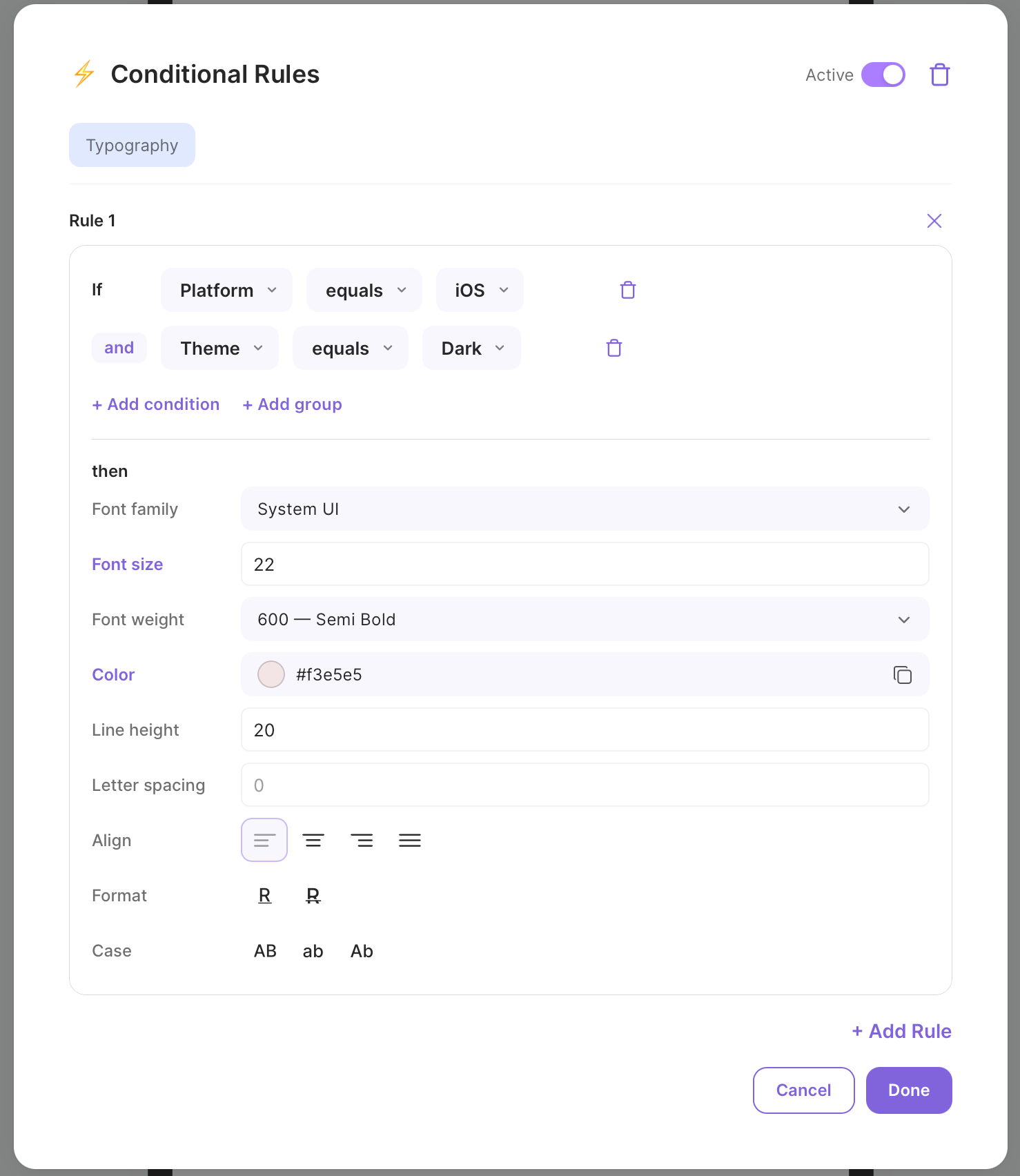
### 5. Set the style overrides
In the **Overrides** section below the conditions, configure the typography changes:
| Property | Value |
| ----------- | --------------------------- |
| Font family | `System UI` |
| Font size | `22` px |
| Font weight | `Semi Bold (600)` |
| Color | `#f3e5e5` (light warm tone) |
| Line height | `20` px |
These values will override the component's default typography when both conditions are met.
 ### 6. Save and preview
Click **Apply** to save the rules. The lightning bolt on the Typography block now shows a badge with the rule count.
To test it, open the **Preview Conditions Panel** (the test tube icon in the header). You can manually change the `Platform` and `Theme` variables to see how the component reacts in real time.
***
## Conditions In Detail
### Condition Groups: AND / OR
Conditions within a rule are organized in **groups**. Each group has a logical operator:
* **AND** — all conditions in the group must be true
* **OR** — at least one condition must be true
Click the `and`/`or` label between conditions to toggle the group operator.
Groups can be **nested up to 2 levels deep**, allowing complex expressions like:
```
(Platform equals iOS AND OS Version greater_or_equal 16.0)
OR
(Platform equals Android AND OS Version greater_or_equal 13.0)
```
### Available Variables
#### Device
| Variable | Type | Example values |
| ----------- | ------- | ---------------- |
| Platform | String | `iOS`, `Android` |
| OS Version | Version | `16.0`, `14.5.1` |
| Language | String | `en`, `fr`, `de` |
| Locale | String | `en_US`, `fr_FR` |
| Theme | String | `light`, `dark` |
| App Version | Version | `1.0.0`, `2.3.1` |
| Country | String | `US`, `GB`, `DE` |
#### Products
| Variable | Type | Description |
| ---------------------- | ------- | ------------------------------------------------ |
| Selected Product | String | The product ID the user currently has selected |
| Has Any Intro | Boolean | Whether any product has an introductory offer |
| Per-product Has Intro | Boolean | Whether a specific product has an intro offer |
| Per-product Intro Type | String | `free_trial`, `pay_as_you_go`, or `pay_up_front` |
Product variables are generated dynamically based on the products configured for your screen.
#### User
| Variable | Type | Description |
| ------------------- | ------- | ---------------------------------------------------- |
| Entitlements | Array | List of user's active entitlements |
| Has Any Entitlement | Boolean | Whether the user has at least one active entitlement |
| Is First Launch | Boolean | Whether this is the user's first app launch |
| Days Since Install | Number | Number of days since the app was installed |
#### User Properties
User properties set via the Qonversion SDK (both [defined and custom](user-properties)) are automatically available in the conditional logic context. They appear under the `user.properties` namespace.
For example, if you set a custom user property `plan` with value `premium`, you can create a condition:
* **Variable**: `user.properties.plan`
* **Operator**: `equals`
* **Value**: `premium`
This allows you to personalize screens based on any user attribute you track — subscription tier, onboarding status, A/B test group, or any other custom property.
User properties are loaded in parallel with other screen data, so they do not increase screen display time.
#### Custom Screen Variables
Custom screen variables are values you inject from your app code at runtime via the `CustomVariablesDelegate`. They are unique per screen (identified by `contextKey`) and are available for conditions under the custom variables namespace.
For example, if your delegate returns `{"source": "settings"}`, you can create a condition:
* **Variable**: `source` (from Custom Variables category)
* **Operator**: `equals`
* **Value**: `settings`
See [Setting Up Custom Variables](#setting-up-custom-variables) below for implementation details.
### Available Operators
| Operator | Works with | Description |
| ---------------- | --------------- | ------------------------------------------------------ |
| equals | All types | Exact match (case-insensitive for strings) |
| not equals | All types | Inverse of equals |
| in | String, Version | Value is one of a comma-separated list |
| not in | String, Version | Value is not in the list |
| contains | Array, String | Array includes the value, or string contains substring |
| does not contain | Array, String | Inverse of contains |
| greater than | Number, Version | Numeric or semantic version comparison |
| less than | Number, Version | Numeric or semantic version comparison |
| greater or equal | Number, Version | Numeric or semantic version comparison |
| less or equal | Number, Version | Numeric or semantic version comparison |
| is empty | Array, String | Array has no elements, or string is empty/null |
| is not empty | Array, String | Array has elements, or string is non-empty |
Version comparisons (for OS Version and App Version) use semantic versioning — each segment is compared numerically. For example, `16.0` is greater than `9.3.6`.
***
## Rule Priority
Rules are evaluated **top to bottom** within each style block. The first rule whose conditions evaluate to `true` is applied — all subsequent rules are skipped.
This means you should order your rules from **most specific to least specific**:
```
Rule 1: Platform = iOS AND Theme = dark -> white text, large font
Rule 2: Platform = iOS -> dark text, large font
Rule 3: (default — no conditions match) -> keeps default styles
```
You can drag rules to reorder them in the Conditional Rules modal.
***
## Activating and Deactivating Rules
Each style block has an **Active** toggle in the Conditional Rules modal header. When toggled off:
* All rules are preserved (not deleted)
* Rules are not evaluated at runtime
* The lightning bolt indicator remains visible but rules have no effect
This is useful for temporarily disabling conditional logic without losing your configuration.
***
## Testing with Preview Panel
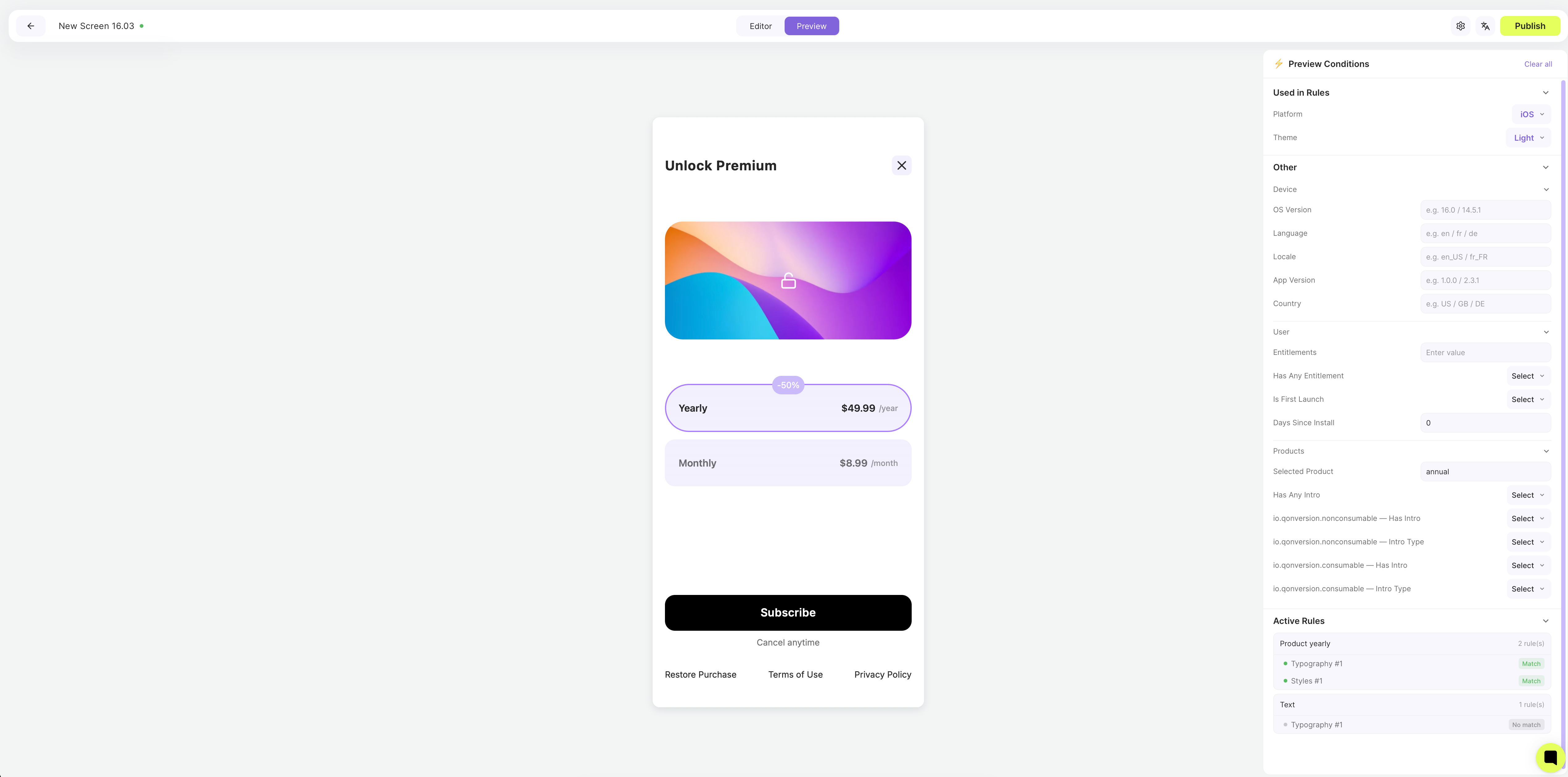
You don't need to publish your screen to test conditional logic. The No-Code Builder has a built-in **Preview Conditions Panel** that lets you simulate any combination of variables and instantly see how your rules affect the screen — right inside the editor.
### How to open the panel
1. Make sure you have at least one conditional rule configured on any component
2. Switch to **Preview** mode using the toggle in the builder header
3. The **Preview Conditions Panel** automatically appears on the left side of the screen
The panel lists every variable used in your conditional rules across all components on the current screen.
### Testing variables
Each variable has an appropriate input control depending on its type:
* **Dropdowns** — for variables with predefined values (Platform, Theme, Selected Product, Intro Type, etc.). Just pick a value from the list
* **Checkboxes** — for boolean variables (Has Any Intro, Has Any Entitlement, Is First Launch, etc.). Toggle on or off
* **Text inputs** — for string and version variables (OS Version, Language, App Version, Country, etc.). Type any value to simulate
* **Number inputs** — for numeric variables (Days Since Install, etc.)
As you change values, the canvas **updates in real time** — you can see exactly which styles are applied and how the screen looks for any combination of conditions.
### Active Rules
The bottom section of the panel shows **Active Rules** — a live list of which rules are currently matching based on the current variable values. This makes it easy to verify that the right rules fire for the right conditions.
### 6. Save and preview
Click **Apply** to save the rules. The lightning bolt on the Typography block now shows a badge with the rule count.
To test it, open the **Preview Conditions Panel** (the test tube icon in the header). You can manually change the `Platform` and `Theme` variables to see how the component reacts in real time.
***
## Conditions In Detail
### Condition Groups: AND / OR
Conditions within a rule are organized in **groups**. Each group has a logical operator:
* **AND** — all conditions in the group must be true
* **OR** — at least one condition must be true
Click the `and`/`or` label between conditions to toggle the group operator.
Groups can be **nested up to 2 levels deep**, allowing complex expressions like:
```
(Platform equals iOS AND OS Version greater_or_equal 16.0)
OR
(Platform equals Android AND OS Version greater_or_equal 13.0)
```
### Available Variables
#### Device
| Variable | Type | Example values |
| ----------- | ------- | ---------------- |
| Platform | String | `iOS`, `Android` |
| OS Version | Version | `16.0`, `14.5.1` |
| Language | String | `en`, `fr`, `de` |
| Locale | String | `en_US`, `fr_FR` |
| Theme | String | `light`, `dark` |
| App Version | Version | `1.0.0`, `2.3.1` |
| Country | String | `US`, `GB`, `DE` |
#### Products
| Variable | Type | Description |
| ---------------------- | ------- | ------------------------------------------------ |
| Selected Product | String | The product ID the user currently has selected |
| Has Any Intro | Boolean | Whether any product has an introductory offer |
| Per-product Has Intro | Boolean | Whether a specific product has an intro offer |
| Per-product Intro Type | String | `free_trial`, `pay_as_you_go`, or `pay_up_front` |
Product variables are generated dynamically based on the products configured for your screen.
#### User
| Variable | Type | Description |
| ------------------- | ------- | ---------------------------------------------------- |
| Entitlements | Array | List of user's active entitlements |
| Has Any Entitlement | Boolean | Whether the user has at least one active entitlement |
| Is First Launch | Boolean | Whether this is the user's first app launch |
| Days Since Install | Number | Number of days since the app was installed |
#### User Properties
User properties set via the Qonversion SDK (both [defined and custom](user-properties)) are automatically available in the conditional logic context. They appear under the `user.properties` namespace.
For example, if you set a custom user property `plan` with value `premium`, you can create a condition:
* **Variable**: `user.properties.plan`
* **Operator**: `equals`
* **Value**: `premium`
This allows you to personalize screens based on any user attribute you track — subscription tier, onboarding status, A/B test group, or any other custom property.
User properties are loaded in parallel with other screen data, so they do not increase screen display time.
#### Custom Screen Variables
Custom screen variables are values you inject from your app code at runtime via the `CustomVariablesDelegate`. They are unique per screen (identified by `contextKey`) and are available for conditions under the custom variables namespace.
For example, if your delegate returns `{"source": "settings"}`, you can create a condition:
* **Variable**: `source` (from Custom Variables category)
* **Operator**: `equals`
* **Value**: `settings`
See [Setting Up Custom Variables](#setting-up-custom-variables) below for implementation details.
### Available Operators
| Operator | Works with | Description |
| ---------------- | --------------- | ------------------------------------------------------ |
| equals | All types | Exact match (case-insensitive for strings) |
| not equals | All types | Inverse of equals |
| in | String, Version | Value is one of a comma-separated list |
| not in | String, Version | Value is not in the list |
| contains | Array, String | Array includes the value, or string contains substring |
| does not contain | Array, String | Inverse of contains |
| greater than | Number, Version | Numeric or semantic version comparison |
| less than | Number, Version | Numeric or semantic version comparison |
| greater or equal | Number, Version | Numeric or semantic version comparison |
| less or equal | Number, Version | Numeric or semantic version comparison |
| is empty | Array, String | Array has no elements, or string is empty/null |
| is not empty | Array, String | Array has elements, or string is non-empty |
Version comparisons (for OS Version and App Version) use semantic versioning — each segment is compared numerically. For example, `16.0` is greater than `9.3.6`.
***
## Rule Priority
Rules are evaluated **top to bottom** within each style block. The first rule whose conditions evaluate to `true` is applied — all subsequent rules are skipped.
This means you should order your rules from **most specific to least specific**:
```
Rule 1: Platform = iOS AND Theme = dark -> white text, large font
Rule 2: Platform = iOS -> dark text, large font
Rule 3: (default — no conditions match) -> keeps default styles
```
You can drag rules to reorder them in the Conditional Rules modal.
***
## Activating and Deactivating Rules
Each style block has an **Active** toggle in the Conditional Rules modal header. When toggled off:
* All rules are preserved (not deleted)
* Rules are not evaluated at runtime
* The lightning bolt indicator remains visible but rules have no effect
This is useful for temporarily disabling conditional logic without losing your configuration.
***
## Testing with Preview Panel
You don't need to publish your screen to test conditional logic. The No-Code Builder has a built-in **Preview Conditions Panel** that lets you simulate any combination of variables and instantly see how your rules affect the screen — right inside the editor.
### How to open the panel
1. Make sure you have at least one conditional rule configured on any component
2. Switch to **Preview** mode using the toggle in the builder header
3. The **Preview Conditions Panel** automatically appears on the left side of the screen
The panel lists every variable used in your conditional rules across all components on the current screen.
### Testing variables
Each variable has an appropriate input control depending on its type:
* **Dropdowns** — for variables with predefined values (Platform, Theme, Selected Product, Intro Type, etc.). Just pick a value from the list
* **Checkboxes** — for boolean variables (Has Any Intro, Has Any Entitlement, Is First Launch, etc.). Toggle on or off
* **Text inputs** — for string and version variables (OS Version, Language, App Version, Country, etc.). Type any value to simulate
* **Number inputs** — for numeric variables (Days Since Install, etc.)
As you change values, the canvas **updates in real time** — you can see exactly which styles are applied and how the screen looks for any combination of conditions.
### Active Rules
The bottom section of the panel shows **Active Rules** — a live list of which rules are currently matching based on the current variable values. This makes it easy to verify that the right rules fire for the right conditions.
 Try different combinations of variables to make sure your rules cover all the edge cases — for example, switching between iOS and Android while toggling dark mode, or selecting different products to verify the highlighting works correctly.
***
## Common Use Cases
### Highlight the selected product
**Condition**: Selected Product equals the product ID
**Typography override**: Bold font weight, accent color
**Use case**: Make the currently selected product's title or price stand out visually.
### Platform-specific layout
**Condition**: Platform equals `iOS` / `Android`
**Spacing or Size override**: Adjust padding, margins, or dimensions
**Use case**: Account for platform-specific UI conventions (e.g., larger touch targets on Android).
### Dark mode support
**Condition**: Theme equals `dark`
**Typography + Background + Border override**: Light text on dark background, adjusted border colors
**Use case**: Ensure your paywall looks great in both light and dark themes.
### Show/hide elements by entitlements
**Condition**: Has Any Entitlement equals `true`
**Appearance override**: Visibility hidden
**Use case**: Hide the purchase button for users who already have an active subscription.
### Free trial badge
**Condition**: Product Has Intro equals `true` AND Intro Type equals `free_trial`
**Appearance + Typography override**: Show a badge, change text color
**Use case**: Visually indicate which products offer a free trial.
### First-time user experience
**Condition**: Is First Launch equals `true`
**Any style override**: Different layout, larger text, highlighted CTA
**Use case**: Show a more prominent onboarding experience for first-time users.
### Personalization with custom variables
**Condition**: Custom variable `plan` equals `free`
**Typography + Appearance override**: Show upgrade messaging, accent CTA color
**Use case**: Display a prominent upgrade prompt for free-tier users while hiding it for premium subscribers. Variables are injected via `CustomVariablesDelegate`.
### Context-aware styling with user properties
**Condition**: `user.properties.loyalty_tier` equals `gold`
**Background + Typography override**: Gold accent color, exclusive badge visibility
**Use case**: Show VIP styling and exclusive offers to high-value users based on properties already tracked via the Qonversion SDK.
***
## Setting Up Custom Variables
Custom Variables (and the `user.properties.*` namespace described above) are delivered to the screen context starting from the SDK versions listed in the [SDK Requirements](#sdk-requirements) table below. On earlier SDKs the rules are still embedded in the published HTML, but the corresponding values arrive empty and rules referencing them will not match.
Custom screen variables let you pass dynamic data from your app into the No-Code screen context at runtime. This is useful for conditions that depend on app-specific state — such as the screen the user came from, their subscription tier, or feature flags.
You provide variables by implementing a delegate that the SDK calls each time a screen is ready to display. The delegate receives a `contextKey` identifying the screen and returns a dictionary of string key-value pairs. Different screens can receive different variables.
### Implementation
```swift Swift theme={null}
class MyVariablesDelegate: NoCodesCustomVariablesDelegate {
func customVariables(for contextKey: String) -> [String: String] {
// Return variables specific to this screen
return [
"username": currentUser.name,
"plan": currentUser.plan,
"source": "settings"
]
}
}
```
```kotlin Kotlin theme={null}
class MyVariablesDelegate : CustomVariablesDelegate {
override fun getCustomVariables(contextKey: String): Map {
// Return variables specific to this screen
return mapOf(
"username" to currentUser.name,
"plan" to currentUser.plan,
"source" to "settings"
)
}
}
```
```java Java theme={null}
public class MyVariablesDelegate implements CustomVariablesDelegate {
@Override
public Map getCustomVariables(String contextKey) {
// Return variables specific to this screen
Map variables = new HashMap<>();
variables.put("username", currentUser.getName());
variables.put("plan", currentUser.getPlan());
variables.put("source", "settings");
return variables;
}
}
```
### Setting the delegate
You can set the delegate during initialization or at runtime:
```swift Swift theme={null}
// During initialization
let config = NoCodesConfiguration(
projectKey: "projectKey",
customVariablesDelegate: myDelegate
)
NoCodes.initialize(with: config)
// Or at runtime
NoCodes.shared.set(customVariablesDelegate: myDelegate)
```
```kotlin Kotlin theme={null}
// During initialization
val config = NoCodesConfig.Builder(this, "projectKey")
.setCustomVariablesDelegate(myDelegate)
.build()
NoCodes.initialize(config)
// Or at runtime
NoCodes.shared.setCustomVariablesDelegate(myDelegate)
```
```java Java theme={null}
// During initialization
NoCodesConfig config = new NoCodesConfig.Builder(this, "projectKey")
.setCustomVariablesDelegate(myDelegate)
.build();
NoCodes.initialize(config);
// Or at runtime
NoCodes.getSharedInstance().setCustomVariablesDelegate(myDelegate);
```
The delegate is called every time a screen is about to be shown, including nested screens during navigation within a NoCodes flow. Use the `contextKey` parameter to return different variables for different screens.
### How it works
When the screen is ready to display, the SDK:
1. Calls your delegate with the screen's `contextKey`
2. Injects each returned key-value pair into the WebView JavaScript context via `window.noCodesSetVariable(name, value)`
3. The conditional logic evaluator uses these variables when checking rules
### Use cases for custom variables
| Variable | Example value | Use case |
| -------------- | ------------------------ | ----------------------------------------------------------- |
| `source` | `onboarding`, `settings` | Show different styles depending on where the user came from |
| `plan` | `free`, `premium` | Highlight upgrade CTA for free users, hide it for premium |
| `username` | `John` | Personalize greeting text via conditional visibility |
| `ab_group` | `control`, `variant_a` | Apply different layouts per experiment group |
| `loyalty_tier` | `gold`, `silver` | Customize offers based on loyalty status |
***
## SDK Requirements
Conditional logic requires the following minimum SDK versions:
| Platform | Conditional Logic | Custom Variables & User Properties |
| ------------------------ | ----------------- | ---------------------------------- |
| iOS | **6.9.0** | **6.11.0** |
| Android (Qonversion SDK) | — | **9.4.0** |
| Android No-Codes SDK | **1.7.0** | **1.9.0** |
| Flutter | **11.4.0** | — |
| React Native | **10.4.0** | — |
| Unity | **9.3.0** | — |
| Cordova | **7.3.0** | — |
| Capacitor | **1.3.0** | — |
The SDK provides runtime context to the paywall via the `setContext` event. If the SDK version is too old, conditional logic rules will still be present in the published HTML but the context will be empty — meaning no rules will match and default styles will be shown.
Custom Variables and User Properties in the NoCodes context are currently available on iOS and Android native SDKs. Cross-platform SDK support will be added in future releases.
***
## Limitations
* Conditional logic is available for **Mobile Paywall** and **Mobile Onboarding** screen types only
* Condition groups can be nested up to **2 levels deep**
* Each group supports up to **10 conditions**
* A soft warning appears when a style block has **20+ rules** (no hard limit)
* Rules are evaluated client-side in the published HTML — complex rule sets may have a minor performance impact
* Custom variables from the delegate are string-only (`[String: String]`) — use string comparison operators in conditions
* Custom variables are injected per screen show — they are not persisted across sessions
* User properties must be set via the Qonversion SDK before the screen is shown to be available in conditions
Try different combinations of variables to make sure your rules cover all the edge cases — for example, switching between iOS and Android while toggling dark mode, or selecting different products to verify the highlighting works correctly.
***
## Common Use Cases
### Highlight the selected product
**Condition**: Selected Product equals the product ID
**Typography override**: Bold font weight, accent color
**Use case**: Make the currently selected product's title or price stand out visually.
### Platform-specific layout
**Condition**: Platform equals `iOS` / `Android`
**Spacing or Size override**: Adjust padding, margins, or dimensions
**Use case**: Account for platform-specific UI conventions (e.g., larger touch targets on Android).
### Dark mode support
**Condition**: Theme equals `dark`
**Typography + Background + Border override**: Light text on dark background, adjusted border colors
**Use case**: Ensure your paywall looks great in both light and dark themes.
### Show/hide elements by entitlements
**Condition**: Has Any Entitlement equals `true`
**Appearance override**: Visibility hidden
**Use case**: Hide the purchase button for users who already have an active subscription.
### Free trial badge
**Condition**: Product Has Intro equals `true` AND Intro Type equals `free_trial`
**Appearance + Typography override**: Show a badge, change text color
**Use case**: Visually indicate which products offer a free trial.
### First-time user experience
**Condition**: Is First Launch equals `true`
**Any style override**: Different layout, larger text, highlighted CTA
**Use case**: Show a more prominent onboarding experience for first-time users.
### Personalization with custom variables
**Condition**: Custom variable `plan` equals `free`
**Typography + Appearance override**: Show upgrade messaging, accent CTA color
**Use case**: Display a prominent upgrade prompt for free-tier users while hiding it for premium subscribers. Variables are injected via `CustomVariablesDelegate`.
### Context-aware styling with user properties
**Condition**: `user.properties.loyalty_tier` equals `gold`
**Background + Typography override**: Gold accent color, exclusive badge visibility
**Use case**: Show VIP styling and exclusive offers to high-value users based on properties already tracked via the Qonversion SDK.
***
## Setting Up Custom Variables
Custom Variables (and the `user.properties.*` namespace described above) are delivered to the screen context starting from the SDK versions listed in the [SDK Requirements](#sdk-requirements) table below. On earlier SDKs the rules are still embedded in the published HTML, but the corresponding values arrive empty and rules referencing them will not match.
Custom screen variables let you pass dynamic data from your app into the No-Code screen context at runtime. This is useful for conditions that depend on app-specific state — such as the screen the user came from, their subscription tier, or feature flags.
You provide variables by implementing a delegate that the SDK calls each time a screen is ready to display. The delegate receives a `contextKey` identifying the screen and returns a dictionary of string key-value pairs. Different screens can receive different variables.
### Implementation
```swift Swift theme={null}
class MyVariablesDelegate: NoCodesCustomVariablesDelegate {
func customVariables(for contextKey: String) -> [String: String] {
// Return variables specific to this screen
return [
"username": currentUser.name,
"plan": currentUser.plan,
"source": "settings"
]
}
}
```
```kotlin Kotlin theme={null}
class MyVariablesDelegate : CustomVariablesDelegate {
override fun getCustomVariables(contextKey: String): Map {
// Return variables specific to this screen
return mapOf(
"username" to currentUser.name,
"plan" to currentUser.plan,
"source" to "settings"
)
}
}
```
```java Java theme={null}
public class MyVariablesDelegate implements CustomVariablesDelegate {
@Override
public Map getCustomVariables(String contextKey) {
// Return variables specific to this screen
Map variables = new HashMap<>();
variables.put("username", currentUser.getName());
variables.put("plan", currentUser.getPlan());
variables.put("source", "settings");
return variables;
}
}
```
### Setting the delegate
You can set the delegate during initialization or at runtime:
```swift Swift theme={null}
// During initialization
let config = NoCodesConfiguration(
projectKey: "projectKey",
customVariablesDelegate: myDelegate
)
NoCodes.initialize(with: config)
// Or at runtime
NoCodes.shared.set(customVariablesDelegate: myDelegate)
```
```kotlin Kotlin theme={null}
// During initialization
val config = NoCodesConfig.Builder(this, "projectKey")
.setCustomVariablesDelegate(myDelegate)
.build()
NoCodes.initialize(config)
// Or at runtime
NoCodes.shared.setCustomVariablesDelegate(myDelegate)
```
```java Java theme={null}
// During initialization
NoCodesConfig config = new NoCodesConfig.Builder(this, "projectKey")
.setCustomVariablesDelegate(myDelegate)
.build();
NoCodes.initialize(config);
// Or at runtime
NoCodes.getSharedInstance().setCustomVariablesDelegate(myDelegate);
```
The delegate is called every time a screen is about to be shown, including nested screens during navigation within a NoCodes flow. Use the `contextKey` parameter to return different variables for different screens.
### How it works
When the screen is ready to display, the SDK:
1. Calls your delegate with the screen's `contextKey`
2. Injects each returned key-value pair into the WebView JavaScript context via `window.noCodesSetVariable(name, value)`
3. The conditional logic evaluator uses these variables when checking rules
### Use cases for custom variables
| Variable | Example value | Use case |
| -------------- | ------------------------ | ----------------------------------------------------------- |
| `source` | `onboarding`, `settings` | Show different styles depending on where the user came from |
| `plan` | `free`, `premium` | Highlight upgrade CTA for free users, hide it for premium |
| `username` | `John` | Personalize greeting text via conditional visibility |
| `ab_group` | `control`, `variant_a` | Apply different layouts per experiment group |
| `loyalty_tier` | `gold`, `silver` | Customize offers based on loyalty status |
***
## SDK Requirements
Conditional logic requires the following minimum SDK versions:
| Platform | Conditional Logic | Custom Variables & User Properties |
| ------------------------ | ----------------- | ---------------------------------- |
| iOS | **6.9.0** | **6.11.0** |
| Android (Qonversion SDK) | — | **9.4.0** |
| Android No-Codes SDK | **1.7.0** | **1.9.0** |
| Flutter | **11.4.0** | — |
| React Native | **10.4.0** | — |
| Unity | **9.3.0** | — |
| Cordova | **7.3.0** | — |
| Capacitor | **1.3.0** | — |
The SDK provides runtime context to the paywall via the `setContext` event. If the SDK version is too old, conditional logic rules will still be present in the published HTML but the context will be empty — meaning no rules will match and default styles will be shown.
Custom Variables and User Properties in the NoCodes context are currently available on iOS and Android native SDKs. Cross-platform SDK support will be added in future releases.
***
## Limitations
* Conditional logic is available for **Mobile Paywall** and **Mobile Onboarding** screen types only
* Condition groups can be nested up to **2 levels deep**
* Each group supports up to **10 conditions**
* A soft warning appears when a style block has **20+ rules** (no hard limit)
* Rules are evaluated client-side in the published HTML — complex rule sets may have a minor performance impact
* Custom variables from the delegate are string-only (`[String: String]`) — use string comparison operators in conditions
* Custom variables are injected per screen show — they are not persisted across sessions
* User properties must be set via the Qonversion SDK before the screen is shown to be available in conditions