> ## Documentation Index
> Fetch the complete documentation index at: https://documentation.qonversion.io/llms.txt
> Use this file to discover all available pages before exploring further.
# App Store Connect API Key
> How to create an App Store Connect API key and connect it to Qonversion so we can sync your product catalog and read your subscription grace period configuration.
The **App Store Connect API key** lets Qonversion read your app's metadata directly from App Store Connect. We use it to:
* **Auto-sync your in-app purchase catalog** so you don't have to mirror every product change in Qonversion by hand.
* **Read your subscription grace period configuration** so revenue and proceeds are attributed correctly when subscribers fall into a grace period.
* **Auto-detect your Bundle ID and App Store ID** during the onboarding wizard.
This is a **different key** from the [In-App Purchase API Key](in-app-purchase-api-key), which Qonversion uses for runtime transaction validation, refund detection, and subscription status. They're generated under different tabs in App Store Connect and they are **not interchangeable**.
## 1. Make sure you have the right role
To generate an App Store Connect API key, your App Store Connect user must have one of these roles:
* **Account Holder**
* **Admin**
* **App Manager** — with access to every app you want Qonversion to manage
Contact your team's Account Holder if you don't have one of these roles.
## 2. Open the App Store Connect API tab
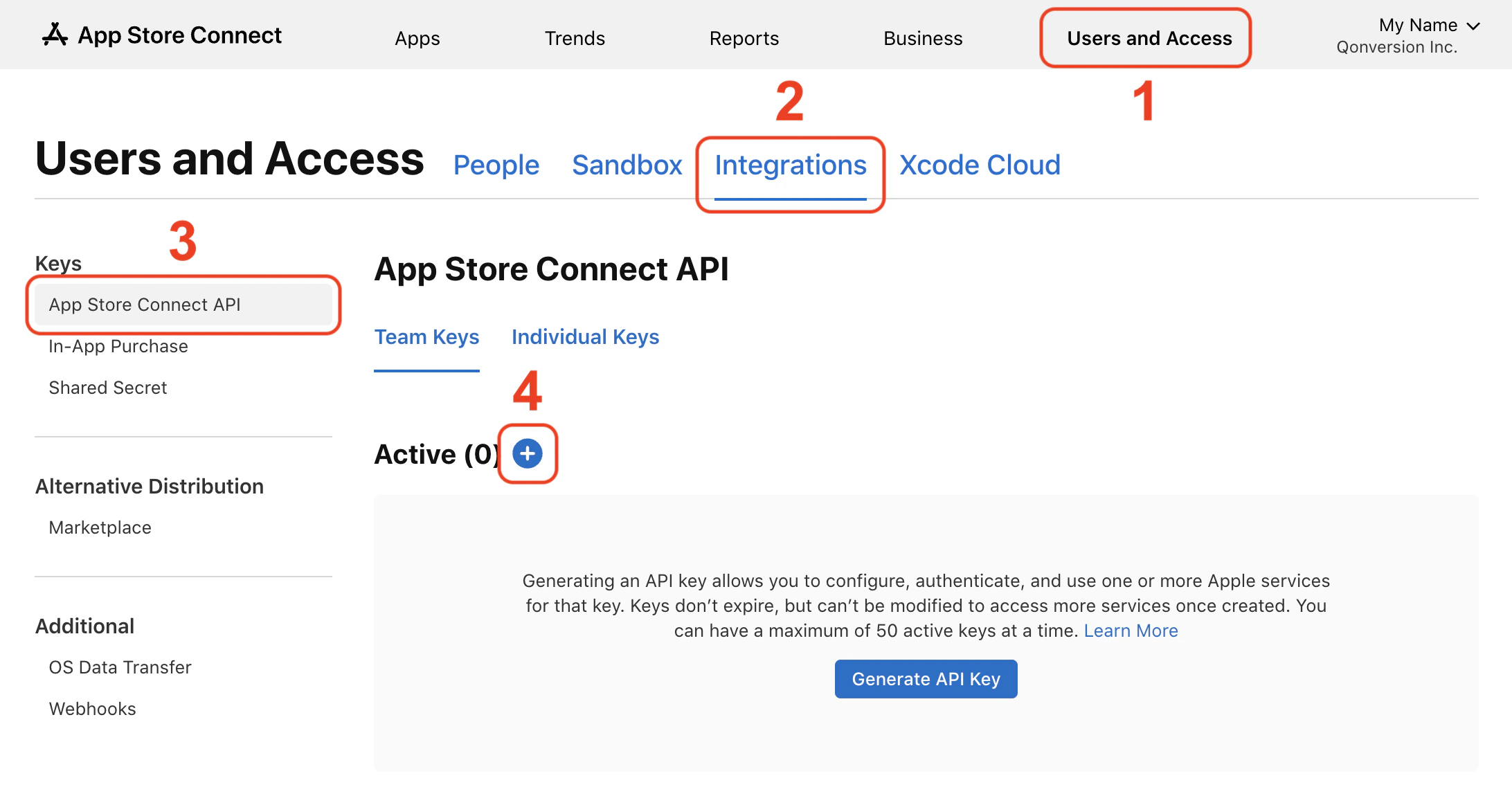
1. [Log in](https://appstoreconnect.apple.com/login) to App Store Connect.
2. Click **Users and Access** in the top navigation.
3. Open the **Integrations** tab.
4. Make sure the **App Store Connect API** sub-tab is selected (not "In-App Purchase").
 ## 3. Generate a new key
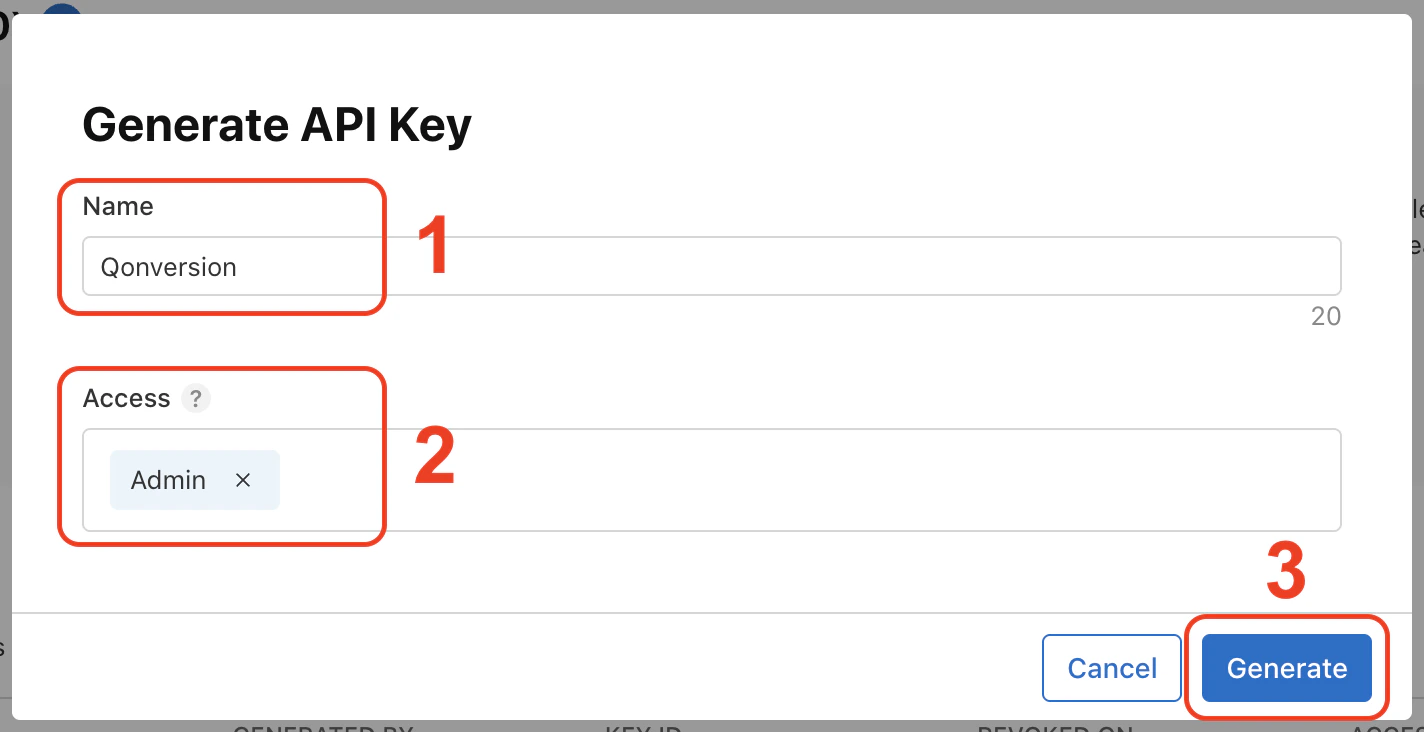
1. Click **Generate API Key** (or **+** if you already have keys).
2. Give it a clear name, e.g. **Qonversion**.
3. Set **Access** to **Admin** or **App Manager** (App Manager is enough; Admin works too).
4. Click **Generate**.
## 3. Generate a new key
1. Click **Generate API Key** (or **+** if you already have keys).
2. Give it a clear name, e.g. **Qonversion**.
3. Set **Access** to **Admin** or **App Manager** (App Manager is enough; Admin works too).
4. Click **Generate**.
 ## 4. Copy the Key ID and Issuer ID, and download the .p8 private key
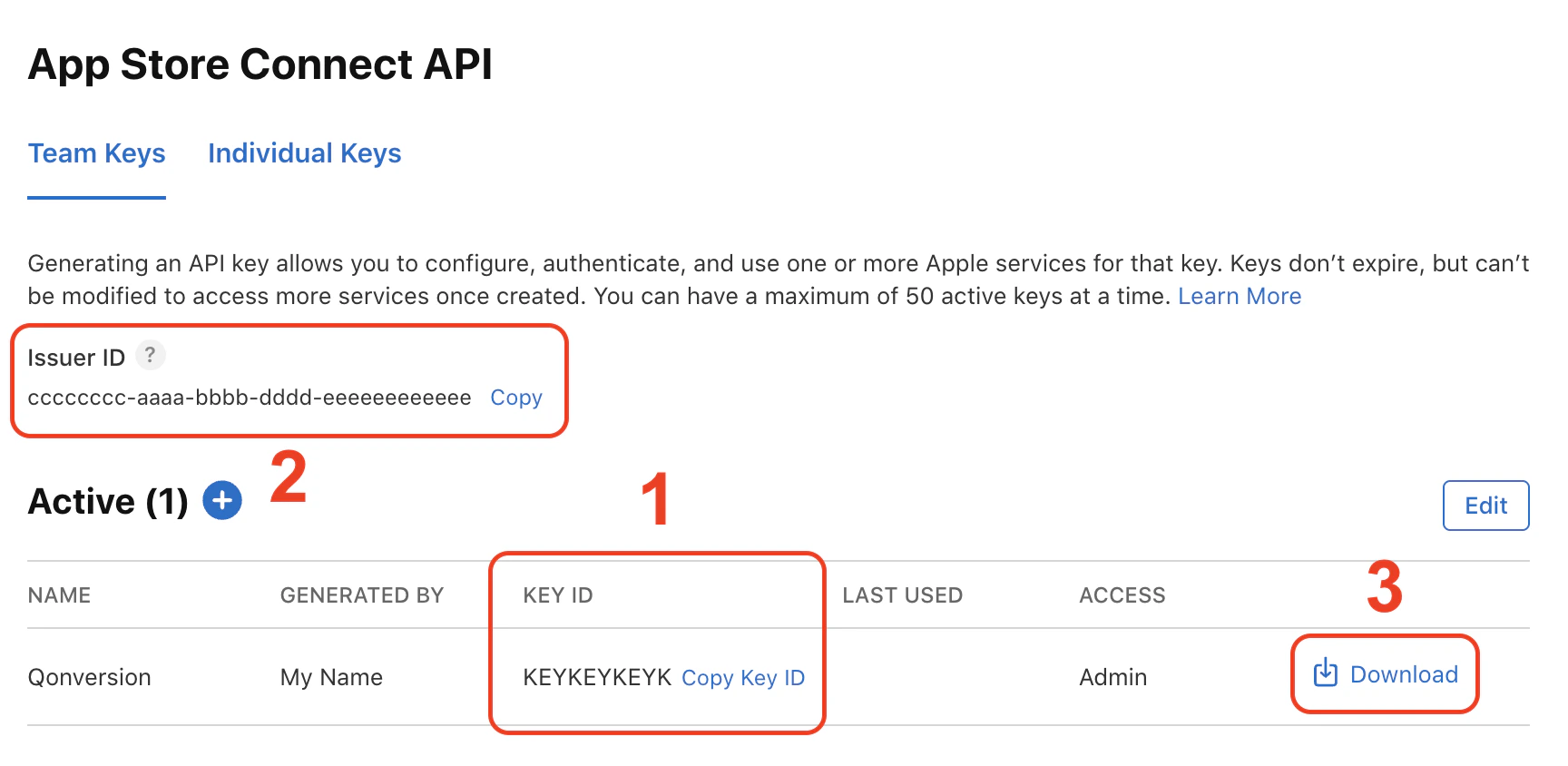
Everything you need lives on the same screen — copy the two identifiers and download the key file before leaving:
* Copy the **Key ID** (10-character string in the row of your new key) — this is the **Key Identifier** in Qonversion.
* Above the table, copy the **Issuer ID** (UUID format, e.g. `57246542-96fe-1a63-e053-0824d011072a`) — this is the **Issuer Identifier** in Qonversion.
* In the same row, click **Download API Key** to get the **.p8** file.
Apple lets you download the `.p8` file **only once**. If you lose it, you have to revoke the key and create a new one. Save it somewhere safe before continuing.
## 4. Copy the Key ID and Issuer ID, and download the .p8 private key
Everything you need lives on the same screen — copy the two identifiers and download the key file before leaving:
* Copy the **Key ID** (10-character string in the row of your new key) — this is the **Key Identifier** in Qonversion.
* Above the table, copy the **Issuer ID** (UUID format, e.g. `57246542-96fe-1a63-e053-0824d011072a`) — this is the **Issuer Identifier** in Qonversion.
* In the same row, click **Download API Key** to get the **.p8** file.
Apple lets you download the `.p8` file **only once**. If you lose it, you have to revoke the key and create a new one. Save it somewhere safe before continuing.
 ## 5. Paste everything into Qonversion
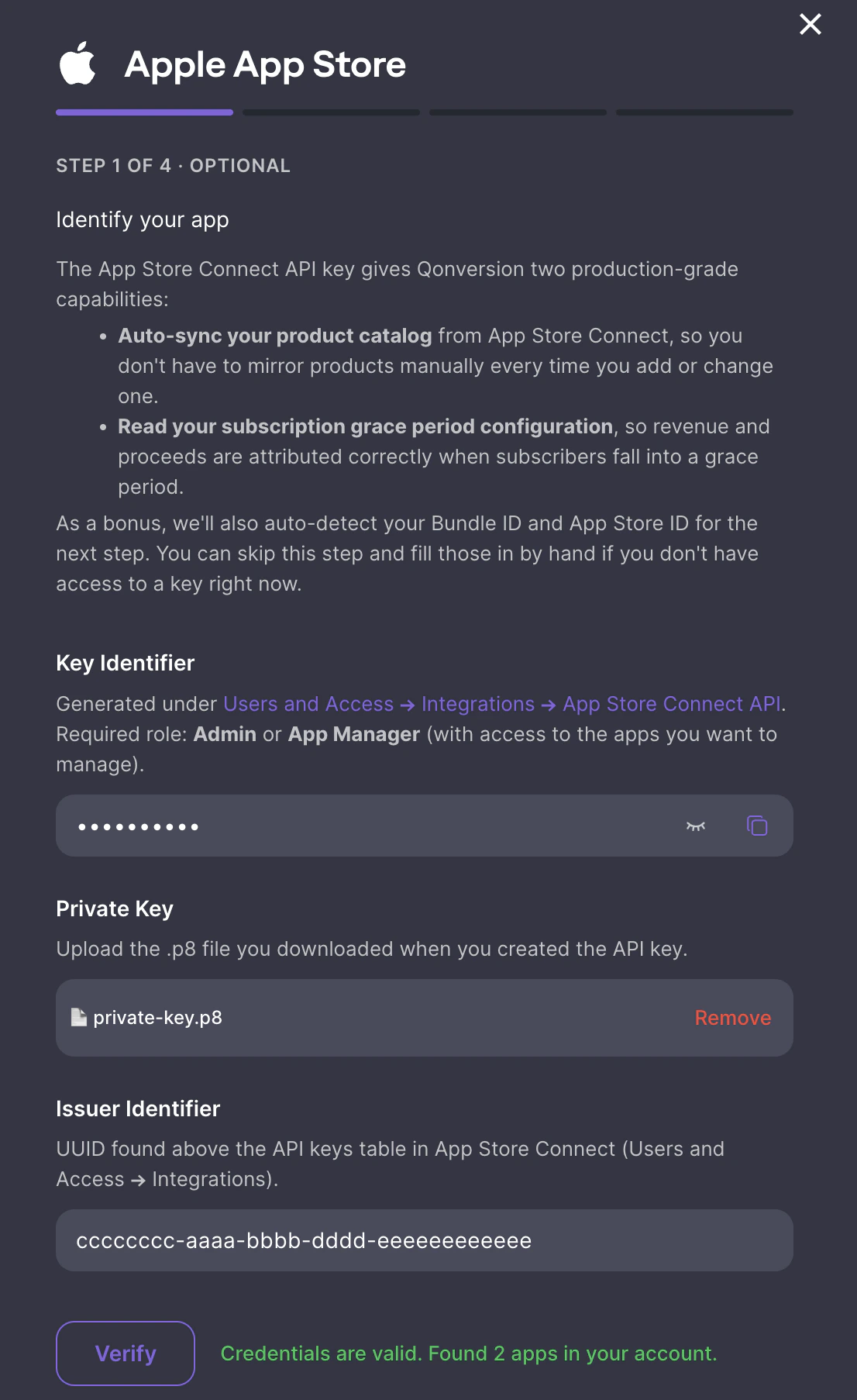
1. Open Qonversion Dash → **Project Settings** → **Stores** → **Apple App Store**.
2. Click **Configure App Store** (or **Edit configuration** if you've already started).
3. On **Step 1 · Identify your app**:
* Paste the **Key ID** in the **Key Identifier** field.
* Upload the `.p8` file in the **Private Key** field.
* Paste the **Issuer ID** in the **Issuer Identifier** field.
4. Click **Verify & Fetch Apps**.
If everything is correct, Qonversion will show your apps and let you pick the one to configure — Bundle ID and App Store ID will be filled in automatically on the next step.
## 5. Paste everything into Qonversion
1. Open Qonversion Dash → **Project Settings** → **Stores** → **Apple App Store**.
2. Click **Configure App Store** (or **Edit configuration** if you've already started).
3. On **Step 1 · Identify your app**:
* Paste the **Key ID** in the **Key Identifier** field.
* Upload the `.p8` file in the **Private Key** field.
* Paste the **Issuer ID** in the **Issuer Identifier** field.
4. Click **Verify & Fetch Apps**.
If everything is correct, Qonversion will show your apps and let you pick the one to configure — Bundle ID and App Store ID will be filled in automatically on the next step.
 ## Troubleshooting
### "Failed to verify credentials" — HTTP 401 / NOT\_AUTHORIZED
* Make sure you pasted the **Key ID**, not the key name.
* Make sure the **Issuer ID** is from the **App Store Connect API** tab, not the In-App Purchase tab.
* Make sure the `.p8` file matches the Key ID you pasted.
### "No apps are linked to this API key"
The credentials are valid, but the API key role doesn't have access to any apps. If you're using **App Manager**, ask your **Admin** to grant the user explicit access to the apps you want to configure. **Admin** keys see all apps automatically.
### Lost the .p8 file
Apple does not let you re-download the file. Open **Users and Access → Integrations → App Store Connect API**, **revoke** the old key, then generate a new one and re-upload the new `.p8`.
***
## What's next?
After this step, finish the rest of the wizard:
* **Step 2 · Core setup** — paste your [App-Specific Shared Secret](ios-app-store-info-fields#2-generate-the-app-specific-shared-secret).
* **Step 3 · Server API access** — generate an [In-App Purchase API Key](in-app-purchase-api-key) (separate from this one) and upload it.
* **Step 4 · Production readiness** — copy the [Server-to-Server Notification URL](ios-s2s-notifications) into App Store Connect.
## Troubleshooting
### "Failed to verify credentials" — HTTP 401 / NOT\_AUTHORIZED
* Make sure you pasted the **Key ID**, not the key name.
* Make sure the **Issuer ID** is from the **App Store Connect API** tab, not the In-App Purchase tab.
* Make sure the `.p8` file matches the Key ID you pasted.
### "No apps are linked to this API key"
The credentials are valid, but the API key role doesn't have access to any apps. If you're using **App Manager**, ask your **Admin** to grant the user explicit access to the apps you want to configure. **Admin** keys see all apps automatically.
### Lost the .p8 file
Apple does not let you re-download the file. Open **Users and Access → Integrations → App Store Connect API**, **revoke** the old key, then generate a new one and re-upload the new `.p8`.
***
## What's next?
After this step, finish the rest of the wizard:
* **Step 2 · Core setup** — paste your [App-Specific Shared Secret](ios-app-store-info-fields#2-generate-the-app-specific-shared-secret).
* **Step 3 · Server API access** — generate an [In-App Purchase API Key](in-app-purchase-api-key) (separate from this one) and upload it.
* **Step 4 · Production readiness** — copy the [Server-to-Server Notification URL](ios-s2s-notifications) into App Store Connect.