> ## Documentation Index
> Fetch the complete documentation index at: https://documentation.qonversion.io/llms.txt
> Use this file to discover all available pages before exploring further.
# Publish your Android App
> If you want to test in-app purchases, your app must be published (either production, alpha or beta channels, ).
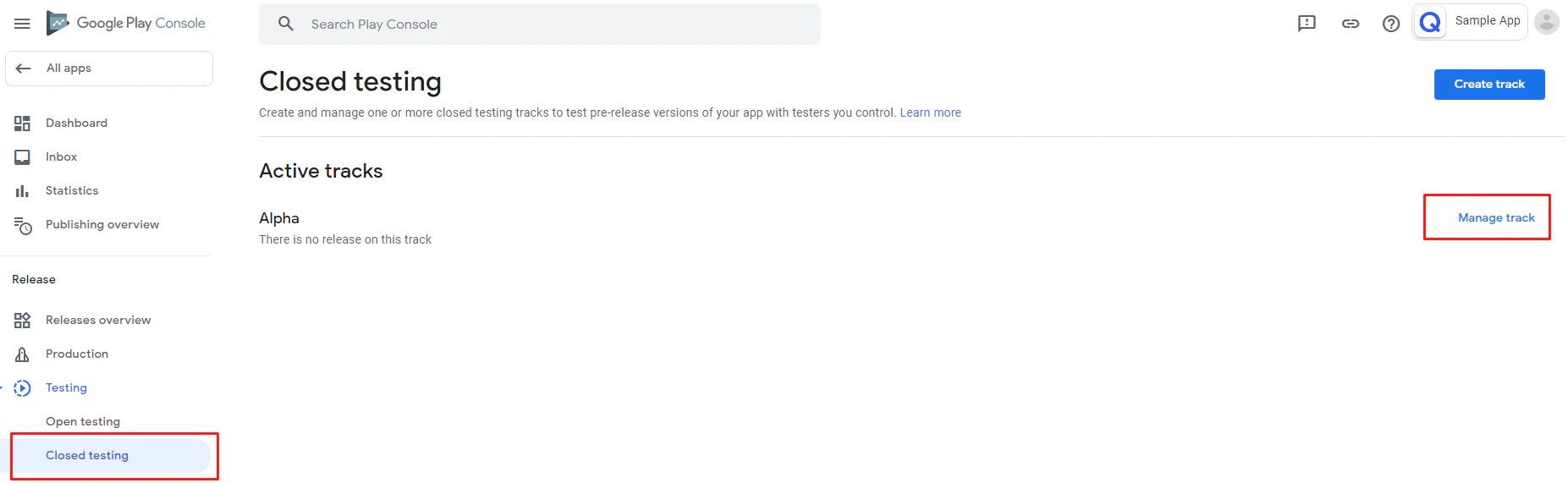
**1. Create closed track** Navigate to [Google Play Developer Console](https://play.google.com/apps/publish/) and select the 'All apps' tab. Then choose your app from the list. Select the **Testing->Closed Testing** tab in the left menu bar. Select Alpha from the Active tracks list and click **Manage track** opposite it.
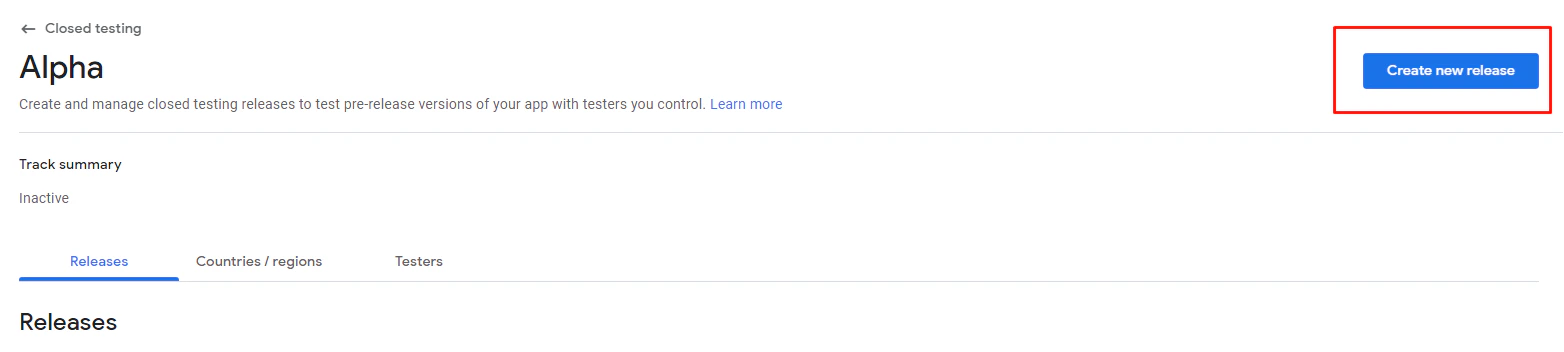
 Click on the **Create new release** button.
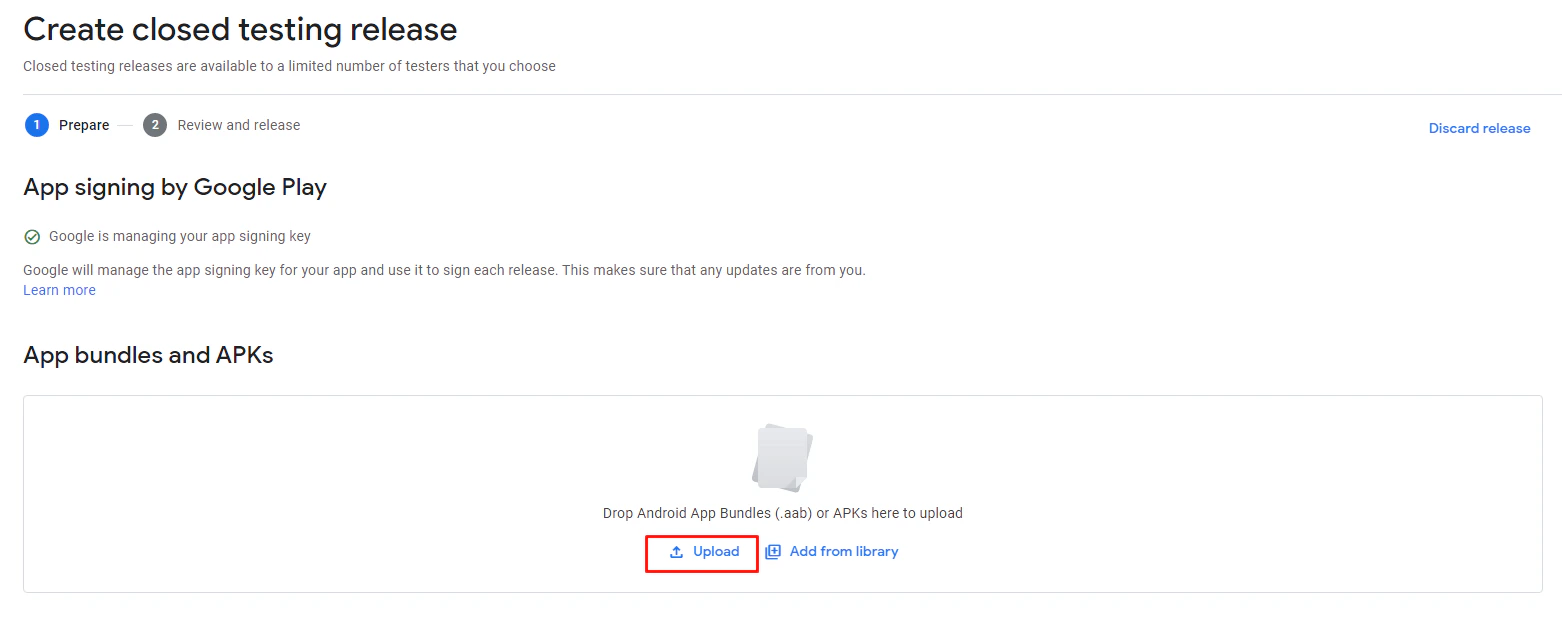
 **2. Upload the signed .apk file** Upload the [signed](https://developer.android.com/studio/publish/app-signing#sign-apk) App Bundle or APK file.
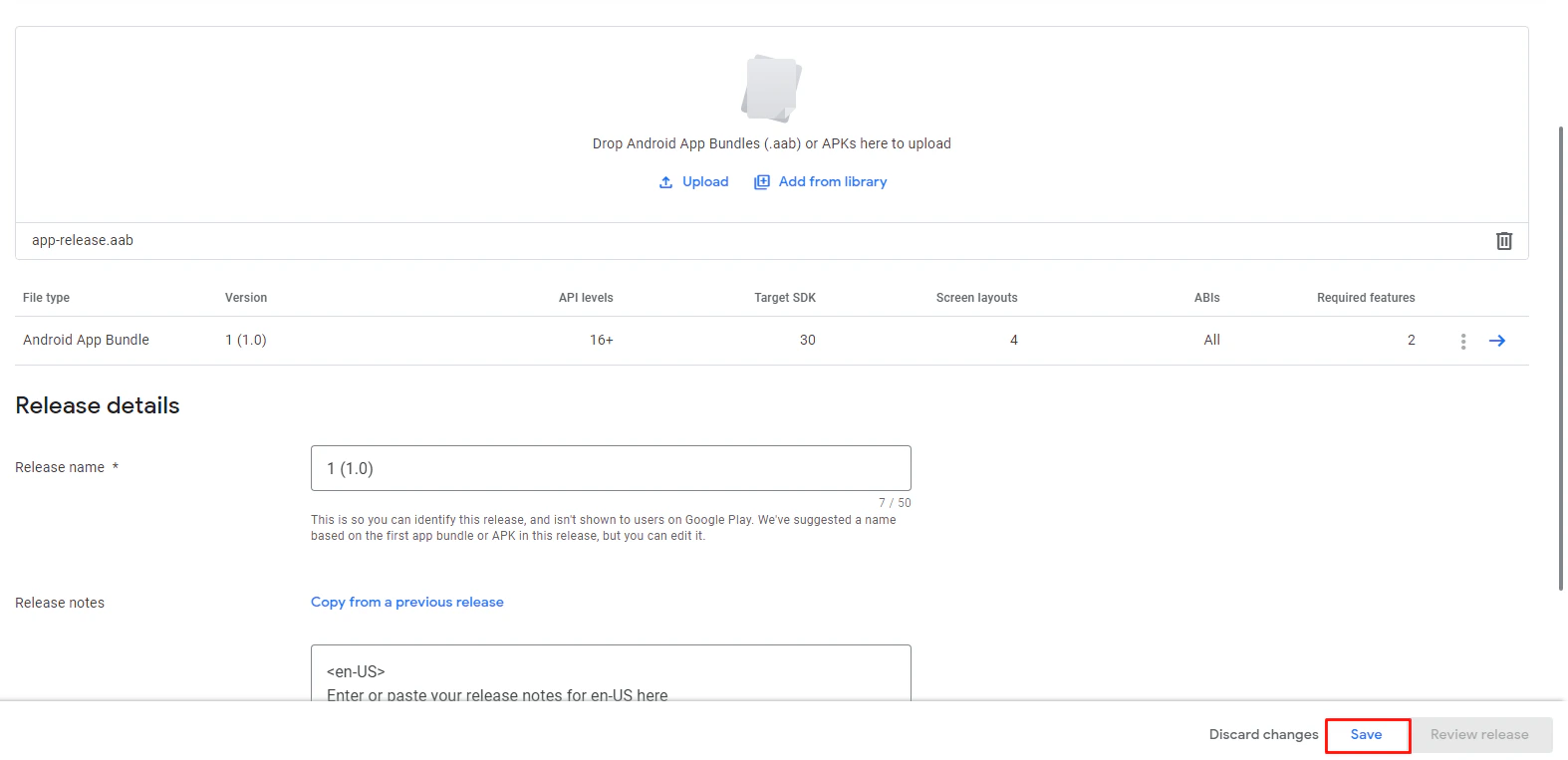
 After uploading the file, save the release.
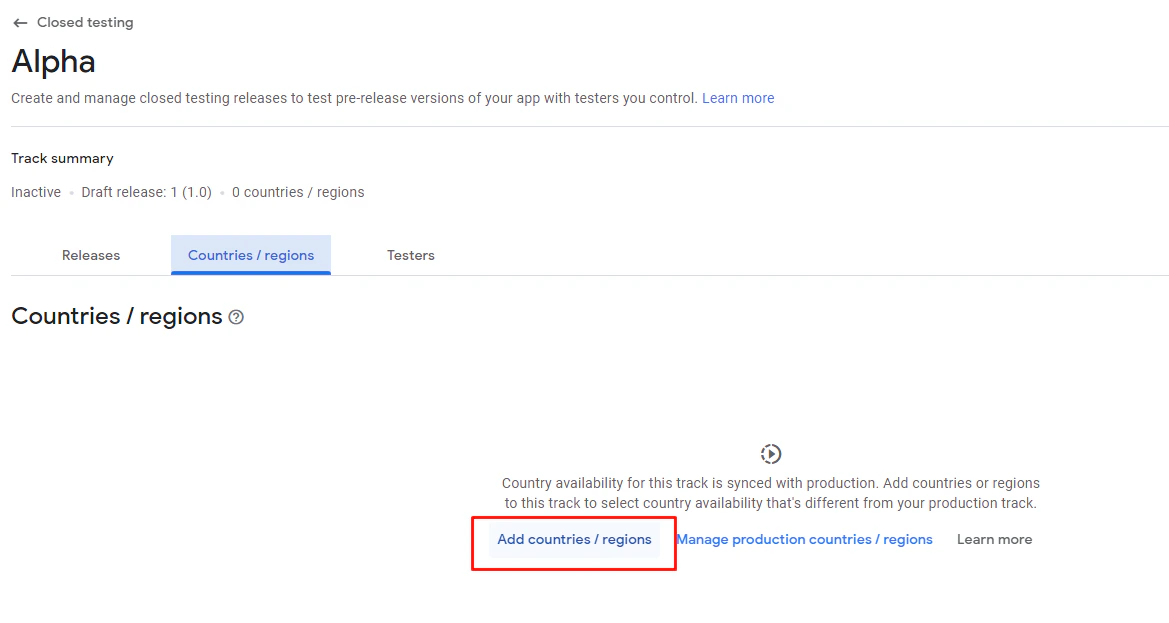
 **3. Add countries/regions for test** You can target your Beta track release to users in [specific countries](https://support.google.com/googleplay/android-developer/answer/7550024?hl=en). Add available countries to test the track.
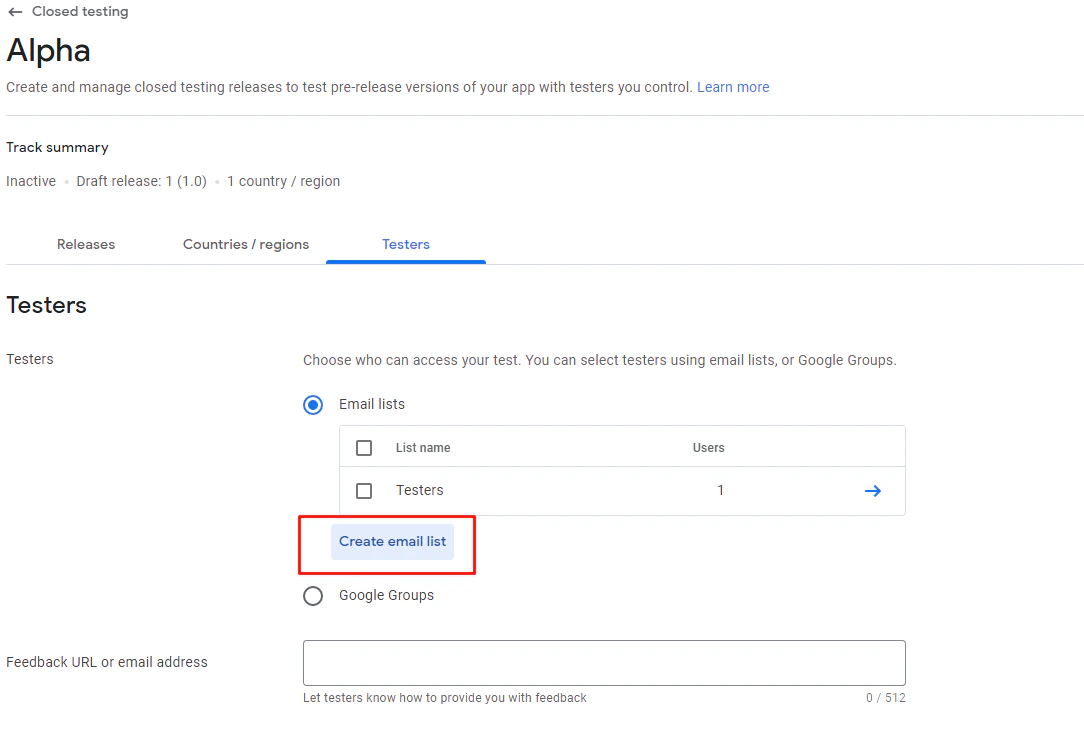
 **4. Configure a list of testers (Optional)** If you want your release to be available to certain users on Google Play, but not visible to anyone else, please specify a [list of testers](https://play.google.com/console/about/closed-testing/). Click the **Create email list** button.
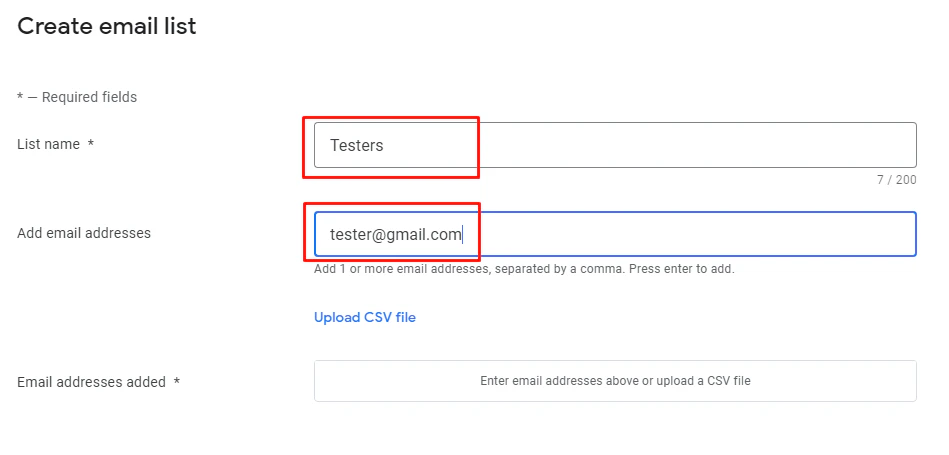
 Add email address and click **Save changes**.
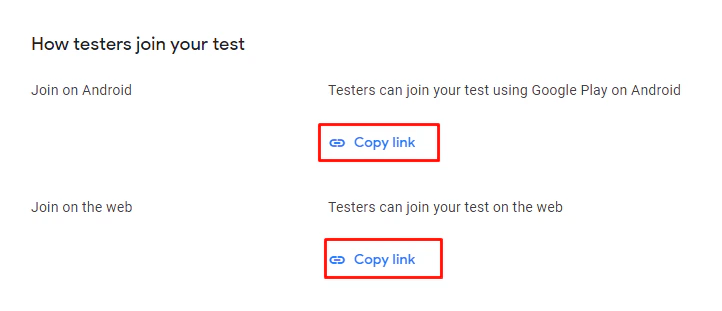
 After the application is published, testers will be able to join your test.
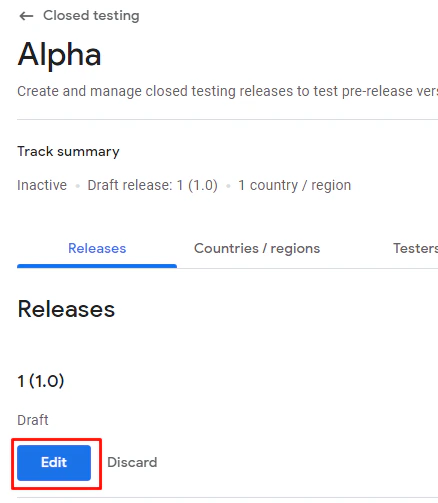
 **5. Roll out** The release is currently in Draft status. Click the **Edit** button.
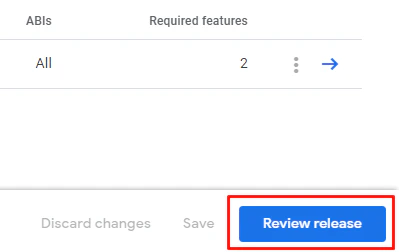
 Click the **Review release** button to check the release.
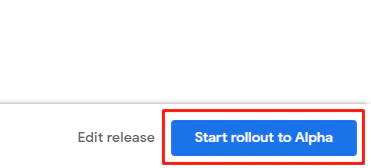
 If the release is ready, click the **Start rollout to Alpha** button.
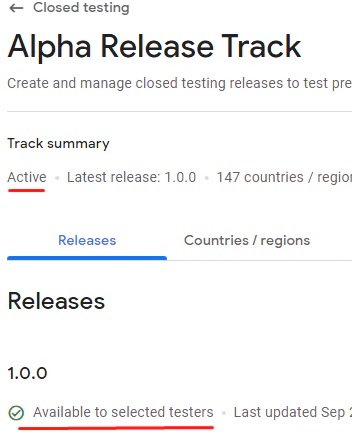
 ### Before making a purchase make sure your release is approved and available to selected testers.
 ### Publishing time
When you publish your application for the first time, it may take up to several days. Later releases usually take several hours.
### Make sure that the uploaded App Bundle or APK file matches the one you are testing when it comes to version code, version name, applicationId and keystore signature.
***
What’s Next
* [License testing](license-testing)
* [Android In-App Purchases Setup](android-in-app-products)
* [Android test devices](android-test-devices)
### Publishing time
When you publish your application for the first time, it may take up to several days. Later releases usually take several hours.
### Make sure that the uploaded App Bundle or APK file matches the one you are testing when it comes to version code, version name, applicationId and keystore signature.
***
What’s Next
* [License testing](license-testing)
* [Android In-App Purchases Setup](android-in-app-products)
* [Android test devices](android-test-devices)