> ## Documentation Index
> Fetch the complete documentation index at: https://documentation.qonversion.io/llms.txt
> Use this file to discover all available pages before exploring further.
# Creating an App in Google Play Console
> Walk through creating and configuring a new app in the Google Play Console before connecting it to Qonversion.
## 1. Create an app
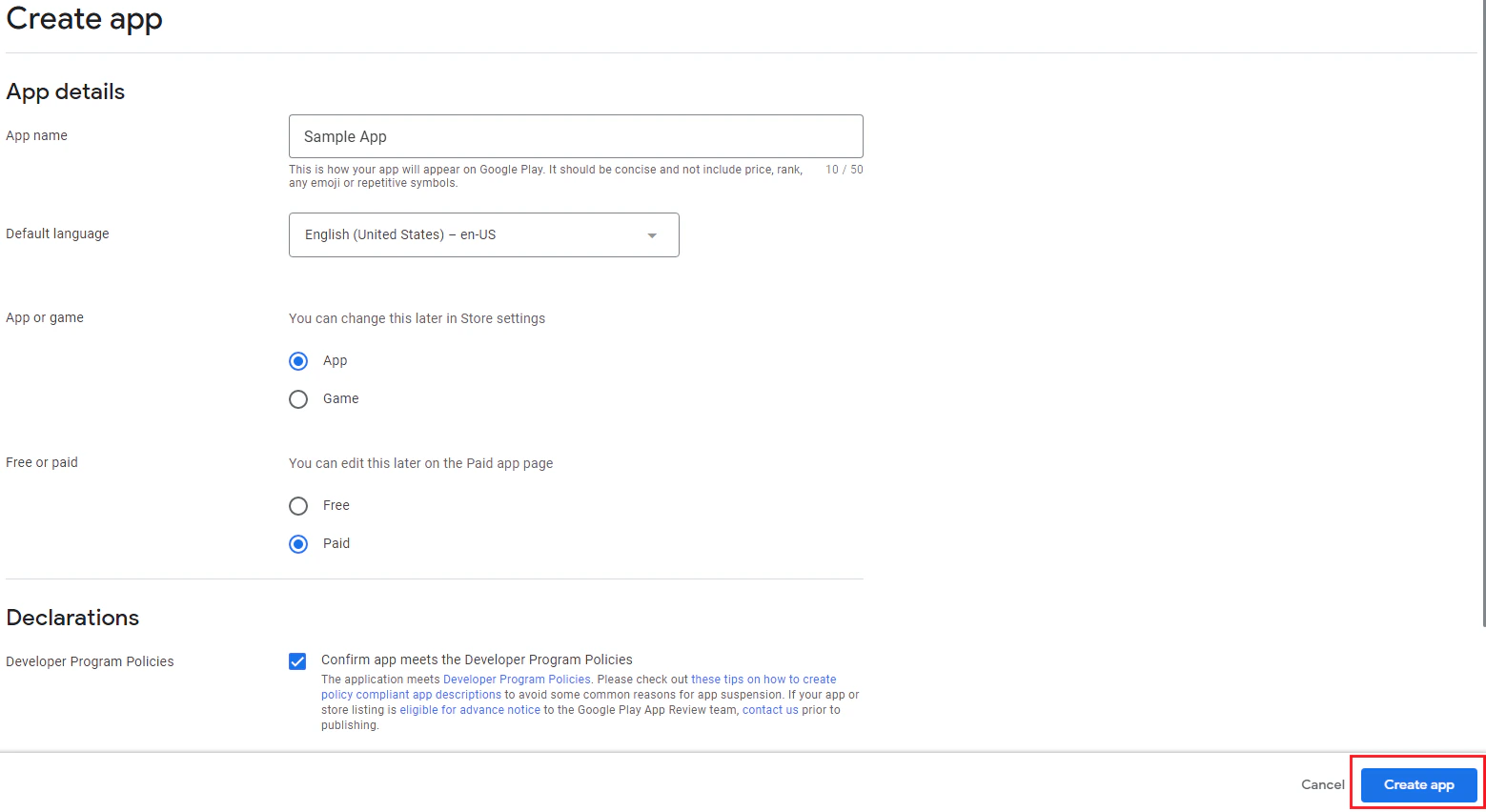
Navigate to the [Google Play Console](https://play.google.com/console) and select the **All apps** tab from the menu on the left, then click **Create app**.
 Fill in the details required and click on **Create app**.
 ## 2. Set up the app
You have to complete the steps below to set up your app.
## 2. Set up the app
You have to complete the steps below to set up your app.
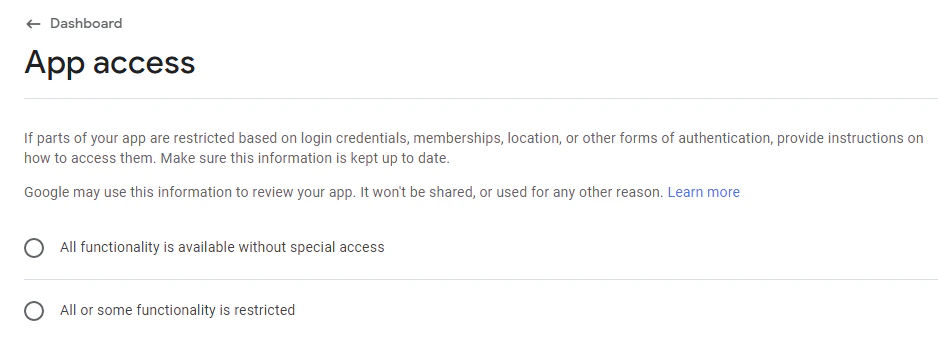
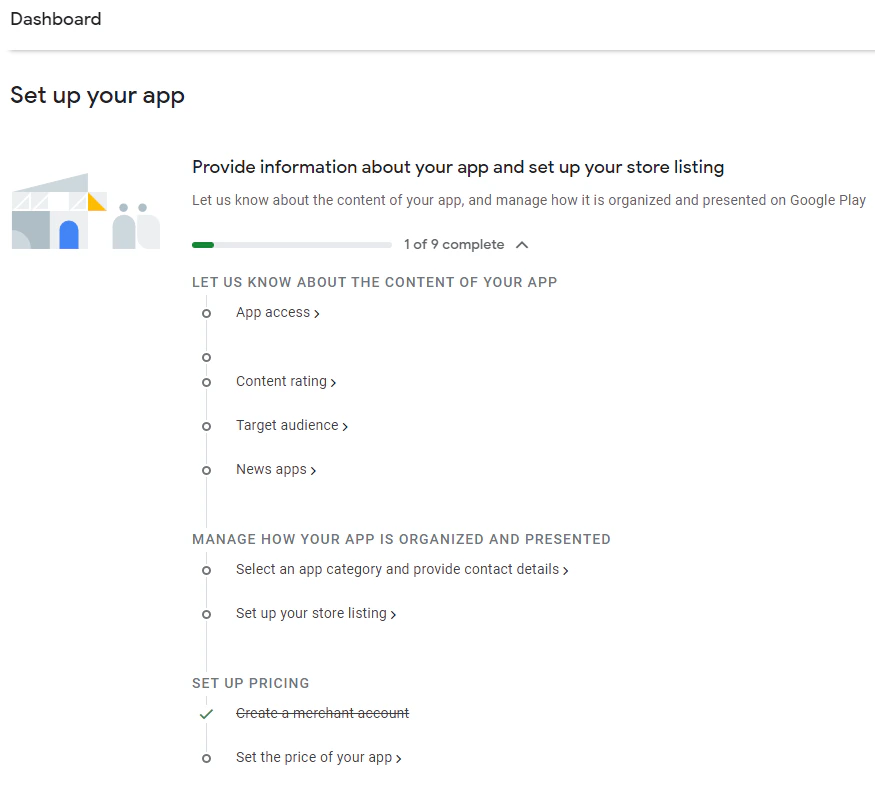 **2.1 App access** If your application has any forms of authentication, you have to provide the access details.
 **2.2 Content ratings** Complete the questionnaire to receive your content ratings for the app.
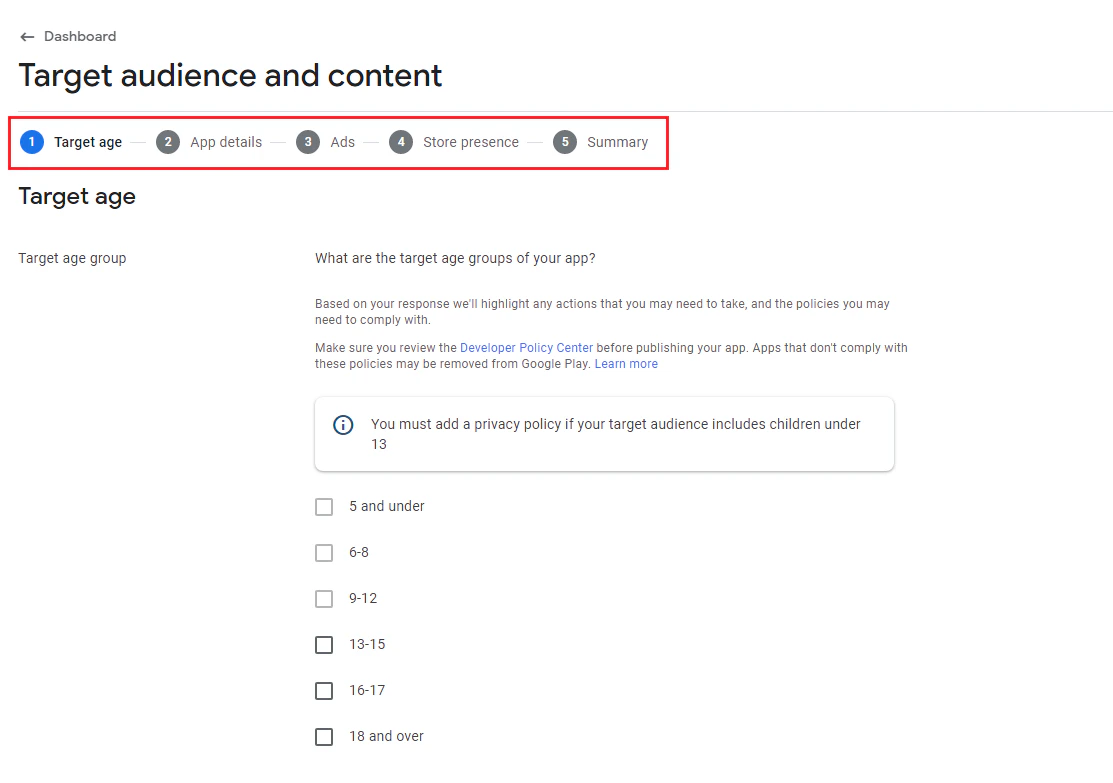
 **2.3 Target audience and content** Manage [target audience and app content](https://support.google.com/googleplay/android-developer/answer/9867159) settings.
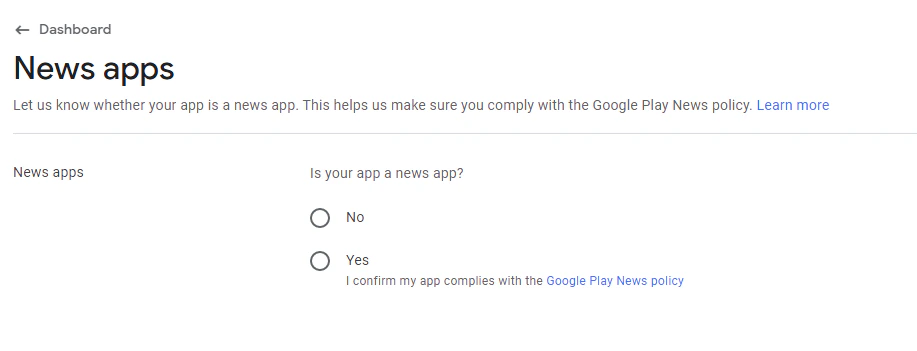
 **2.4 News app** Answer the question about the use of ads in your application.
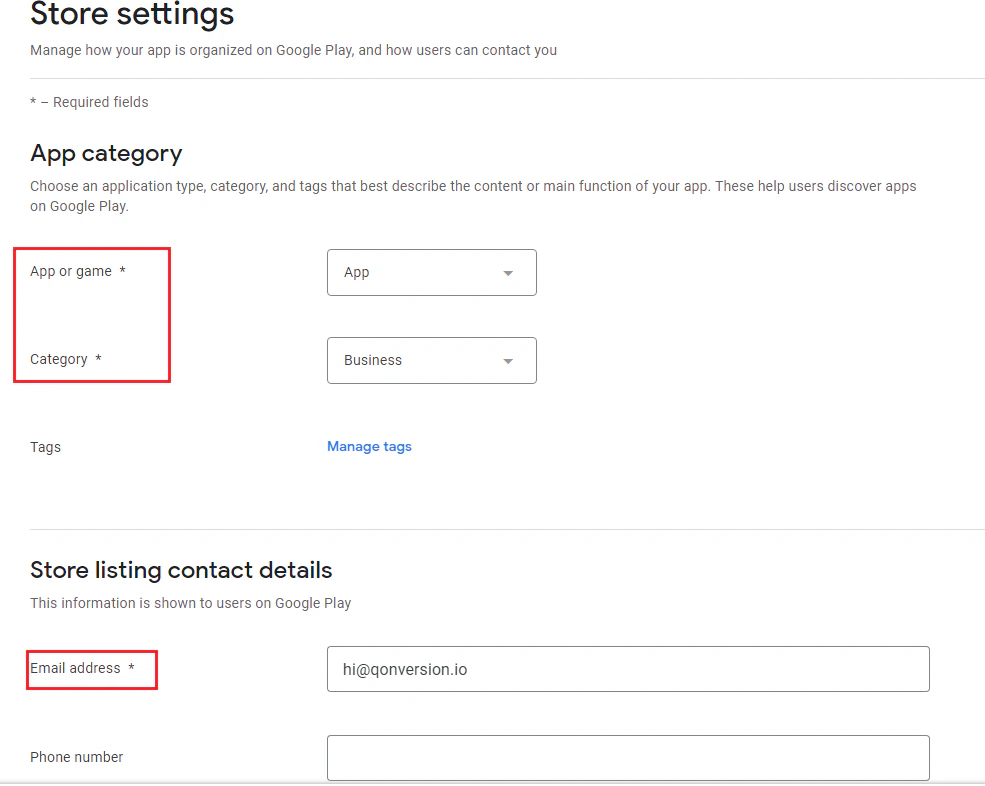
 **2.5 App category** Select your app category and provide your contact details.
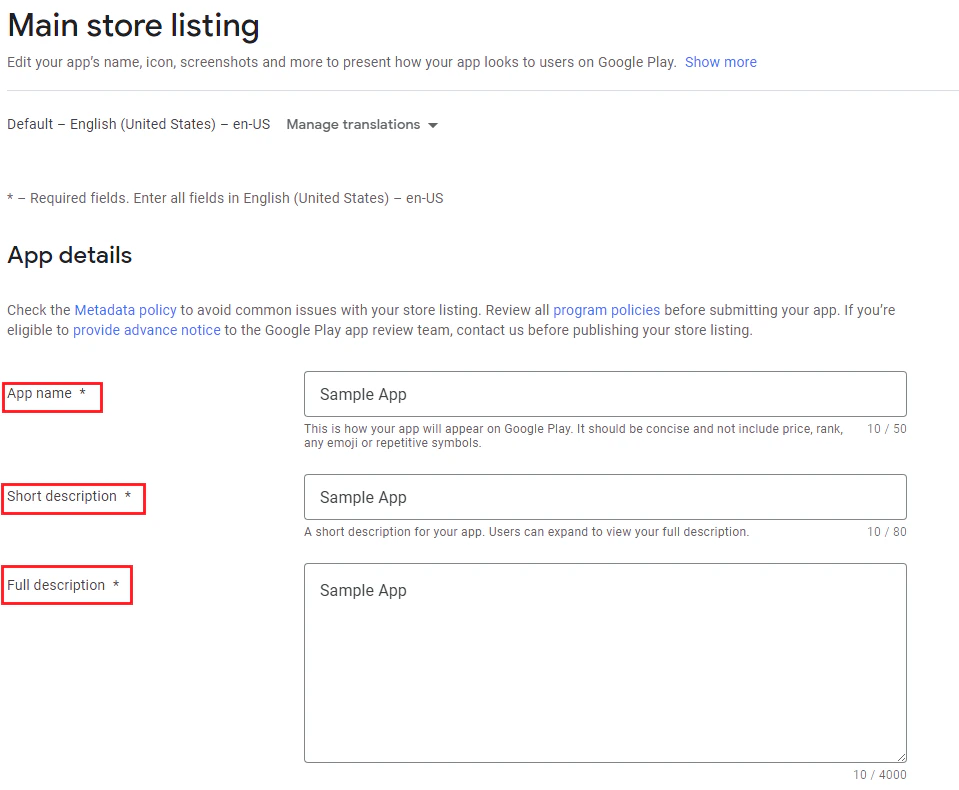
 **2.6 Set up the store listing** Fill in the app's name and description.
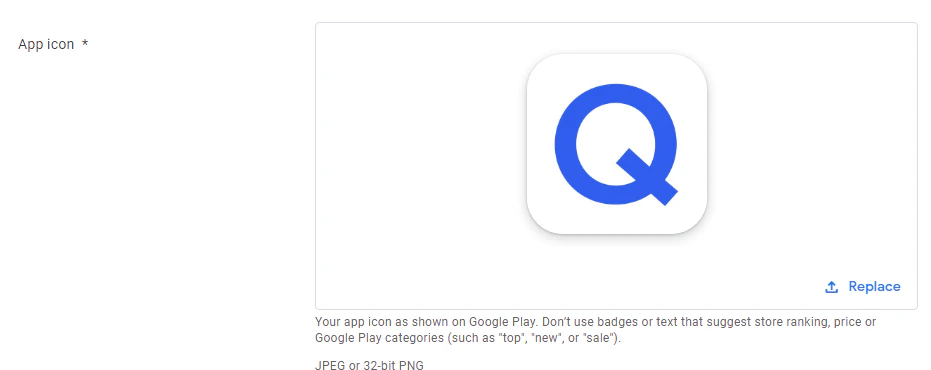
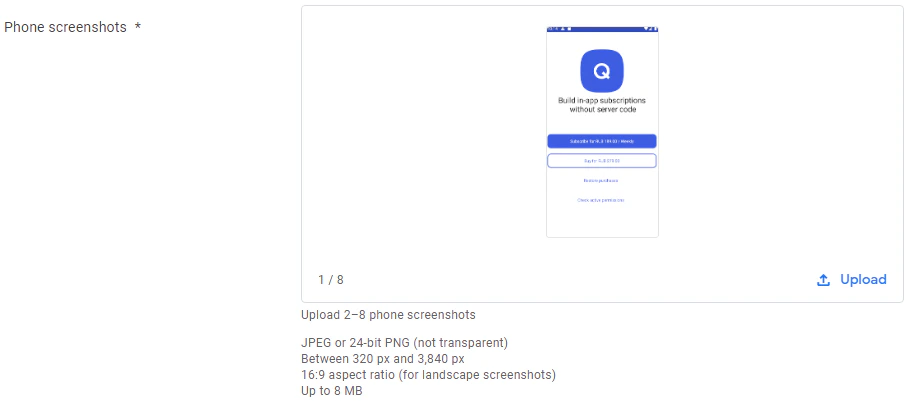
 Provide the app icon and screenshots that will be shown on Google Play.
 **2.7 Merchant account** If you don't have a merchant account yet, [create a payments profile](https://support.google.com/googleplay/android-developer/answer/7161426?hl=en).
**2.8 Set the price for your app**
**2.7 Merchant account** If you don't have a merchant account yet, [create a payments profile](https://support.google.com/googleplay/android-developer/answer/7161426?hl=en).
**2.8 Set the price for your app**
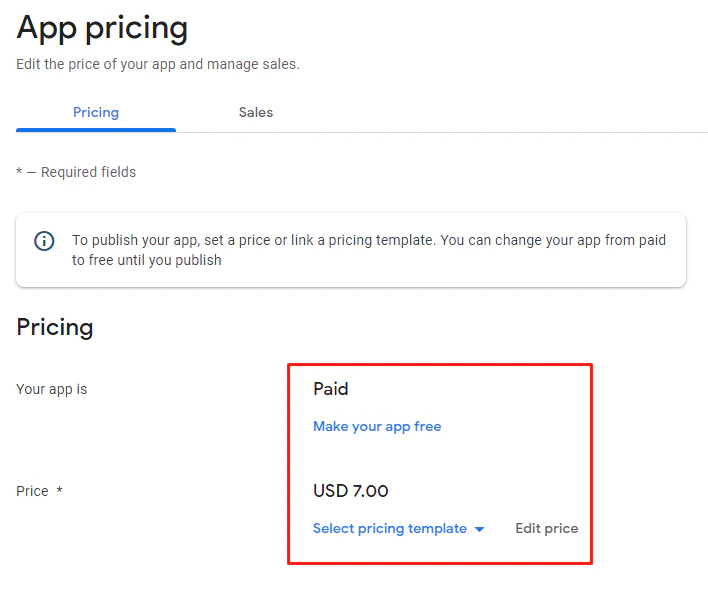 If you choose to offer your app for free, you cannot change that in the future.
***
What’s Next
* [App publication in Google Play Console](app-publication-in-google-play-console)
* [License testing](license-testing)
* [Android test devices](android-test-devices)
* [Android In-App Products Setup](android-in-app-products)
If you choose to offer your app for free, you cannot change that in the future.
***
What’s Next
* [App publication in Google Play Console](app-publication-in-google-play-console)
* [License testing](license-testing)
* [Android test devices](android-test-devices)
* [Android In-App Products Setup](android-in-app-products)